


Discover the best tools to compress your videos to 8MB or less without sacrificing quality. Our comprehensive reviews help you find the perfect solution for your video compression needs.
🎬 Free & Paid Options
⚡ Fast Compression
🔒 Secure & Private
Why Compress Videos to 8MB?
Video compression to 8MB has become essential for various online platforms and use cases. Whether you're sharing content on social media, sending videos via email, or optimizing for web use, understanding the right compression tools is crucial.
Email Attachments
Most email providers have attachment size limits around 25MB, but smaller files are always preferred for faster delivery and better recipient experience.
Social Media
Platforms like WhatsApp, Telegram, and Discord have file size restrictions. Compressing to 8MB ensures smooth sharing across all messaging apps.
Web Optimization
Smaller video files load faster on websites, improving user experience and reducing bandwidth costs for content creators and businesses.
Storage Savings
Compressed videos take up less storage space on your device, allowing you to keep more content without running out of memory.
What is Video Compression?
Video compression is the process of reducing the size of video files by removing redundant data and using more efficient encoding methods. This allows you to store and share videos more easily while maintaining acceptable quality.
Compression works by analyzing video frames and identifying patterns that can be represented more efficiently. Modern compression algorithms like H.264, H.265, and VP9 can achieve significant size reductions while preserving visual quality.
When compressing to 8MB, the goal is to find the optimal balance between file size and quality. This involves adjusting parameters like bitrate, resolution, frame rate, and codec settings to achieve the target size.

🎯 Lossy vs Lossless Compression
Lossy compression permanently removes some data to achieve smaller sizes, while lossless compression preserves all original data. For 8MB targets, lossy compression is typically necessary as lossless methods rarely achieve such small sizes for video content.
📊 Bitrate Reduction
Bitrate determines how much data is used per second of video. Lowering bitrate is the most effective way to reduce file size, but going too low can significantly impact quality. Finding the right bitrate for your 8MB target is key to successful compression.
🔄 Codec Efficiency
Modern codecs like H.265 (HEVC) and AV1 are more efficient than older standards like H.264, meaning they can achieve better quality at the same file size. Using efficient codecs is crucial when targeting small file sizes like 8MB.
Top 8MB Video Compressors
We've tested and reviewed the best video compression tools that can reliably reduce videos to 8MB or less. Here are our top recommendations based on quality, ease of use, and features.
HandBrake
Best Overall - Free & Open Source
HandBrake is the gold standard for free video compression. It offers advanced controls while remaining accessible to beginners. With support for modern codecs and extensive preset options, it's perfect for achieving precise 8MB targets.
Free
Cross-platform
Advanced controls
VLC Media Player
Best for Quick Compression - Free
VLC isn't just a media player—it includes built-in conversion capabilities. While not as feature-rich as dedicated compressors, it's perfect for quick compression tasks when you already have VLC installed.
Free
Already installed
Simple to use
Online Video Compressor
Best for No Installation - Free Online
Online compressors like CloudConvert and FreeConvert offer convenience without software installation. Perfect for one-time compression tasks or when you're working from a device where you can't install software.
No installation
Cross-platform
Quick results
FFmpeg
Best for Advanced Users - Free
FFmpeg is a command-line tool used by professionals. It offers unparalleled control over compression parameters and can be automated for batch processing. Ideal for tech-savvy users who want maximum control.
Free
Maximum control
Scriptable
Detailed Compressor Reviews
HandBrake - Comprehensive Review

HandBrake is our top recommendation for 8MB video compression. This open-source tool offers advanced controls while remaining accessible to beginners with support for modern codecs and extensive preset options.
For 8MB compression, HandBrake's constant quality mode combined with bitrate limiting gives you the best results. The ability to set exact target file sizes makes it ideal for meeting specific size requirements.
VLC Media Player - Quick & Convenient
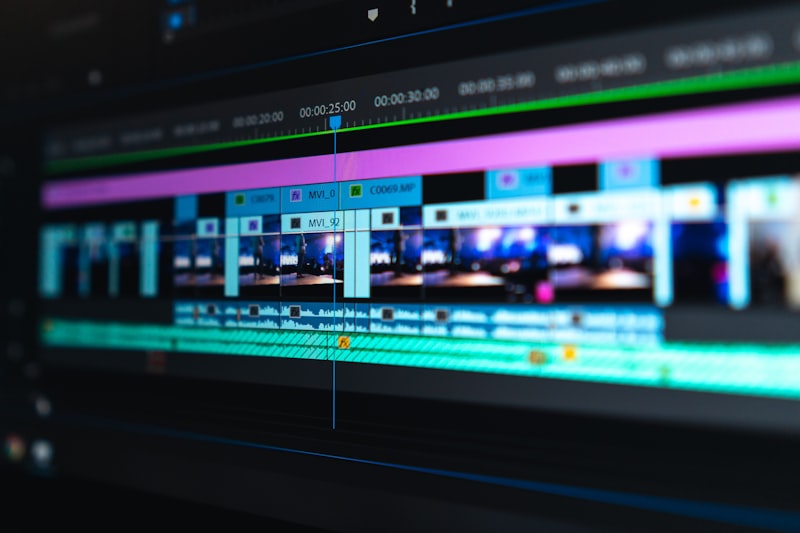
VLC is likely already installed on your computer, making it the most convenient option for quick compression tasks. While not as powerful as dedicated compressors, it's surprisingly capable for basic needs.
VLC is best for situations where you need to quickly reduce a video size and don't require precise control over the output. For exact 8MB targeting, you may need to do some trial and error with different quality settings.
Online Compressors - No Installation Required

Online video compressors like CloudConvert, FreeConvert, and VideoSmaller offer browser-based compression without software installation. Perfect for one-off tasks or when working from restricted devices.
Online compressors are ideal when you need to compress a video quickly and don't want to install software. However, be mindful of privacy when uploading sensitive content to third-party servers.
FFmpeg - Professional Grade Control

FFmpeg is the Swiss Army knife of video processing. Used by professionals worldwide, it offers command-line control over every aspect of video compression. While intimidating at first, it's incredibly powerful once mastered.
FFmpeg is the tool of choice for professionals who need precise control over compression. With the right command, you can calculate the exact bitrate needed to hit 8MB and achieve consistent results across multiple videos.
Quick Comparison
| Tool | Price | Ease of Use | Control | Speed |
|---|---|---|---|---|
| HandBrake | Free | ⭐⭐⭐⭐ | ⭐⭐⭐⭐⭐ | ⭐⭐⭐ |
| VLC | Free | ⭐⭐⭐⭐⭐ | ⭐⭐ | ⭐⭐⭐⭐ |
| Online Compressors | Free/Paid | ⭐⭐⭐⭐⭐ | ⭐⭐ | ⭐⭐ |
| FFmpeg | Free | ⭐ | ⭐⭐⭐⭐⭐ | ⭐⭐⭐⭐⭐ |
Free vs Paid Video Compressors
Both free and paid video compressors have their place. Understanding the differences helps you choose the right tool for your specific needs and budget.
🆓 Free Compressors
Free video compressors like HandBrake, VLC, and FFmpeg offer powerful compression capabilities without any cost. These tools are perfect for most users and can achieve excellent results for 8MB compression.
Free tools are sufficient for 90% of users. The only limitation is that they may require more manual configuration to achieve precise 8MB targets.
💰 Paid Compressors
Paid video compressors typically offer user-friendly interfaces, faster processing, and additional features like batch processing, cloud storage integration, and customer support.
For most 8MB compression needs, free tools are perfectly adequate. Paid options mainly offer convenience and time-saving features.
Online vs Desktop Compressors
Choosing between online and desktop compressors depends on your specific situation. Both approaches have distinct advantages and limitations.
🌐 Online Compressors
Online compressors run in your web browser and process videos on remote servers. They're incredibly convenient as they require no installation and work on any device with internet access.
Best for: One-time compression, work/school computers, mobile devices, quick tasks
💻 Desktop Compressors
Desktop compressors are software applications installed on your computer. They process videos locally using your computer's resources. Examples include HandBrake, VLC, and FFmpeg.
Best for: Privacy-sensitive content, frequent use, advanced control, offline work
🔒 Privacy Considerations
When using online compressors, your videos are uploaded to third-party servers. For sensitive or personal content, desktop compressors are the safer choice as processing happens entirely on your device.
Recommendation: Use desktop tools for personal videos, online tools for non-sensitive content
Video Quality After Compression
Compressing to 8MB inevitably affects video quality, but the right approach can minimize visible degradation.
📊 Quality Factors
Several factors determine final quality after compression: original video quality, codec efficiency, bitrate, resolution, and frame rate. Starting with a high-quality source video gives you more flexibility in compression.
🎬 Content Type Matters
Different types of video content compress differently. Animated content and screen recordings compress well due to limited color variation. Live-action video with lots of motion is harder to compress without quality loss.
✨ Quality Preservation Tips
Use modern codecs (H.265, VP9), enable two-pass encoding, and use constant quality mode when available. Avoid re-compressing already compressed videos for best results.
Supported Video Formats
Different compressors support different video formats. Understanding format compatibility ensures you can work with your video files and output in the format you need.
📁 Input Formats
Most compressors support common input formats including MP4, MOV, AVI, MKV, and WebM. HandBrake and FFmpeg have the broadest format support.
Common inputs: MP4, MOV, AVI, MKV, WebM, FLV, WMV
📤 Output Formats
For 8MB compression, MP4 is the most common output format due to its excellent compression efficiency and broad compatibility. WebM is another good option for web use.
Recommended output: MP4 with H.264 or H.265 codec
Compression Speed
How fast a compressor processes your video depends on the tool, your hardware, and compression settings.
⚡ Tool Speed Comparison
FFmpeg is generally the fastest compressor, especially when using hardware acceleration. HandBrake is slower but offers more user-friendly controls. Online compressors depend on your internet speed and server load.
Fastest: FFmpeg > HandBrake > VLC > Online
💻 Hardware Impact
Your computer's CPU and GPU significantly affect compression speed. Modern processors with multiple cores compress faster. Tools that support hardware acceleration can dramatically speed up compression.
Enable hardware acceleration when available
Security and Privacy
When compressing videos, especially personal or sensitive content, security and privacy are important considerations.
🔒 Desktop Compressors are Safer
Desktop tools like HandBrake, VLC, and FFmpeg process videos entirely on your computer. Your videos never leave your device, making them the safest option for sensitive content.
Best for: Personal videos, confidential content, privacy-conscious users
☁️ Online Compressor Privacy
Online compressors require uploading your videos to third-party servers. While reputable services claim to delete files after processing, there's always a privacy risk. Avoid using online tools for sensitive content.
Mobile Video Compression
Compressing videos on mobile devices requires different approaches. Here are the best options for iOS and Android users.
📱 iOS Options
iOS users have several options for video compression. The Video Compress app is popular and easy to use. Online compressors work well in Safari. For more control, you can transfer videos to a computer and use desktop tools.
Recommended apps: Video Compress, Video Slimmer, online tools
🤖 Android Options
Android offers more flexibility with compression apps. Video Compressor, Video Dieter, and AndroVid are popular choices. Many of these apps allow you to specify target file sizes directly.
Recommended apps: Video Compressor, Video Dieter, AndroVid
Batch Compression
When you need to compress multiple videos to 8MB, batch processing saves significant time.
🔄 HandBrake Batch Processing
HandBrake supports batch processing through its queue system. Add multiple videos to the queue, apply the same compression settings to all, and let it process them sequentially.
🖥️ FFmpeg Batch Scripts
FFmpeg excels at batch processing through scripting. Write a simple script to process all videos in a folder with the same compression parameters. This approach is ideal for power users who need to compress large numbers of videos regularly.
Advanced Compression Settings
For users who want maximum control over their 8MB compression, understanding advanced settings helps achieve optimal results.
🎚️ Bitrate Calculation
To hit exactly 8MB, calculate the required bitrate: (8MB × 8192 KB/MB × 8 bits/KB) ÷ video duration in seconds = bitrate in kbps. For example, a 60-second video needs about 1066 kbps.
🔄 Two-Pass Encoding
Two-pass encoding analyzes the entire video in the first pass to determine optimal bit allocation for each scene, then encodes in the second pass. This takes longer but produces better quality at the same file size.
Tips for Best Results
Follow these practical tips to achieve the best possible quality when compressing videos to 8MB.
1️⃣ Start with High-Quality Source
Always compress from the highest quality source available. Compressing already compressed video results in cascading quality loss. If possible, use original camera footage or uncompressed sources.
2️⃣ Use Modern Codecs
H.265 (HEVC) and VP9 are significantly more efficient than older H.264. They can achieve the same quality at 30-50% lower bitrate. If your target platform supports modern codecs, use them.
3️⃣ Enable Hardware Acceleration
If your compressor supports GPU encoding, enable it. Hardware acceleration can dramatically speed up compression without quality loss. This is especially valuable for H.265 encoding.
Frequently Asked Questions
What is the best video compressor for 8MB files?
HandBrake is our top recommendation for most users. It offers the best balance of control, quality, and ease of use. For quick tasks, VLC works well. For advanced users who need maximum control, FFmpeg is the professional choice.
Can I compress any video to 8MB?
Technically yes, but quality may suffer for very long videos. For typical short videos (under 5 minutes) at reasonable resolutions, 8MB compression is achievable with good quality using modern codecs.
How long does compression take?
A 1-minute video typically takes 30 seconds to 2 minutes on a modern computer. Longer videos take proportionally longer. Enable hardware acceleration to speed up processing.
Conclusion
Compressing videos to 8MB is a valuable skill in today's digital landscape. Whether you're sharing content via email, messaging apps, or optimizing for web use, the right tools and techniques make all the difference.
HandBrake stands out as the best overall choice for most users, offering the perfect balance of power and usability. VLC provides quick compression when you need it fast, while FFmpeg delivers professional-grade control for advanced users. Online compressors offer convenience when you can't install software.
Remember that compression is always a trade-off between file size and quality. Use modern codecs like H.265, enable two-pass encoding when time permits, and always start with the highest quality source material available. With the right approach, you can achieve excellent results even at small file sizes.
Troubleshooting Common Issues
Video compression doesn't always go smoothly. Here are solutions to common problems you might encounter when compressing videos to 8MB.
❌ File Size Still Too Large
If your compressed video is still larger than 8MB, try lowering the resolution from 1080p to 720p or reducing the frame rate from 30fps to 24fps. You can also lower the bitrate further or switch to a more efficient codec like H.265. Trimming unnecessary footage can also help reduce file size.
🎨 Quality Too Poor
If quality is unacceptable, try using a more efficient codec like H.265 instead of H.264. Enable two-pass encoding for better quality distribution. Consider if you can accept a slightly larger file size for better quality. Sometimes the 8MB target is too aggressive for the content.
⏱️ Compression Taking Too Long
Enable hardware acceleration in your compressor settings if available. Close other applications to free up system resources. Disable two-pass encoding if you're in a hurry, though this may reduce quality. For very long videos, consider breaking them into smaller segments.
🔧 Audio Sync Problems
Audio sync issues can occur with certain codecs or settings. Try using constant framerate instead of variable framerate. Ensure your audio sample rate matches standard values (44.1kHz or 48kHz). If problems persist, try a different compressor or codec combination.
📱 Playback Issues on Devices
If your compressed video won't play on certain devices, you may be using a codec that's not supported. Switch to H.264 for maximum compatibility. Ensure your container format (MP4) is widely supported. Test your video on your target devices before distribution.
Platform-Specific Requirements
Different platforms have specific requirements for video uploads. Understanding these helps you optimize your compression for each destination.
📧 Email Providers
Gmail allows 25MB attachments, Outlook has similar limits. While 8MB is well within these limits, smaller files are always better for recipient experience. Some corporate email systems have stricter limits, making 8MB a safe target for universal compatibility.
Recommended: MP4 with H.264, under 10MB for best compatibility
💬 Messaging Apps
WhatsApp has a 16MB limit for videos on mobile, Telegram allows 2GB, Discord has 8MB for free users and 100MB for Nitro. Compressing to 8MB ensures compatibility across all major messaging platforms without hitting size restrictions.
Safe target: 8MB works across WhatsApp, Telegram, Discord, and more
🌐 Social Media Platforms
Twitter allows 512MB for videos, Instagram has various limits depending on post type, Facebook allows up to 4GB. While 8MB is smaller than most social media limits, it's ideal for quick sharing and loading. Compressed videos upload faster and use less data.
Benefit: Faster uploads and better user experience with smaller files
🎬 Video Hosting Platforms
YouTube, Vimeo, and other hosting platforms transcode uploaded videos, so you don't need to compress to 8MB for these services. However, compressing before upload can save upload time and bandwidth. Use higher quality settings for platform uploads compared to direct sharing.
Tip: Use higher quality for platform uploads, 8MB for direct sharing
Codec Comparison Guide
Choosing the right codec is crucial for achieving the best balance between file size and quality. Here's a detailed comparison of the most common video codecs.
🎬 H.264 (AVC)
The most widely supported codec, compatible with virtually all devices and platforms. Good compression efficiency but not as efficient as newer codecs. Ideal when maximum compatibility is required. Best choice for older devices and broad compatibility needs.
Efficiency: Good | Compatibility: Excellent | Best for: Maximum compatibility
🚀 H.265 (HEVC)
Significantly more efficient than H.264, achieving the same quality at 30-50% lower bitrate. Perfect for 8MB targets where every bit counts. Supported by most modern devices but may not work on older hardware. Best choice for quality-critical compression.
Efficiency: Excellent | Compatibility: Good | Best for: Modern devices, small file sizes
🌐 VP9
An open-source codec developed by Google, offering efficiency similar to H.265. Excellent for web use and well-supported in modern browsers. Not as widely supported in hardware players. Good alternative when you want to avoid patented codecs.
Efficiency: Excellent | Compatibility: Good (web) | Best for: Web video, open-source preference
⚡ AV1
The newest generation codec, offering even better compression than H.265 and VP9. Still gaining support but increasingly available in modern browsers and devices. The future of video compression, excellent for cutting-edge applications where compatibility isn't a concern.
Efficiency: Superior | Compatibility: Emerging | Best for: Future-proofing, modern platforms
Audio Compression Guide
Audio contributes significantly to file size. Proper audio compression is essential for achieving your 8MB target while maintaining good sound quality.
🎵 Audio Bitrate Recommendations
For music videos, use 128 kbps AAC for good quality or 96 kbps to save space. For voice-only content like tutorials or presentations, 64-96 kbps is sufficient. For ambient background music, you can go as low as 48 kbps without noticeable degradation in most cases.
Rule of thumb: Music 128kbps, Voice 64-96kbps, Ambient 48kbps
🎧 Audio Codecs
AAC is the most efficient and widely supported audio codec for video. MP3 is also widely compatible but slightly less efficient. Avoid uncompressed PCM audio as it consumes significant space. Opus is an excellent open-source alternative with better compression than AAC.
Recommended: AAC for maximum compatibility, Opus for efficiency
📊 Sample Rate Considerations
Standard sample rates are 44.1kHz (CD quality) and 48kHz (professional audio). For voice content, you can reduce to 22.05kHz or even 16kHz without significant quality loss. Lower sample rates reduce file size but may affect high-frequency content like music.
Tip: Use 44.1kHz for music, 22kHz for voice-only content
🔇 Mono vs Stereo
Stereo audio uses twice the data of mono. For voice-only content like tutorials or presentations, mono audio is perfectly acceptable and saves significant space. Only use stereo when there's actual stereo content or music that benefits from spatial separation.
Savings: Mono uses 50% less space than stereo
Resolution Guide for 8MB
Choosing the right resolution is crucial for balancing quality and file size. Here's a guide to help you select the optimal resolution for your 8MB target.
📺 1080p (1920x1080)
Full HD resolution. Best for short videos (under 1 minute) with efficient codecs. For longer videos, 1080p may require aggressive compression that impacts quality. Ideal when you know viewers will watch on large screens.
Best for: Short videos, large screens, high-quality requirements
📱 720p (1280x720)
HD resolution that offers excellent quality for most viewing scenarios. The sweet spot for 8MB compression, allowing good quality for videos up to 3-5 minutes. Perfect for mobile viewing and most desktop use cases.
Best for: Most videos, mobile viewing, general use
📲 480p (854x480)
SD resolution suitable for longer videos (5-10 minutes) or when quality is less critical. Good for tutorials, screen recordings, and content where detail isn't paramount. Still acceptable quality on mobile devices.
Best for: Longer videos, tutorials, secondary content
📏 360p (640x360)
Low resolution for very long videos or when file size is the absolute priority. Quality may be noticeably poor on larger screens but acceptable on mobile devices. Use only when necessary to meet strict size requirements.
Best for: Very long videos, strict size limits, mobile-only viewing
Frame Rate Considerations
Frame rate affects both file size and perceived smoothness. Understanding when to adjust frame rate helps optimize your 8MB compression.
🎬 Standard Frame Rates
30fps is standard for most video content. 24fps is traditional for cinema and provides a film-like look. 60fps provides smoother motion but requires significantly more data. For 8MB targets, 24fps or 30fps are typically the best choices.
Recommendation: 24fps for cinematic, 30fps for standard, avoid 60fps for 8MB
📉 When to Lower Frame Rate
Lower frame rate from 30fps to 24fps can save about 20% in file size with minimal quality loss for most content. This is especially effective for talking head videos, tutorials, and content with limited motion. Avoid lowering frame rate for fast-paced action or sports content.
Best for: Talking heads, tutorials, low-motion content
⚠️ Variable Frame Rate Issues
Variable frame rate (VFR) can cause playback issues on some platforms. When compressing for 8MB, use constant frame rate (CFR) to ensure compatibility. Most compressors default to CFR, but check your settings if you encounter playback problems.
Tip: Always use constant frame rate for maximum compatibility
Container Formats Explained
The container format holds the video, audio, and metadata together. Choosing the right container affects compatibility and file size efficiency.
📦 MP4 (MPEG-4)
The most widely supported container format. Works on virtually all devices, platforms, and browsers. Efficient container overhead and excellent compatibility with H.264 and H.265 codecs. The default choice for 8MB compression due to universal compatibility.
Recommendation: Always use MP4 for maximum compatibility
🌐 WebM
An open-source container designed for web use. Excellent for web applications and supported by all modern browsers. Works well with VP8/VP9 codecs. Slightly less compatible with some media players and mobile devices compared to MP4.
Best for: Web-only content, open-source preference
🎬 MOV (QuickTime)
Apple's container format, widely supported on Apple devices and many professional applications. Less efficient than MP4 and may have compatibility issues on some platforms. Not recommended for 8MB compression unless specifically required by your workflow.
Use when: Working in Apple ecosystem exclusively
📼 MKV (Matroska)
A highly flexible open-source container that can hold virtually any codec. Excellent for archival purposes but less supported by some platforms and devices. Not recommended for 8MB compression when broad compatibility is needed.
Best for: Archival, personal use, not for distribution
Bitrate Calculation Guide
Calculating the correct bitrate is essential for hitting your 8MB target precisely. Here's a comprehensive guide to bitrate calculation for different video lengths.
📐 The Basic Formula
To calculate the required bitrate for 8MB: (8 × 8192 × 8) ÷ duration in seconds = video bitrate in kbps. For example, a 30-second video needs approximately 2133 kbps for video alone. Add audio bitrate (typically 128 kbps) for the total target bitrate.
Formula: (Target Size KB × 8) ÷ Duration = Total Bitrate
⏱️ Quick Reference Table
Here are approximate video bitrates for 8MB at different durations (excluding audio): 30 seconds = 2133 kbps, 60 seconds = 1066 kbps, 120 seconds = 533 kbps, 180 seconds = 355 kbps, 300 seconds = 213 kbps. Add 128 kbps for audio to get total bitrate.
Note: These are starting points; adjust based on content complexity
🎯 Accounting for Container Overhead
The container format adds some overhead (typically 1-2% of file size). To be safe, aim for a slightly lower target bitrate than calculated. For 8MB, target 7.8MB in your calculation to account for container overhead and ensure you don't exceed the limit.
Tip: Subtract 2-3% from calculated bitrate for safety margin
🔧 Using FFmpeg for Precise Calculation
FFmpeg can calculate the exact bitrate needed. Use the formula: ffmpeg -i input.mp4 -b:v $(echo "scale=8192*8/$(ffprobe -v error -show_entries format=duration -of default=noprint_wrappers=1 input.mp4)" | bc)k -b:a 128k output.mp4. This ensures precise file size targeting.
Best for: Advanced users who need exact file sizes
Content Type Optimization
Different types of video content compress differently. Understanding your content type helps you choose the optimal compression strategy for 8MB targets.
🎨 Animated Content
Animated videos and cartoons compress exceptionally well due to limited color palettes and large areas of solid color. You can often achieve excellent quality at very low bitrates. Use standard codecs rather than the most efficient ones to save processing time without quality loss.
Strategy: Standard codecs, moderate bitrate, excellent results
🖥️ Screen Recordings
Screen recordings typically have limited motion and consistent backgrounds, making them compress well. However, text and fine details can suffer at low bitrates. Use slightly higher bitrates for screen recordings to ensure text remains readable. Consider the importance of text clarity when setting your target.
Strategy: Higher bitrate for text-heavy content, standard for UI demos
🎬 Talking Head Videos
Talking head videos have a relatively static background with motion limited to the face area. These compress efficiently with moderate bitrates. Use 24fps instead of 30fps to save space. The face area is the most important to maintain quality, so ensure your codec allocates sufficient bitrate to this region.
Strategy: 24fps, moderate bitrate, focus on face quality
🏃 Action and Sports Content
Fast-paced action and sports videos are the most challenging to compress due to constant motion and detail. These require higher bitrates to maintain quality. For 8MB targets, you may need to compromise significantly on resolution or duration. Consider if 8MB is realistic for this type of content.
Strategy: High bitrate, lower resolution, shorter duration
🌆 Nature and Scenery
Nature videos with gradual camera movements and detailed landscapes compress moderately well. Fine details like leaves and water textures can suffer at low bitrates. Use efficient codecs like H.265 to preserve detail while reducing file size. Scenery with less detail compresses better than complex natural environments.
Strategy: Efficient codecs, moderate bitrate, preserve detail
Metadata and Subtitles
Metadata and subtitles can affect file size and compatibility. Here's how to handle them when compressing to 8MB.
📋 Metadata Stripping
Video files often contain metadata like creation date, camera model, GPS coordinates, and editing software information. This metadata adds to file size. Most compressors automatically strip unnecessary metadata during compression. For maximum space savings, ensure your compressor is set to remove all non-essential metadata.
Savings: Typically 10-50KB depending on original metadata
📝 Embedded Subtitles
Embedded subtitles add to file size. For 8MB targets, consider removing embedded subtitles if they're not essential. If subtitles are required, use efficient subtitle formats like SRT instead of bitmap subtitles. Soft subtitles (external files) don't affect video file size and are preferred when possible.
Recommendation: Use external subtitle files to save space
🎨 Chapter Markers
Chapter markers allow viewers to navigate to specific points in the video. They add minimal file size (typically a few KB) but can be removed if every byte counts. For most 8MB compression scenarios, chapter markers are negligible in size impact and can be retained for better user experience.
Impact: Minimal, usually
🖼️ Thumbnail Images
Container formats can include embedded thumbnail images. These can add significant file size (100KB+ for high-quality thumbnails). For 8MB targets, disable thumbnail generation or use very low-resolution thumbnails. Most platforms generate their own thumbnails anyway, so embedded ones are often unnecessary.
Savings: Can save 100-500KB by disabling thumbnails
Professional Use Cases
8MB compression isn't just for casual sharing. Here are professional scenarios where small file sizes are essential.
💼 Corporate Communications
Corporate email systems often have strict attachment limits. Compressing training videos, executive messages, and internal communications to 8MB ensures they can be distributed via email without bouncing. This is essential for remote teams and distributed workforces where email is the primary communication channel.
Use case: Training videos, announcements, internal communications
🎓 Educational Content
Educational platforms and learning management systems often have file size limits for student submissions and course materials. Instructors compressing lecture videos to 8MB can easily share them via email or upload them to systems with strict limits. This is particularly important for online education and remote learning scenarios.
Use case: Lecture recordings, tutorial videos, course materials
📢 Marketing and Sales
Sales teams often need to send product demos and promotional videos via email to prospects. Compressing these to 8MB ensures reliable delivery and better open rates. Small video files load faster in email clients and are less likely to be blocked by spam filters or corporate email gateways.
Use case: Product demos, promotional videos, sales presentations
🏥 Healthcare and Medical
Medical professionals often need to share patient education videos, procedure demonstrations, and training materials via secure messaging systems with size limits. Compressing to 8MB ensures compliance with healthcare communication systems while maintaining sufficient quality for educational purposes.
Use case: Patient education, training materials, procedure demos
The Future of Video Compression
Video compression technology continues to evolve. Here's what the future holds for small file size compression and how it might affect 8MB targets.
🚀 AV1 and Next-Gen Codecs
AV1 is the latest video codec offering superior compression efficiency compared to H.265. As AV1 support becomes more widespread, achieving 8MB targets will become easier with better quality. Future codecs will continue pushing the boundaries of compression efficiency, making small file sizes more practical.
Impact: Better quality at same file sizes within 2-3 years
🤖 AI-Powered Compression
Artificial intelligence is being used to optimize compression by analyzing video content and making intelligent decisions about where to allocate bits. AI-powered compressors can achieve better quality at lower bitrates by understanding which areas of the video are most important to human perception.
Impact: Smarter compression with better quality preservation
📶 Bandwidth Improvements
As internet speeds continue to increase globally, the pressure to compress to very small file sizes may decrease. However, mobile data plans and emerging markets with limited bandwidth will continue to make efficient compression valuable. The 8MB target may become less critical but will remain relevant for specific use cases.
Trend: Less pressure for compression in developed markets, continued need elsewhere
🔮 Adaptive Streaming
Adaptive streaming technologies like HLS and DASH deliver multiple quality versions of a video, allowing players to select the appropriate quality based on bandwidth. While this doesn't eliminate the need for compression, it changes how we think about file size targets. The focus shifts from single file size to quality ladders.
Impact: Less emphasis on single file size, more on quality tiers
Video Editing Before Compression
Editing your video before compression can significantly improve results. Here's how to prepare your footage for optimal 8MB compression.
✂️ Trimming Unnecessary Footage
Remove long intros, outtakes, and sections that don't add value. Every second you remove is data you don't need to compress. This not only helps with file size but also improves viewer engagement by making your content more concise. Focus on keeping only the most impactful and relevant content.
Benefit: Smaller file size + better viewer engagement
🎨 Color Correction Before Compression
Apply color correction and grading before compression. Compression can introduce artifacts that make color correction difficult afterward. Starting with properly color-graded footage ensures the final compressed video maintains the intended look. Avoid heavy color grading that might not survive aggressive compression.
Tip: Color correct first, compress second for best results
🔊 Audio Cleanup
Clean up audio before compression. Remove background noise, normalize levels, and ensure clear sound. Poor audio quality becomes more noticeable after compression. Use noise reduction and audio enhancement tools before compression to ensure the final audio remains clear and professional.
Benefit: Better audio quality after compression
📐 Stabilization and Effects
Apply video stabilization and effects before compression. Stabilization reduces camera shake, which can actually help compression by reducing motion between frames. However, be conservative with effects as they can add complexity that makes compression more difficult. Simple, clean edits compress better than heavily processed footage.
Tip: Keep effects minimal for better compression results
Quality Assessment Methods
How do you know if your 8MB compression maintained acceptable quality? Here are methods to assess video quality objectively and subjectively.
👁️ Visual Inspection
Watch the compressed video at full screen on your target device. Look for compression artifacts like blocking, blurring, or color banding. Pay special attention to areas with fine detail, gradients, and fast motion. Compare side-by-side with the original if possible to identify quality loss.
Best for: Quick quality checks, identifying obvious issues
📊 PSNR and SSIM Metrics
Peak Signal-to-Noise Ratio (PSNR) and Structural Similarity Index (SSIM) are objective quality metrics that compare compressed video to the original. PSNR measures the ratio of signal power to noise power, while SSIM measures structural similarity. Higher values indicate better quality. These metrics are useful for technical assessment but don't always correlate with perceived quality.
Best for: Technical comparison, automated quality testing
🎯 VMAF Assessment
Video Multimethod Assessment Fusion (VMAF) is Netflix's quality assessment metric that better correlates with human perception than PSNR or SSIM. VMAF considers multiple factors including resolution, frame rate, and content type. It's becoming the industry standard for quality assessment and is available in FFmpeg and other tools.
Best for: Accurate perceived quality assessment
👥 User Testing
For critical content, conduct user testing with representative viewers. Have them watch the compressed video and provide feedback on quality. This is especially important for content where viewer perception matters more than technical metrics. User testing can reveal quality issues that objective metrics miss.
Best for: Critical content, understanding viewer perception
Compression Workflows
Establishing a consistent compression workflow ensures reliable results. Here are workflow patterns for different use cases.
🔄 One-Time Compression Workflow
For occasional compression needs, use a simple workflow: import video to HandBrake, select a preset close to your target, adjust bitrate to hit 8MB, preview, and export. This quick workflow is perfect for casual users who don't compress videos regularly. Save successful settings as a custom preset for future use.
Best for: Casual users, occasional compression needs
📋 Professional Workflow
Professional workflows include: source quality assessment, editing and cleanup, test compression with different settings, quality assessment using VMAF, final compression, and quality verification. Document successful settings for each content type. This systematic approach ensures consistent quality across all outputs.
Best for: Professional content creators, consistent quality requirements
⚡ Automated Workflow
For high-volume needs, automate using FFmpeg scripts or watch folders. Set up a folder where videos are automatically compressed using predefined settings. Use scripting to calculate optimal bitrate based on duration. Add quality checks and notifications. Automation saves time and ensures consistency across large numbers of videos.
Best for: High-volume compression, consistent processing needs
🎨 Creative Workflow
Creative workflows prioritize visual impact over strict file size targets. Start with creative editing, apply artistic effects, then compress to as close to 8MB as possible while maintaining the creative vision. This workflow may involve multiple compression attempts with different settings to find the best balance between size and artistic quality.
Best for: Creative content, artistic videos, brand content
Common Compression Mistakes
Avoid these common mistakes to achieve better results when compressing videos to 8MB.
❌ Re-compressing Already Compressed Video
Never compress a video that's already been compressed. Each compression generation introduces quality loss that compounds. Always compress from the highest quality source available. If you only have a compressed version, accept that quality will be lower than if you had the original source.
Rule: Always compress from original or highest quality source
❌ Ignoring Audio Quality
Many users focus entirely on video quality and neglect audio. Poor audio quality is more noticeable to viewers than moderate video quality loss. Allocate sufficient bitrate to audio (at least 96-128 kbps for most content). Test audio quality separately to ensure it remains clear and intelligible after compression.
Tip: Don't sacrifice audio quality for video quality
❌ Using Wrong Codec for Target Platform
Using an efficient codec like H.265 is great for file size, but if your target platform doesn't support it, the video won't play. Always verify codec compatibility with your target platform before compression. When in doubt, use H.264 for maximum compatibility even if it's less efficient.
Rule: Compatibility first, efficiency second
❌ Not Testing on Target Devices
A video might look fine on your computer but have issues on mobile devices or older hardware. Always test your compressed video on the devices where it will actually be viewed. This includes different operating systems, browsers, and screen sizes. Testing prevents embarrassing playback issues after distribution.
Rule: Always test on target devices before distribution
❌ Setting Unrealistic Quality Expectations
8MB is a very small target for video. Expecting perfect quality at this size is unrealistic for most content. Understand that some quality loss is inevitable and focus on achieving acceptable quality rather than perfect quality. Sometimes the 8MB target is simply too aggressive for the content you're working with.
Reality: Accept some quality loss or increase target size
More useful paths
Use these paths to continue with the closest practical topic, service, or decision guide.
Pro Pixel Agency
Want this done for you? Try our video editing free.
Send a sample, get the finished result back, and only then decide. Clear prices, no commitment.
