Top Free Alternatives to Adobe Photoshop in 2025
Discover powerful, cost-effective image editing solutions that rival Adobe Photoshop. From professional-grade open-source tools to browser-based editors, find the perfect fit for your creative…
 Pro Pixel Agency

Discover powerful, cost-effective image editing solutions that rival Adobe Photoshop. From professional-grade open-source tools to browser-based editors, find the perfect fit for your creative workflow.
Image Editing
Free Software
Photography
Graphic Design
Open Source
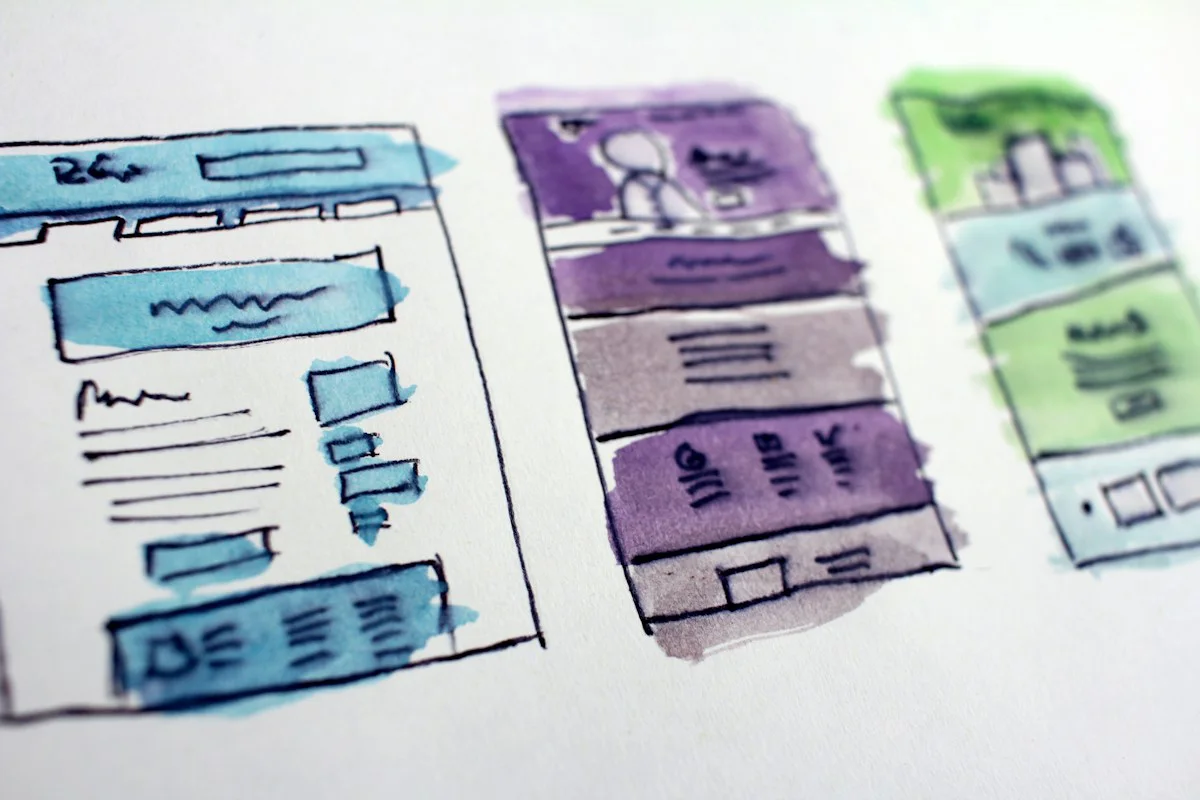
Featured Image: Side-by-side comparison of free photo editing software interfaces
Suggested: Split-screen showing GIMP, Photopea, and Canva interfaces
Introduction to Free Photoshop Alternatives
Adobe Photoshop has long been the undisputed king of image editing software. For over three decades, it has set the standard for professional photo manipulation, graphic design, and digital art creation. However, the landscape of creative software has undergone a dramatic transformation in recent years. Today, designers, photographers, and creative professionals have access to a remarkable array of free alternatives that can rival Photoshop's capabilities in many areas.
The shift toward free and open-source software isn't just about saving money—though that's certainly a significant factor when Photoshop's Creative Cloud subscription costs upwards of $20 per month. It's about accessibility, innovation, and the democratization of creative tools. Whether you're a freelance designer working with tight budgets, a student learning the ropes, a small business owner handling your own marketing materials, or simply someone who occasionally needs to edit photos without investing in expensive software, there's never been a better time to explore what's available beyond Adobe's ecosystem.
In this comprehensive guide, we'll explore the top free alternatives to Adobe Photoshop available in 2025. We'll examine each tool's strengths, weaknesses, and ideal use cases, helping you make an informed decision about which solution best fits your creative workflow. From powerful open-source desktop applications to innovative browser-based editors, we'll cover the full spectrum of options available to modern creators.
Key Insight
Many professional designers now use a combination of free tools alongside Photoshop, selecting the best application for each specific task rather than relying on a single program for all their needs.
The beauty of today's creative software landscape is that you're no longer forced to choose between quality and cost. Many free alternatives offer features that are comparable to—or in some cases even superior to—what Photoshop provides. The key is understanding what each tool does best and how it can enhance your particular workflow.
Why Look for Photoshop Alternatives?
Before diving into specific alternatives, it's worth examining why so many creatives are seeking alternatives to Photoshop in the first place. While Adobe's flagship product remains an incredibly powerful tool, several factors have driven users to explore other options.
The Cost Factor
The most obvious reason is financial. Adobe shifted to a subscription-only model in 2013, requiring users to pay monthly or annual fees to access their software. While this model provides regular updates and cloud storage, it represents a significant ongoing expense. For individual users, the Photography Plan (which includes Photoshop and Lightroom) costs approximately $10-20 per month. For businesses requiring multiple licenses, costs can quickly escalate into thousands of dollars annually.
For freelancers, small businesses, and hobbyists, these recurring costs can be prohibitive. Free alternatives eliminate this financial barrier entirely, making professional-grade image editing accessible to everyone regardless of budget constraints. This democratization of creative tools has empowered millions of people who previously couldn't afford professional software to explore their creative potential.
Performance and Resource Usage
Photoshop is a resource-intensive application. It requires substantial RAM, processing power, and storage space to run effectively. Users with older hardware or limited system resources often experience slowdowns, crashes, and frustrating performance issues. Many free alternatives are lighter and more efficient, running smoothly on modest hardware without consuming excessive system resources.
Some alternatives, particularly browser-based solutions like Photopea and Pixlr, require no installation at all and can run on any device with a modern web browser. This flexibility is particularly valuable for users who need to edit images on different computers or who work across multiple devices.
Simplicity and Focus
Photoshop's extensive feature set, while impressive, can be overwhelming for users who only need basic editing capabilities. Many alternatives offer more streamlined interfaces focused on specific use cases, making them easier to learn and use for particular tasks. A photographer who only needs to adjust exposure and apply basic retouching may find a simpler tool more efficient than navigating Photoshop's complex interface.
Ethical and Philosophical Considerations
Some users prefer open-source software for ethical reasons. They value the transparency, community ownership, and collaborative development model that open-source projects represent. By using and contributing to open-source software, these users feel they're supporting a more equitable and accessible technology ecosystem.
Additionally, concerns about data privacy and software dependency have led some users to seek alternatives that don't require cloud connectivity or Adobe account registration. Desktop-based free alternatives offer complete offline functionality and don't transmit user data to external servers.
GIMP: The Open-Source Powerhouse
GIMP (GNU Image Manipulation Program) has been the go-to free alternative to Photoshop for over two decades, and it continues to evolve and improve with each new release. As a completely free and open-source application, GIMP offers professional-grade features without any cost or subscription requirements.
Features and Capabilities
GIMP provides an extensive suite of tools that rival Photoshop in many areas. Its feature set includes advanced layer support, comprehensive color adjustment tools, professional retouching capabilities, support for numerous file formats, and a highly customizable interface. The software supports layers, masks, channels, and paths—fundamental features that professional workflows demand.
One of GIMP's greatest strengths is its support for third-party plugins and scripts. The extensive plugin ecosystem extends GIMP's capabilities significantly, adding features like advanced filters, batch processing tools, and specialized effects. The Script-Fu and Python-Fu scripting languages allow users to automate repetitive tasks and create custom workflows.
GIMP's brush engine is particularly impressive, offering customizable brushes with support for pressure sensitivity when used with drawing tablets. This makes GIMP a viable option not just for photo editing but also for digital painting and illustration work. The software supports layers with various blending modes, opacity controls, and layer effects that enable complex compositing workflows.
Pro Tip
GIMP's learning curve can be steep for users transitioning from Photoshop. Take advantage of the extensive documentation and tutorial resources available on the official GIMP website and community forums to accelerate your learning process.
User Interface and Experience
GIMP's interface has undergone significant improvements in recent versions. While it historically differed significantly from Photoshop's layout, recent releases have introduced single-window mode and customizable layouts that feel more familiar to Photoshop users. You can arrange panels, toolboxes, and canvases to create a workspace that suits your workflow preferences.
The interface remains somewhat less polished than Photoshop's, but it's highly functional and fully customizable. GIMP supports dockable dialogs, allowing you to arrange your workspace exactly how you want it. The software also includes a comprehensive help system and context-sensitive tooltips that assist new users in learning the interface.
Platform Availability
GIMP is available for Windows, macOS, and Linux, making it one of the most cross-platform image editing solutions available. This broad compatibility ensures that users can access GIMP regardless of their operating system, which is particularly valuable for teams working across different platforms or users who switch between operating systems.
Ideal Use Cases
GIMP excels at professional photo editing, retouching, and manipulation. It's particularly well-suited for users who need advanced features comparable to Photoshop but can't justify the subscription cost. Photographers, digital artists, and graphic designers who work primarily with raster images will find GIMP to be a capable and comprehensive solution.
The software is also excellent for users who value open-source principles and want to support community-driven software development. GIMP's active community contributes plugins, tutorials, and documentation that continuously improve the overall user experience.
Photopea: Browser-Based Photoshop Clone
Photopea has emerged as one of the most impressive free alternatives to Photoshop in recent years. As a browser-based image editor, it requires no installation and runs directly in your web browser, offering a Photoshop-like experience that's remarkably close to the real thing.
Interface and Compatibility
What sets Photopea apart from other browser-based editors is its striking resemblance to Photoshop's interface. Users familiar with Photoshop will immediately feel at home, as Photopea mirrors many of Adobe's conventions, terminology, and workflow patterns. The toolbar layout, panel organization, and even keyboard shortcuts are designed to match Photoshop's interface, making the transition virtually seamless.
Photopea supports an impressive range of file formats, including native PSD files with layers, masks, smart objects, and even some Photoshop-specific features. This compatibility makes it an excellent choice for users who need to work with Photoshop files but don't have access to Adobe's software. The ability to open and edit PSD files directly in a browser is a game-changer for collaborative workflows and quick edits.
Key Feature
Photopea can open and save PSD files with full layer support, making it the closest free alternative to Photoshop for users who need to work with Adobe's native file format.
Features and Performance
Despite running entirely in the browser, Photopea offers an impressive array of features. It includes layers, masks, adjustment layers, vector tools, text tools, filters, and retouching tools that cover the vast majority of common image editing tasks. The software supports 8-bit, 16-bit, and 32-bit color depths, providing the color accuracy that professional work demands.
Performance is surprisingly good for a web application. Photopea leverages modern browser technologies like WebAssembly to achieve near-native performance for most operations. While it may not match the speed of desktop applications for extremely large files or complex operations, it handles typical photo editing tasks with impressive responsiveness.
Accessibility and Convenience
The browser-based nature of Photopea offers significant advantages in terms of accessibility. There's nothing to install or update—you simply navigate to the website and start editing. This makes it ideal for quick edits, working on different computers, or situations where you can't install software. Photopea works on any device with a modern web browser, including Chromebooks and tablets.
For teams and collaborative environments, Photopea's accessibility is particularly valuable. Multiple team members can access the same tool without installation, and files can be shared and edited across different devices and operating systems without compatibility issues.
Limitations and Considerations
While Photopea is impressive, it does have some limitations compared to desktop applications. Being browser-based means it requires an internet connection (though it does offer offline capability through Progressive Web App technology). Extremely large files may experience performance issues, and some advanced Photoshop features may not be fully supported.
The free version includes occasional advertisements, though these are generally unobtrusive and don't interfere with the editing experience. A paid version removes ads and provides additional features for users who want a premium experience.
Pixlr: Quick and Easy Editing
Pixlr has established itself as one of the most popular browser-based photo editors, offering a balance of simplicity and capability that appeals to a wide range of users. With both a simplified interface (Pixlr E) and an advanced editor (Pixlr X), it caters to users of all skill levels.
Two Editors for Different Needs
Pixlr's unique approach of offering two distinct editors is one of its strengths. Pixlr E (Express) provides a simplified interface focused on quick edits and basic adjustments. It's perfect for users who need to crop, resize, apply filters, or make simple color corrections without learning complex software. The clean, intuitive interface makes common tasks fast and straightforward.
Pixlr X (Advanced) offers more comprehensive editing capabilities, including layers, masks, blending modes, and a wider range of tools. This editor bridges the gap between simple online editors and professional software, providing enough power for most common image editing tasks while maintaining an accessible interface.
AI-Powered Features
One of Pixlr's standout features is its integration of artificial intelligence tools. AI-powered background removal, object removal, and enhancement features automate complex editing tasks that would traditionally require significant manual effort. These AI tools are constantly improving and can save users considerable time on common editing operations.
The AI background removal feature, in particular, has become remarkably accurate and can handle complex edge cases that previously required careful manual selection. For e-commerce product photos, social media content, and similar applications, these AI tools can dramatically speed up the editing workflow.
Time-Saving Feature
Pixlr's AI-powered tools can reduce editing time for common tasks by up to 70%, making it an excellent choice for users who need to process multiple images quickly.
Template Library and Design Features
Beyond photo editing, Pixlr includes an extensive template library for creating social media posts, banners, advertisements, and other design materials. These templates provide professional starting points that can be customized quickly, making Pixlr valuable for users who need to create marketing materials or social content without design experience.
The integration of design templates with photo editing tools creates a seamless workflow for content creators who need to combine photography with graphic elements. This all-in-one approach eliminates the need to switch between multiple applications for common content creation tasks.
Canva: Design for Non-Designers
While not a direct Photoshop replacement in terms of advanced photo editing, Canva has revolutionized graphic design for non-designers and offers powerful image editing capabilities within its design-focused workflow. With millions of users worldwide, Canva has become the go-to tool for creating professional-looking designs without design experience.
Design-First Approach
Canva's strength lies in its design-centric approach. Rather than providing a comprehensive photo editing suite, it offers image editing tools within the context of creating complete designs. This approach is ideal for users who need to create social media posts, presentations, marketing materials, or other design projects that combine images with text, graphics, and other visual elements.
The drag-and-drop interface makes design accessible to everyone, regardless of skill level. Users can select from thousands of professionally designed templates and customize them with their own images, text, and branding. This template-driven approach ensures that even complete beginners can create polished, professional-looking designs.
Collaboration and Sharing
Canva excels in collaborative workflows. Multiple team members can work on the same design simultaneously, with real-time collaboration features that make team projects efficient and organized. The platform includes commenting, version history, and approval workflows that streamline the design review process.
For businesses and organizations, Canva's brand kit feature allows teams to maintain consistent branding across all designs. Logos, color palettes, and fonts can be saved and applied automatically, ensuring brand consistency without manual effort. This feature is particularly valuable for marketing teams and social media managers who need to create content that aligns with brand guidelines.
Best For
Canva is ideal for users who need to create designs combining images with text and graphics, particularly for social media, marketing materials, and presentations. It's less suited for advanced photo retouching or manipulation.
Photo Editing Capabilities
While Canva's photo editing tools aren't as comprehensive as dedicated photo editors, they cover the most common adjustments effectively. Users can adjust brightness, contrast, saturation, and other basic parameters. Canva also includes filters, effects, and background removal tools that handle most common editing tasks.
The integration of photo editing within the design workflow means users can make adjustments without leaving the application. This streamlined approach is efficient for projects that require both image editing and design work, eliminating the need to switch between multiple applications.
Krita: Digital Painting Focused
Krita occupies a unique niche among Photoshop alternatives, focusing specifically on digital painting and illustration rather than general-purpose photo editing. For artists and illustrators, Krita offers specialized tools that in some areas surpass what Photoshop provides.
Specialized Brush Engine
Krita's brush engine is arguably the most advanced available in any free software. It includes over 100 professionally made brushes, along with extensive customization options that allow artists to create precisely the brush behavior they need. The brush stabilizers are particularly impressive, providing smooth, controlled strokes even for users without steady hands or drawing tablet experience.
The brush engines support advanced features like texture painting, color mixing, and pressure sensitivity that respond naturally to drawing tablet input. For digital painters and illustrators, these brush capabilities make Krita a compelling alternative to both Photoshop and dedicated painting software.
Animation and Timeline Features
Unlike most photo editors, Krita includes a complete animation workflow with timeline, onion skinning, and frame-by-frame animation tools. This makes it suitable not just for static artwork but also for creating animated content. Artists can create traditional frame animations, GIFs, and simple animated sequences without requiring separate animation software.
The animation features integrate seamlessly with Krita's painting tools, allowing artists to paint each frame using the same brushes and techniques they use for static artwork. This integration is valuable for illustrators who want to add subtle animations to their work or for animators who prefer painting-style workflows.
Artist's Choice
Krita's brush engine and painting-specific features make it the preferred choice for digital artists and illustrators who find Photoshop's general-purpose tools less suited to their creative workflow.
Resource Management
Krita includes robust resource management features that help artists organize their brushes, textures, and other assets. The resource docker allows quick access to frequently used resources, and custom resource packs can be shared with the community. This resource ecosystem helps artists build and maintain efficient workflows tailored to their specific needs.
The software also supports wrap-around mode, which is invaluable for creating seamless textures and patterns. This feature allows artists to paint continuously across the canvas edges, seeing their strokes wrap around to the opposite side—a capability that's essential for texture artists and game designers.
Figma: UI/UX Design Tool
While Figma isn't a traditional photo editor, it has become an essential tool for designers who work with both images and interface design. Its vector editing capabilities, combined with image manipulation features, make it a versatile option for certain types of visual work.
Vector and Image Integration
Figma excels at combining vector graphics with raster images, making it ideal for UI/UX design, web design, and other projects that require both types of elements. The software handles image optimization automatically, ensuring that designs load quickly when implemented on websites and applications.
For designers who work across multiple disciplines, Figma's ability to handle both vector and raster elements in a single tool reduces the need to switch between applications. Image cropping, masking, and basic adjustments can be performed directly within Figma, though advanced photo editing still requires dedicated software.
Collaboration Features
Figma's real-time collaboration features are unmatched in the design tool space. Multiple designers can work on the same file simultaneously, with changes visible in real-time. This collaboration capability has made Figma the standard tool for design teams, replacing traditional file-based workflows with a more efficient collaborative approach.
The commenting and feedback system streamlines design reviews, allowing stakeholders to provide input directly on designs. This collaborative workflow reduces the back-and-forth typically associated with design approvals and helps teams iterate more quickly.
Collaboration Champion
Figma's real-time collaboration features have made it the industry standard for design teams, offering capabilities that exceed even Adobe's collaborative tools in many respects.
Plugin Ecosystem
Figma's extensive plugin ecosystem extends its capabilities significantly. Plugins for image optimization, placeholder image generation, and design system management enhance the tool's functionality for specific use cases. The plugin API allows developers to create custom tools that integrate seamlessly with Figma's interface.
For designers who primarily create user interfaces but occasionally need to edit images, Figma's built-in image tools combined with relevant plugins may provide sufficient capability without requiring a separate photo editor. However, for dedicated photo editing work, specialized tools like GIMP or Photopea remain more appropriate choices.
Features Comparison Table
To help you make an informed decision, here's a detailed comparison of the key features across all the free alternatives we've discussed. This comparison highlights the strengths and specializations of each tool.
| Feature | GIMP | Photopea | Pixlr | Canva | Krita | Figma |
|---|---|---|---|---|---|---|
| Platform | Desktop | Browser | Browser | Browser | Desktop | Browser |
| Photo Editing | Excellent | Excellent | Good | Basic | Fair | Basic |
| Layers Support | Yes | Yes | Yes | Limited | Yes | Yes |
| PSD Support | Good | Excellent | Good | No | No | No |
| Learning Curve | Steep | Moderate | Easy | Easy | Moderate | Moderate |
| Offline Use | Yes | Limited | No | No | Yes | No |
| Best For | Advanced editing | PSD editing | Quick edits | Design | Digital art | UI/UX |
This comparison should help you identify which tool or combination of tools best suits your specific needs. Many professionals find that using multiple tools together provides the most comprehensive workflow, leveraging each application's strengths for different aspects of their projects.
When to Stick with Photoshop
While free alternatives have made remarkable progress, there are still scenarios where Photoshop remains the optimal choice. Understanding these situations helps you make informed decisions about when to invest in Adobe's subscription.
Industry Requirements
Certain industries and clients still require deliverables in Photoshop's native formats or expect familiarity with Adobe's workflow. Print production facilities, advertising agencies, and some enterprise environments may mandate Photoshop compatibility. In these cases, using Photoshop ensures seamless integration with established workflows and prevents compatibility issues.
Additionally, some specialized plugins and extensions are only available for Photoshop. If your workflow depends on specific third-party tools that don't have equivalents in free software, Photoshop may be necessary to maintain productivity.
Advanced Features
Photoshop continues to lead in certain advanced areas, including sophisticated content-aware fill, advanced 3D capabilities, comprehensive video editing features, and cutting-edge AI-powered tools. While free alternatives are closing the gap, Photoshop's most advanced features still represent the state of the art in image manipulation technology.
Consider This
The decision between Photoshop and free alternatives isn't always either/or. Many professionals use both, leveraging Photoshop's unique capabilities while using free tools for tasks where they offer advantages or greater efficiency.
Workflow Integration
If your workflow already heavily integrates with other Adobe products like Illustrator, InDesign, After Effects, or Premiere Pro, staying within the Adobe ecosystem provides seamless file compatibility and shared assets. The Adobe Creative Cloud ecosystem offers integration features that can significantly enhance productivity for users of multiple Adobe applications.
However, it's worth noting that many free alternatives offer reasonable compatibility with Adobe formats, and for many workflows, the integration advantages may not justify the subscription cost. Carefully evaluate whether the ecosystem benefits actually impact your specific workflow before committing to a subscription based solely on integration considerations.
Transitioning from Photoshop
If you've decided to explore free alternatives to Photoshop, the transition process can be smooth with the right approach. Here are practical strategies for moving from Photoshop to a free alternative without disrupting your productivity.
Start with Familiar Workflows
Begin by replicating your most common Photoshop tasks in your chosen alternative. Start with simple operations like cropping, resizing, and basic color corrections before moving to more complex workflows. This gradual approach builds confidence and reveals any workflow adjustments you'll need to make.
Photopea is often the best starting point for Photoshop users due to its interface similarity. Many users find they can immediately perform basic tasks in Photopea without any learning curve, gradually exploring more advanced features as their comfort level increases.
Learn Keyboard Shortcuts
One of the biggest adjustments when switching applications is adapting to different keyboard shortcuts. Most free alternatives allow shortcut customization, and many offer Photoshop-compatible shortcut schemes. Take time to configure shortcuts to match your existing muscle memory, or invest effort in learning the new shortcuts to build efficiency.
Leverage Migration Resources
The communities surrounding free software alternatives have created extensive resources to help Photoshop users transition. Tutorials, documentation, and forums specifically addressing Photoshop-to-alternative migrations provide valuable guidance. These resources highlight workflow differences and offer alternative approaches for achieving familiar results.
Don't hesitate to seek help from community forums when you encounter challenges. The communities around GIMP, Krita, and other open-source projects are generally welcoming and eager to help new users overcome obstacles.
Maintain File Compatibility
If you need to exchange files with colleagues or clients who use Photoshop, ensure your chosen alternative supports the necessary file formats. GIMP and Photopea both handle PSD files well, though some advanced Photoshop features may not translate perfectly. Establish clear file exchange protocols to prevent compatibility issues in collaborative workflows.
Consider maintaining access to Photoshop (even if only through a trial or occasional subscription) for critical situations where format compatibility is essential. This safety net allows you to work confidently in your new tool while knowing you can fall back to Photoshop when necessary.
Professional Results with Free Tools
The quality of your final output depends far more on your skills and artistic vision than on which software you use. Many professional designers and photographers achieve exceptional results using entirely free tools. Here's how to ensure your work meets professional standards.
Master Your Chosen Tool
Regardless of which free alternative you select, invest time in mastering its features and capabilities. Deep knowledge of your tools enables you to work efficiently and creatively, finding solutions to complex challenges within your software's capabilities. Many accomplished professionals have built entire careers around free software tools.
Take advantage of the extensive learning resources available for popular free alternatives. Online tutorials, official documentation, and community forums provide comprehensive education that can take you from beginner to advanced user. The investment in learning pays dividends throughout your career.
Success Story
Many award-winning photographers and designers use GIMP and other free tools exclusively, proving that professional results depend on skill and creativity rather than expensive software subscriptions.
Develop Complementary Skills
Professional results require more than software proficiency. Develop your understanding of design principles, color theory, typography, and composition. These fundamental skills transfer across all tools and are essential for creating work that resonates with audiences and meets professional standards.
Consider exploring complementary free tools that enhance your primary editor. Combining photo editing software with free alternatives for vector graphics, layout design, or other specialized tasks can create comprehensive workflows that rival professional studio capabilities.
Quality Control Processes
Establish quality control processes to ensure your work meets professional standards regardless of the tools used. Proofread carefully, check color accuracy, verify resolution and formatting requirements, and get feedback from peers. These practices are tool-agnostic and essential for maintaining professional credibility.
Many professionals recommend developing checklists for common project types. These checklists ensure consistency and help catch issues before they reach clients. Document your processes and continuously refine them based on experience and feedback.
Conclusion
The landscape of image editing software has evolved dramatically, and 2025 offers more capable free alternatives to Adobe Photoshop than ever before. Whether you choose the comprehensive power of GIMP, the convenient accessibility of Photopea, the AI-enhanced efficiency of Pixlr, the design-focused simplicity of Canva, the artistic specialization of Krita, or the collaborative capabilities of Figma, you have access to tools that can help you achieve professional results without the financial commitment of Adobe's subscription model.
The key is understanding your specific needs and matching them with the right tool. Consider the types of projects you typically work on, the features you use most frequently, your workflow preferences, and any collaboration or compatibility requirements. Many professionals find that a combination of tools provides the most comprehensive solution, leveraging each application's strengths for different aspects of their work.
Remember that the tool is only as effective as the person using it. Invest in developing your skills, understanding design principles, and refining your creative vision. These fundamentals will serve you well regardless of which software you choose. Free alternatives have matured to the point where they can genuinely support professional creative work, and the cost savings they provide can be redirected toward other aspects of your business or creative pursuits.
Final Thought
Don't let the subscription model of premium software limit your creative potential. The free alternatives available today are powerful, capable, and supported by vibrant communities of users and developers. Explore, experiment, and find the tools that work best for your unique creative journey.
Web Design & Development
Creating stunning, responsive websites with modern design principles and cutting-edge technology.
Video Editing
Professional video production and post-production services for all your multimedia needs.
Image Editing
Expert photo retouching, manipulation, and enhancement services using industry-leading tools.
Audio Editing
Professional audio production, mixing, and mastering for podcasts, music, and multimedia projects.
3D Design & Rendering
Photorealistic 3D modeling, animation, and rendering for product visualization and creative projects.
SEO Services
Comprehensive search engine optimization strategies to boost your online visibility and rankings.
Where to go next
Spotted something wrong? Report an error on this page. We correct on the page and say what changed.