Best Free Photoshop Alternatives for Photo Editing
The world of photo editing has undergone a remarkable transformation over the past decade. What once required expensive software subscriptions and powerful hardware is now accessible to everyone…
 Pro Pixel Agency

Introduction to Free Photo Editing
The world of photo editing has undergone a remarkable transformation over the past decade. What once required expensive software subscriptions and powerful hardware is now accessible to everyone through a variety of free tools that rival their commercial counterparts. Whether you're a professional photographer, a social media enthusiast, a small business owner, or someone who simply wants to enhance personal photos, the landscape of free photo editing software has never been more impressive.
Adobe Photoshop has long been the gold standard in photo editing, commanding a significant presence in creative industries worldwide. However, its subscription-based pricing model, which can cost upwards of $20 per month for the Photography Plan, has led many users to seek alternatives that deliver similar functionality without the recurring costs. The good news is that open-source developers, innovative startups, and passionate communities have created remarkable free alternatives that can handle everything from basic touch-ups to complex professional workflows.
In this comprehensive guide, we'll explore the best free Photoshop alternatives available in 2026, examining each tool's unique strengths, ideal use cases, and how they compare to Adobe's flagship product. We'll help you understand which tool best suits your specific needs, whether you're editing photos for social media, working on professional projects, or exploring digital art for the first time.
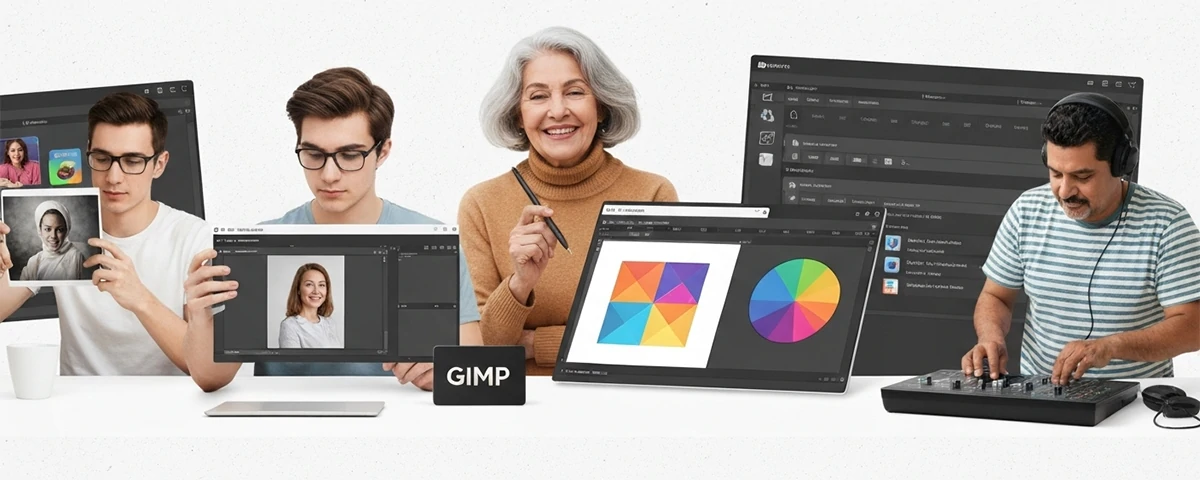
Insert a wide banner image showing a split-screen comparison of different photo editing software interfaces, with before-and-after edited photos.
Why Look for Free Alternatives?
Before diving into specific software recommendations, it's important to understand why so many photographers, designers, and casual users are turning away from paid solutions. The motivations are diverse and compelling, ranging from financial considerations to philosophical beliefs about software accessibility.
Cost Savings
The most obvious reason to consider free alternatives is the significant cost savings. Adobe's Creative Cloud Photography Plan costs approximately $240 per year, which adds up to substantial amounts over time. For students, freelancers, hobbyists, and small business owners, these costs can be prohibitive. Free alternatives eliminate this financial barrier entirely, allowing you to invest your money in other aspects of your photography or business.
Feature Parity
Modern free photo editing tools have reached a level of sophistication that makes them genuinely competitive with Photoshop for many tasks. Features like layers, masks, adjustment tools, filters, and advanced color correction are now standard in many free applications. While Photoshop may still lead in some specialized areas, the gap has narrowed considerably, and for the majority of users, free tools provide all the functionality they need.
Open Source Benefits
Many of the best free alternatives are open-source projects, which means they benefit from community-driven development. This often results in more frequent updates, innovative features driven by actual user needs, and transparent development processes. Additionally, open-source software doesn't risk discontinuation if a company changes its business model or gets acquired.
Learning Opportunities
Free photo editing tools provide excellent learning opportunities for beginners. Without the pressure of justifying a subscription cost, new users can explore and experiment at their own pace. Many free tools also have extensive communities and tutorials that can help beginners learn photo editing concepts and techniques without additional investment.
Platform Availability
Many free photo editing tools offer cross-platform support, often including web-based options that work on any operating system. This flexibility means you're not locked into a specific ecosystem and can work from any device with a web browser. Some tools even offer mobile versions, extending your editing capabilities to tablets and smartphones.
GIMP: The Open Source Powerhouse
GIMP (GNU Image Manipulation Program) stands as the most well-established and feature-rich free alternative to Photoshop. First released in 1996, GIMP has undergone decades of development and refinement, resulting in a professional-grade image editor that can handle virtually any photo editing task imaginable.
Key Features and Capabilities
GIMP offers an extensive toolkit that rivals many aspects of Photoshop's functionality. The software supports layers and layer masks, allowing for non-destructive editing workflows that are essential for professional work. Its selection tools include rectangular, elliptical, free-form, and intelligent scissors selections that help isolate subjects with precision. The paint tools offer customizable brushes, airbrushes, and clone stamps for detailed retouching work.
One of GIMP's most powerful features is its support for custom filters and plugins. The software can be extended with thousands of available plugins that add capabilities ranging from advanced color correction to batch processing and specialized artistic effects. Python-Fu and Script-Fu scripting interfaces allow users to create custom automation scripts that streamline repetitive tasks.
Advanced Color Management
GIMP provides comprehensive color management tools including support for ICC color profiles, which ensures accurate color reproduction across different devices and print workflows. The software supports 16-bit and 32-bit color depths, making it suitable for professional photography workflows where color accuracy is critical. Multiple color spaces including RGB, CMYK, and LAB are supported, providing flexibility for both screen and print work.
File Format Support
GIMP reads and writes virtually every common image format including PSD (Photoshop files), TIFF, PNG, JPEG, GIF, BMP, and many more. The ability to open and edit PSD files directly makes GIMP an excellent choice for users who need to collaborate with Photoshop users without purchasing Adobe's software.
The software also supports indexed color, alpha channels, and advanced compression options, ensuring compatibility with professional workflows and web standards alike.
Pro Tip
GIMP's single-window mode (Window > Single-Window Mode) provides a more Photoshop-like interface experience. Enable this option if you're transitioning from Adobe's software to reduce the learning curve significantly.
Learning Curve and Customization
While GIMP offers tremendous power, it does come with a steeper learning curve than some alternatives. The interface, while improved in recent versions, differs significantly from Photoshop's layout. However, GIMP's extensive documentation, active community forums, and abundance of online tutorials make it easier to learn. The software also allows significant interface customization, including custom keyboard shortcuts and window arrangements that can match your preferred workflow.
GIMP's toolbox and dockable dialogs can be rearranged to create a workspace that suits your specific needs. Many experienced users create custom interface layouts optimized for different types of work, such as retouching, compositing, or web design.
Include a screenshot of GIMP's interface showing a professional-level photo editing project with multiple layers, masks, and adjustment layers visible.
Photopea: Browser-Based Brilliance
Photopea represents a remarkable achievement in web-based photo editing. Created by Ivan Kutskir, this free online editor runs entirely in your web browser, requiring no downloads or installations while delivering functionality that closely mirrors Adobe Photoshop's interface and capabilities.
No Installation Required
One of Photopea's most compelling advantages is its accessibility. You can start editing photos immediately by visiting the website, with no account creation, software downloads, or system requirements beyond a modern web browser. This makes it ideal for quick edits, working on public computers, or situations where installing software isn't possible or permitted.
The browser-based nature also means Photopea works identically across Windows, macOS, Linux, ChromeOS, and any other operating system with a compatible browser. Updates happen automatically without any action required from users, ensuring you always have access to the latest features and security patches.
Photoshop-Like Interface
Photopea's interface deliberately mimics Photoshop's layout and terminology, making it exceptionally easy for Photoshop users to transition. Tools are organized in the same positions, keyboard shortcuts match Adobe's conventions, and file dialogs use familiar terminology. This thoughtful design choice dramatically reduces the learning curve for users switching between the two applications.
The interface includes all the panels and dialogs that Photoshop users expect, including layers, channels, paths, history, and character panels. Custom workspaces can be saved and restored, providing the same workflow flexibility as desktop applications.
PSD and AI File Support
Perhaps Photopea's most impressive technical achievement is its native support for PSD files, including layers, smart objects, text layers, and adjustment layers. You can open PSD files, edit them, and save them back without any loss of compatibility. This makes Photopea an invaluable tool for collaborative workflows where team members use different software.
The software also supports AI (Adobe Illustrator) files, allowing vector graphics to be edited directly in the browser. This cross-format compatibility bridges the gap between different creative software ecosystems.
Professional Tools
Despite being free and browser-based, Photopea includes professional-grade tools for selection, retouching, color correction, and effects. The Pen tool creates precise paths, the Clone Stamp and Healing Brush tools handle retouching tasks, and the adjustment layers provide non-destructive color correction. Filters include blur, sharpen, distort, and stylize options that match many desktop applications.
Quick Fact
Photopea processes images entirely in your browser using JavaScript and WebAssembly, with no server-side processing. Your images never leave your device, ensuring complete privacy and security for your work.
Paint.NET: Simplicity Meets Function
Paint.NET strikes an excellent balance between simplicity and functionality, making it one of the most popular free photo editors for Windows users. Originally developed as a replacement for Microsoft Paint, Paint.NET has evolved into a capable image editor that handles everyday photo editing tasks with remarkable ease.
User-Friendly Design Philosophy
Paint.NET's greatest strength lies in its intuitive, uncluttered interface. Unlike more complex alternatives, Paint.NET presents a clean workspace that doesn't overwhelm new users. Essential tools are immediately accessible, and the learning curve is gentle enough that most users become comfortable with the software within minutes of first use.
The software uses a tabbed document interface that makes working with multiple images simple and efficient. Each image opens in its own tab, and switching between open files requires just a single click. This approach keeps the workspace organized while maintaining quick access to all open documents.
Essential Editing Tools
While Paint.NET doesn't attempt to replicate Photoshop's entire feature set, it excels at providing the tools most users need for everyday photo editing. The selection tools include rectangle, ellipse, lasso, and magic wand options. The paint tools offer customizable brushes with adjustable size, hardness, and opacity. The text tool provides basic typography controls suitable for adding captions and simple text elements to images.
Color correction tools include brightness/contrast, curves, levels, and hue/saturation adjustments that provide effective control over image appearance. The software supports layers with adjustable blending modes and opacity, enabling basic compositing and non-destructive editing workflows.
Effect and Plugin Ecosystem
Paint.NET includes a solid collection of built-in effects that cover blur, sharpen, distort, noise, and artistic categories. The software also supports third-party plugins, which have created a vibrant ecosystem of additional effects and tools. Community-developed plugins add capabilities like advanced color management, batch processing, and specialized filters that extend Paint.NET's functionality significantly.
The plugin system uses a straightforward installation process, and thousands of community plugins are available through the official Paint.NET forum and other sources. This extensibility means Paint.NET can grow with your needs as you develop more advanced editing skills.
Performance and Lightweight Design
Paint.NET is optimized for performance on Windows systems, with modest hardware requirements that make it suitable for older computers. The software starts quickly, opens files rapidly, and responds smoothly during editing operations. Its efficient memory management allows working with reasonably large images without significant performance degradation.
Add a screenshot showing Paint.NET's clean interface with a simple photo editing project, highlighting the intuitive tool layout.
Darktable: Professional RAW Editing
Darktable occupies a unique niche in the free photo editing landscape as a dedicated RAW processing and workflow application. Designed specifically for photographers who shoot in RAW format, darktable provides non-destructive editing capabilities and professional color management that rival expensive commercial alternatives like Adobe Lightroom.
RAW Processing Excellence
Darktable's core strength lies in its RAW processing engine, which interprets camera sensor data with exceptional accuracy. The software supports over 600 camera models and can handle RAW files from virtually every major manufacturer including Canon, Nikon, Sony, Fujifilm, and many others. The demosaicing algorithms produce sharp, artifact-free results while preserving maximum detail and dynamic range from the original capture.
The non-destructive workflow means your original RAW files are never modified. Instead, darktable stores editing instructions in a database or sidecar files, allowing you to experiment freely without risk. You can return to any image at any point and modify your edits without quality loss, maintaining the full potential of your RAW files throughout the editing process.
Advanced Color Management
Darktable provides sophisticated color management tools including ICC profile support, multiple color spaces, and soft proofing for print preparation. The software's color picker and color zone modules offer precise control over color adjustments, while the color balance module provides comprehensive control over shadows, midtones, and highlights.
The filmic and scene-referred modules introduce modern color science approaches that handle high dynamic range content gracefully. These tools allow photographers to work with the full dynamic range captured by modern sensors while producing natural-looking results.
Organizational Features
Beyond editing capabilities, darktable includes comprehensive image management features. The lighttable view provides efficient browsing and sorting of image collections, with support for star ratings, color labels, and flags. Keyword tagging, metadata editing, and search functionality help maintain organized image libraries even as collections grow large.
The software supports tethered shooting, allowing direct camera connection for studio workflows. Images can be imported and previewed in real-time as they're captured, streamlining professional photography workflows.
Module System
Darktable's functionality is organized into modules, each handling specific aspects of image processing. With over 60 modules covering exposure, tone mapping, detail enhancement, color correction, and creative effects, darktable provides comprehensive control over every aspect of image appearance. Modules can be enabled, disabled, and reordered to create custom processing pipelines suited to different types of photography.
Photography Tip
Darktable's dual demosaicing views allow you to compare different demosaicing algorithms side-by-side, helping you choose the optimal processing approach for each image. This feature is invaluable for evaluating the impact of different processing decisions on fine detail and color accuracy.
RawTherapee: Advanced Processing Power
RawTherapee stands alongside darktable as one of the most powerful free RAW processing applications available. While sharing some conceptual similarities with darktable, RawTherapee takes a different approach to interface design and workflow organization, making it a preferred choice for many photographers who prioritize technical control and processing flexibility.
Processing Engine Capabilities
RawTherapee's processing engine is renowned for its quality and flexibility. The software supports an extensive list of camera RAW formats and provides multiple demosaicing algorithms, each optimized for different scenarios. Users can compare algorithms side-by-side to determine which produces the best results for specific images and conditions.
The software excels in noise reduction, offering sophisticated algorithms that preserve detail while effectively reducing luminance and color noise. The detail enhancement tools include sharpening, micro-contrast adjustments, and local contrast enhancement that can dramatically improve image clarity and impact.
Tone and Color Controls
RawTherapee provides exceptionally granular control over tone and color adjustments. The exposure tool offers highlight recovery, shadow boost, and black/white point adjustments with real-time preview. The tone curve tool provides point-based curve editing similar to Photoshop's curves adjustment, allowing precise control over tonal relationships.
Color adjustments include white balance, HSL (Hue, Saturation, Luminance) controls, and a comprehensive color management system. The software supports LAB color mode adjustments, allowing edits that affect only luminance or chrominance independently.
Batch Processing and Workflow
RawTherapee includes robust batch processing capabilities that allow applying edits from one image to entire collections. This feature is particularly valuable for photographers who need to maintain consistency across large shoots or process multiple images with similar conditions. Queue management enables background processing while you continue editing, maximizing productivity.
The software's processing profiles can be saved and applied to future edits, creating personalized starting points for different types of photography. These profiles can capture complex editing setups that would be time-consuming to recreate manually.
Lens and Camera Corrections
RawTherapee includes comprehensive lens correction profiles that automatically compensate for distortion, vignetting, chromatic aberration, and perspective issues. The software maintains an extensive database of lens profiles and can automatically detect and apply appropriate corrections based on EXIF data. Manual correction tools allow fine-tuning for lenses not in the database or for creative perspective adjustments.
Include a comparison screenshot showing RawTherapee's processing panels with before and after adjustments on a RAW landscape photograph.
Krita: Digital Painting & Editing
While primarily known as a digital painting application, Krita offers substantial photo editing capabilities that make it a worthy Photoshop alternative for users who want to combine photography with digital art creation. Krita's brush engine and painting tools are among the best available in any software, free or commercial.
Brush Engine Excellence
Krita's brush engine is its crown jewel, offering over 100 professionally crafted brushes with extensive customization options. The brush stabilizer feature makes it possible to create smooth strokes even with shaky hands, while the wrap-around mode allows seamless pattern creation. The brush engine supports custom brush creation with detailed control over shape, texture, dynamics, and blending.
For photographers who want to add painted elements to their images, create digital art from photographs, or retouch with artistic brushes, Krita provides tools that go far beyond standard photo editing software. The brush blending modes simulate traditional media behavior, allowing natural-looking interactions between painted elements.
Photo Editing Features
Beyond its painting capabilities, Krita includes solid photo editing tools. The software supports layers, masks, and adjustment layers for non-destructive editing. Selection tools include rectangular, elliptical, polygonal, contiguous, and magic wand options. Transform tools handle scaling, rotating, perspective correction, and warping operations.
Krita's filter system includes blur, sharpen, distort, and artistic effects that enhance photographic images. The color adjustment tools provide curves, levels, brightness/contrast, and hue/saturation controls suitable for photo enhancement workflows.
Animation Support
A unique feature that sets Krita apart is its built-in animation support. The timeline and onion skinning features allow frame-by-frame animation creation directly within the software. For photographers interested in creating cinemagraphs or simple animations from photo sequences, Krita provides this capability without requiring additional software.
The animation workflow integrates with Krita's painting tools, allowing animated elements to be painted with the same quality and customization as static artwork.
Professional Features
Krita supports professional features including HDR painting, CMYK support, PSD compatibility, and Python scripting. The software can handle large canvas sizes and high bit-depth images, making it suitable for professional illustration and photo compositing work. The resource management system organizes brushes, gradients, patterns, and other resources efficiently.
Creative Possibility
Krita's wrap-around mode is perfect for creating seamless textures and patterns. Combined with its advanced brush engine, this feature enables unique creative possibilities for game designers, textile artists, and digital content creators.
Canva: Design Meets Photo Editing
Canva takes a fundamentally different approach to photo editing by integrating it within a comprehensive graphic design platform. While not a traditional photo editor like Photoshop or GIMP, Canva excels at combining photo editing with design templates, making it ideal for creating social media content, marketing materials, presentations, and other design-focused projects.
Template-Driven Design
Canva's massive library of professionally designed templates is its defining feature. With thousands of templates for social media posts, stories, presentations, flyers, business cards, and more, users can create professional-looking designs by simply replacing template content with their own images and text. This template-driven approach dramatically reduces the time and design skill required to produce polished visual content.
The templates are fully customizable, allowing modification of colors, fonts, layouts, and images. Brand kit features allow businesses to save brand colors, fonts, and logos for consistent application across all designs.
Photo Editing Tools
Canva includes a solid set of photo editing tools accessible directly within the design interface. Basic adjustments include brightness, contrast, saturation, and tint controls. The background remover uses AI technology to automatically isolate subjects from their backgrounds, a feature that typically requires expensive software or manual masking.
Filters and effects provide one-click enhancement options, while the duotone and colorize features create stylized looks suitable for social media and marketing content. Text overlay tools, frames, and graphic elements combine with photo editing for comprehensive design workflows.
Collaboration and Sharing
Canva excels in collaborative workflows, allowing multiple users to work on designs simultaneously. Team members can leave comments, suggest changes, and approve designs within the platform. Design sharing and presentation features make it easy to distribute finished work or gather feedback from stakeholders.
The platform includes direct publishing to social media platforms, enabling users to schedule and post content without leaving Canva. This integrated workflow is particularly valuable for social media managers and marketing teams.
Free Tier Capabilities
Canva's free tier provides substantial functionality including access to thousands of templates, 250,000+ free photos, 5GB of cloud storage, and basic photo editing tools. While premium features require a Pro subscription, the free tier is remarkably capable for individual users and small projects.
Insert a screenshot showing Canva's design interface with a social media template being edited, highlighting the integration of photo editing and design tools.
Feature Comparison with Photoshop
Understanding how free alternatives compare to Photoshop helps set appropriate expectations and guide tool selection. While no single free tool matches Photoshop's complete feature set, several come remarkably close for specific use cases. The following comparison highlights key capabilities across the tools we've discussed.
Feature Comparison Matrix
| Feature | Photoshop | GIMP | Photopea | Paint.NET | Darktable |
|---|---|---|---|---|---|
| Layers & Masks | |||||
| Non-Destructive Editing | |||||
| RAW Support | |||||
| PSD File Support | |||||
| Selection Tools | |||||
| Pen Tool / Paths | |||||
| Batch Processing | |||||
| Plugins/Extensions |
= Full Support = Partial Support = Not Available
Interface and Workflow Comparison
Photoshop's interface has remained relatively consistent over the years, providing a familiar workspace for long-time users. GIMP offers the most customizable interface but differs significantly from Photoshop's layout. Photopea deliberately mirrors Photoshop's interface, making it the easiest transition for existing Photoshop users. Paint.NET prioritizes simplicity over comprehensive tool coverage, resulting in a cleaner but less powerful workspace.
For workflow integration, Photoshop leads with its comprehensive Creative Cloud ecosystem. However, for standalone photo editing, the free alternatives provide satisfactory workflows for their target use cases.
Best Tools for Different Use Cases
Choosing the right free photo editing tool depends heavily on your specific needs, workflow preferences, and the type of work you do. Here we match tools to common use cases to help you identify the best option for your situation.
Social Media Content Creation
For social media managers and content creators, Canva provides the most efficient workflow. Its template library, brand management features, and direct social media publishing make it ideal for maintaining a consistent visual presence across platforms. The quick editing tools and pre-designed templates allow rapid content creation without deep technical knowledge.
Photopea serves as an excellent alternative for social media work requiring more precise editing control. Its Photoshop-like interface allows experienced users to work quickly, while the browser-based nature means content can be edited from any device with internet access.
Professional Photography
Professional photographers working with RAW files should prioritize darktable or RawTherapee. Both provide non-destructive RAW processing workflows with comprehensive color management suitable for professional output. Darktable's organizational features make it better for large library management, while RawTherapee offers more granular processing controls.
For final output retouching and compositing, GIMP provides the layer and selection tools necessary for professional retouching work. Its PSD support allows collaboration with clients or colleagues using Photoshop.
Graphic Design
Graphic designers benefit from GIMP for detailed image manipulation and compositing work. Its comprehensive toolset handles everything from precise selections to complex layer compositions. For designers who want to combine photo editing with digital painting, Krita provides the unique capability to transition between photographic and painted elements seamlessly.
Personal Photo Enhancement
Casual users looking to enhance personal photos will find Paint.NET or Photopea most suitable. Both provide intuitive interfaces with sufficient tools for common enhancement tasks like cropping, resizing, color correction, and basic retouching. Paint.NET's lightweight design makes it ideal for users with older computers, while Photopea requires no installation.
Blog and Website Content
Bloggers and website owners creating visual content benefit from Canva for featured images and social graphics, combined with Photopea for more detailed image editing. This combination provides both template-driven design speed and precise editing control when needed.
Print Photography
Photographers preparing images for print should use darktable or RawTherapee for initial RAW processing, as both provide excellent soft proofing and color management for print workflows. Final retouching can be completed in GIMP, which supports CMYK color mode and ICC profiles necessary for professional print output.
Create an infographic-style image showing different use cases with corresponding recommended tools, using icons and brief descriptions for each scenario.
Understanding Limitations of Free Tools
While free photo editing tools have reached impressive levels of functionality, it's important to understand their limitations compared to commercial alternatives. Knowing these limitations helps set appropriate expectations and plan workflows effectively.
Advanced Photoshop Features
Several Photoshop features remain difficult to replicate in free alternatives. Advanced content-aware fill and content-aware scaling, while partially available in some tools, don't match Photoshop's sophistication. Neural filters powered by AI, while emerging in some free tools, are less developed than Adobe's implementation. Complex 3D manipulation, advanced video editing capabilities, and some specialized filters remain Photoshop advantages.
However, for the vast majority of photo editing tasks, these advanced features aren't necessary. Users should honestly assess whether they truly need these features or if they're simply accustomed to having them available.
Workflow and Integration
Photoshop's integration with Lightroom, Illustrator, and other Creative Cloud applications creates a seamless workflow for users invested in Adobe's ecosystem. Free alternatives typically operate as standalone applications without the same level of inter-application communication. This limitation is significant for users who rely on complex multi-application workflows.
Cloud storage, version history, and collaborative features are more developed in commercial software. While some free tools offer basic cloud functionality, they don't match the comprehensive cloud infrastructure provided by subscription services.
Support and Documentation
Commercial software typically provides official customer support channels, while free tools rely primarily on community support. While communities for popular free tools are often active and helpful, response times and solution quality can vary. Official documentation for free tools may be less comprehensive or polished than commercial alternatives.
However, many free tools have developed extensive community documentation, video tutorials, and active forums that provide practical support for common issues and workflows.
Performance Optimization
Commercial software typically receives more optimization attention for specific hardware configurations and operating systems. Free tools may not perform as efficiently on certain hardware setups, particularly when working with very large images or complex compositions. Memory management and GPU acceleration implementations may be less sophisticated than in commercial alternatives.
Despite these limitations, free tools perform adequately for most users and use cases. Performance improvements occur regularly as developers optimize code and leverage new technologies.
Making Your Choice: Decision Guide
Selecting the right free photo editing tool requires honest assessment of your needs, skills, and workflow requirements. This decision guide provides a structured approach to identifying the best option for your specific situation.
Assess Your Primary Need
Start by identifying your primary photo editing need. Are you editing personal photos, creating social media content, processing professional RAW files, or working on graphic design projects? Your primary use case should drive your initial tool selection, as different tools excel in different areas.
Consider whether you need pixel-level manipulation tools, RAW processing capabilities, design templates, or digital painting features. This initial assessment narrows the field significantly and focuses your evaluation on the most relevant options.
Evaluate Your Technical Comfort
Honestly assess your comfort level with complex software interfaces. If you prefer simplicity and quick results, Paint.NET or Canva may be better starting points than GIMP or RawTherapee. Technical users who enjoy fine-tuning every parameter will appreciate the depth available in professional tools like GIMP, darktable, and RawTherapee.
Consider your willingness to learn. Some tools offer easier onboarding but less long-term capability, while others require more initial learning investment but provide greater long-term flexibility and power.
Consider Your Hardware
Your computer's specifications influence which tools will perform well for your work. Web-based tools like Photopea and Canva have minimal hardware requirements but depend on internet connectivity. Desktop applications like GIMP and Paint.NET work offline but require installation and may have specific system requirements for optimal performance.
For users with older or less powerful computers, lightweight options like Paint.NET or browser-based solutions may provide smoother experiences than more demanding applications.
Think About Collaboration
If you need to share files with others who use Photoshop, prioritize tools with strong PSD compatibility. Photopea and GIMP provide the best PSD support, allowing you to open and edit Photoshop files without conversion issues. For collaborative design work, Canva's web-based sharing features may be more practical than desktop-based alternatives.
Plan for Growth
Consider how your needs might evolve over time. Starting with a simpler tool like Paint.NET may be appropriate now, but if you anticipate growing into more complex work, learning GIMP from the beginning might be more efficient than switching later. Similarly, photographers who currently shoot JPEG but plan to transition to RAW should consider learning darktable or RawTherapee early.
Recommended Path
For most users new to photo editing, we recommend starting with Photopea for immediate accessibility, then transitioning to GIMP as your skills develop and need for advanced features grows. Photographers should add darktable to their workflow as soon as they begin shooting RAW files.
Test Multiple Options
Most free tools have no cost barrier to trying them, so take advantage of this and test multiple options before committing. Spend a few hours with each candidate tool, performing tasks similar to your typical editing work. Pay attention to interface comfort, tool availability, and overall workflow satisfaction during these trials.
Our Professional Services
Need expert help with your creative projects? Our professional team delivers exceptional results across all digital media.
Web Design
Custom website design and development that converts visitors into customers. Responsive, fast, and beautiful.
Video Editing
Professional video editing, color grading, and motion graphics for YouTube, social media, and corporate content.
Image Editing
Expert photo retouching, compositing, and enhancement for photographers and businesses.
Audio Editing
Podcast editing, music production, and sound design with professional quality results.
3D Design
3D modeling, texturing, and rendering for product visualization, games, and architectural projects.
SEO Services
Data-driven SEO strategies that increase organic traffic and improve search engine rankings.
Final Thoughts
The landscape of free photo editing software in 2026 offers remarkable capabilities that meet the needs of virtually every user, from casual hobbyists to professional photographers and designers. The tools we've explored—GIMP, Photopea, Paint.NET, darktable, RawTherapee, Krita, and Canva—each bring unique strengths to the table, and together they provide comprehensive coverage of photo editing needs.
The key to finding the right tool lies in honest assessment of your specific needs, willingness to learn new interfaces, and understanding that no single tool needs to do everything. Many experienced users maintain multiple tools in their workflow, leveraging each application's strengths for different aspects of their work.
Remember that the best tool is the one you'll actually use consistently. A tool that matches your skill level, fits your workflow, and produces results you're happy with will always be superior to a more powerful option that feels intimidating or cumbersome. Start where you're comfortable, and allow your toolset to evolve as your skills and needs grow.
The free software community continues to innovate and improve these tools regularly. Features that were once exclusive to expensive commercial software become available in free alternatives with increasing frequency. By choosing free tools, you're not only saving money—you're participating in a community-driven movement that makes creative technology accessible to everyone, regardless of their financial resources.
Whether you choose the comprehensive power of GIMP, the instant accessibility of Photopea, the efficient simplicity of Paint.NET, the specialized RAW processing of darktable and RawTherapee, the creative painting capabilities of Krita, or the design-focused workflow of Canva, you're selecting a capable tool that will serve your photo editing needs effectively. The most important step is to start creating, and these free tools remove every barrier to getting started.
Where to go next
Spotted something wrong? Report an error on this page. We correct on the page and say what changed.