A Comprehensive Guide to Interactive Web Design
Introduction to CSS Hover Effects
Hey there, fellow web enthusiast! If you've ever hovered over a button and watched it magically transform, you've experienced the magic of CSS hover effects. These little animations are like the secret sauce that turns a good website into a great one. They're not just eye candy – they're your way of saying "Hey, I'm interactive!" to your visitors. Picture this: You're browsing a site, and nothing happens when you move your mouse. Boring, right? But add a subtle glow or a gentle scale, and suddenly everything feels alive. That's the power of hover effects. They've come a long way from the basic color swaps of the early 2000s to the mind-blowing 3D flips and particle effects we see today. Why do they matter so much? Well, they guide your users, highlight important elements, and make your site feel premium. Research shows people love instant feedback – it's like a conversation with your website. And the best part? You can add them to almost anything: buttons, links, images, cards, you name it. This guide is designed just for you – whether you're dipping your toes into web design or you're a coding veteran looking to level up. We'll start from the ground up, mastering the basics, then dive into advanced tricks that will make your projects pop. Along the way, I'll share tips to keep things accessible, fast, and user-friendly. By the time we're done, you'll have a whole arsenal of hover techniques ready to deploy. You'll know not just the "how," but the "why" behind each effect. So, grab your favorite beverage, and let's dive into the wonderful world of hover effects. Trust me, once you start, you won't want to stop!

The history of hover effects dates back to the early 2000s when CSS2 introduced the :hover pseudo-class. Initially limited to links, it revolutionized web interactivity. With CSS3, the possibilities expanded dramatically with transitions, transforms, and animations. Today, hover effects are a standard part of modern web design, supported across all major browsers.
As web technologies evolved, so did hover effects. The introduction of CSS transitions in 2007 allowed for smooth animations, making effects feel more natural. JavaScript libraries like jQuery made complex effects accessible to developers, while modern frameworks like React and Vue have their own ways of handling hover states.
In recent years, the focus has shifted towards performance and accessibility. Modern hover effects prioritize hardware acceleration and inclusive design, ensuring they work for all users regardless of device or ability.
This guide will equip you with the knowledge to create hover effects that are not only visually stunning but also technically sound. We'll cover everything from simple color changes to complex JavaScript-driven animations, with practical examples you can implement immediately.
Throughout this guide, we'll use modern CSS techniques that are supported in all major browsers. We'll also discuss how to handle older browsers gracefully. The examples will be practical and ready to use in your projects. Each effect will include HTML, CSS, and where applicable, JavaScript code. We'll also cover common pitfalls and how to avoid them, ensuring your hover effects are robust and performant. By the end, you'll not only know how to implement hover effects but also understand when and why to use them. This knowledge will help you create websites that are not just functional but also engaging and delightful to use. Let's get started with the basics of CSS hover effects.
Basic CSS Hover Effects
Now that we understand the importance of hover effects, let's dive into the practical implementation. We'll start with basic effects that use pure CSS, requiring no JavaScript. These effects are lightweight, performant, and work across all modern browsers. The key to these effects is the :hover pseudo-class, which applies styles only when the user hovers over an element. Basic hover effects typically involve changing simple properties like colors, sizes, or visibility. They're easy to implement and can have a significant impact on user experience. In this section, we'll explore several fundamental hover effects, complete with code examples and explanations. Remember, when implementing these effects, always consider the user's context. Effects should be smooth and not jarring. Use CSS transitions to animate the changes for a polished look.
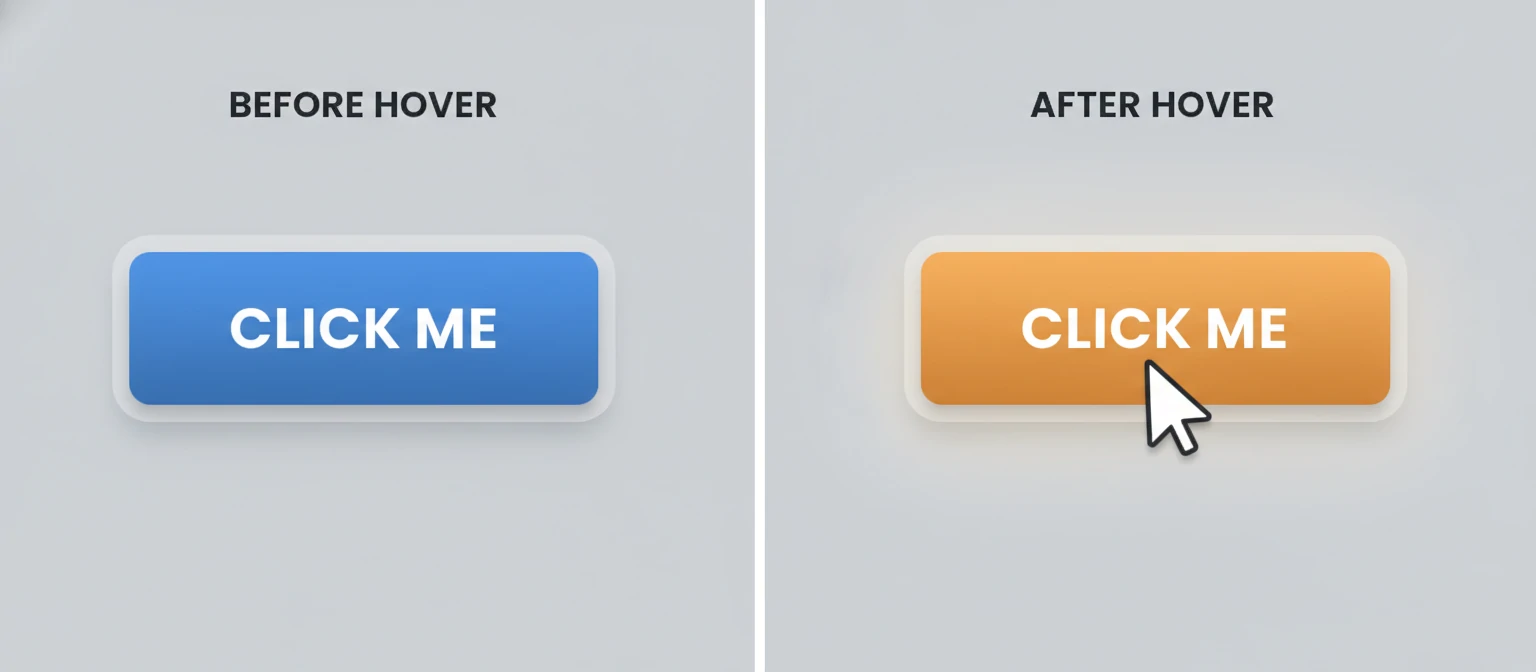
Example: Color Change on Button
This example demonstrates a simple background color change. The transition property ensures the change is smooth over 0.3 seconds. For pure CSS, you could use a style block or external CSS file.
Expanding on color changes, let's explore text color modifications. This is particularly effective for links and navigation items. When users hover over a link, changing its color provides clear indication of interactivity. For example, a link might change from blue to red on hover, signaling that it's clickable. In terms of best practices, always ensure sufficient color contrast. The Web Content Accessibility Guidelines (WCAG) recommend a contrast ratio of at least 4.5:1 for normal text and 3:1 for large text. When choosing hover colors, maintain this contrast to keep your site accessible. Another basic effect is adding or changing borders. This can make elements appear to "light up" or become more prominent. For instance, a card might have a subtle border that becomes thicker and more colorful on hover. Let's look at scaling effects. Using the transform property, you can make elements grow or shrink on hover. This creates a sense of depth and importance. A common example is scaling buttons slightly larger on hover to make them appear more clickable. Opacity changes are another simple yet effective hover effect. Reducing opacity on hover can create a subtle "fade" effect, while increasing it can make elements more prominent. This is often used for image overlays or background elements. All these basic effects can be combined for more complex interactions. For example, a button might change color, scale up, and add a shadow on hover. The key is balance – don't overwhelm the user with too many changes at once. As we move forward, remember that these basic effects form the foundation for more advanced techniques. Mastering them will give you the confidence to experiment with more complex animations.

Let's delve deeper into scaling effects. Scaling can be used to create a sense of importance or to mimic real-world interactions, like pressing a button. The transform: scale() property allows you to enlarge or shrink elements. For example, a button might scale to 1.05 on hover, making it appear raised. Code: button:hover { transform: scale(1.05); } This effect works well with transitions for smoothness. Combine it with other properties like changing background color for a more dynamic feel. Another basic effect is rotating elements. While less common for UI elements, rotation can add playfulness to icons or decorative elements. Example: .icon:hover { transform: rotate(10deg); } Be cautious with rotation, as it can disorient users if overused. Changing font weight or size on hover can emphasize text elements. For headings or buttons with text, increasing font-weight on hover can make them stand out. Example: h2:hover { font-weight: bold; } This is particularly effective for navigation menus. All these effects should be tested for accessibility. Ensure that hover states don't rely solely on color changes for meaning, as colorblind users might miss them. Also, consider touch devices. Since they don't have hover, provide alternative interactions like tap states. The key to successful hover effects is consistency. Use similar effects for similar elements to create a cohesive experience. Experiment with timing. Some effects work better with quick transitions, others with slower ones. As you master these basic effects, you'll find they form the building blocks for more complex interactions.
Let's explore more basic effects. Box-shadow changes can add depth. On hover, increasing the shadow can make elements appear to lift. Example: .card:hover { box-shadow: 0 8px 16px rgba(0,0,0,0.2); } This creates a sense of elevation. Text-decoration changes for links. Instead of just color, you can add underline or change decoration. Example: a:hover { text-decoration: underline; } For images, opacity changes can create overlay effects. Example: img:hover { opacity: 0.8; } Combined with transitions, this can be smooth. Border-radius changes can make elements more rounded on hover. Example: button:hover { border-radius: 50%; } This can create interesting morphing effects. Background-image changes can swap images on hover. Example: .hero:hover { background-image: url('hover-image.jpg'); } This is useful for call-to-action sections. Remember to preload images for smooth transitions. All these effects can be combined for complex behaviors. For example, a card that scales, changes shadow, and reveals text on hover. The key is to start simple and build up. Experiment with different combinations to find what works for your design. Consider the psychology of colors and effects. Warm colors might convey energy, cool colors calmness. Timing is important. Faster transitions for quick feedback, slower for dramatic effects. Use easing functions for more natural animations. Example: transition: all 0.3s ease-in-out; This makes animations feel more organic. Test on different screen sizes. Effects that work on desktop might not on mobile. Use media queries to adjust effects for different devices. For example, disable scaling on small screens to avoid layout issues. Hover effects can also be used for accessibility, like highlighting focusable elements. Overall, basic CSS hover effects are powerful and easy to implement, forming the foundation of interactive web design.
Advanced Hover Effects with JavaScript
While CSS alone can create impressive hover effects, JavaScript opens up a world of possibilities for dynamic, interactive animations. With JS, you can create effects that respond to user behavior, incorporate timing, or even change based on external factors. In this section, we'll explore advanced hover effects that combine CSS transitions with JavaScript logic. One powerful technique is using JavaScript to trigger complex animations. For example, you might have a hover effect that not only changes an element's appearance but also affects related elements or creates ripple effects. Let's look at an example of a rotating element on hover. This uses CSS transforms combined with JavaScript event handlers.
This example rotates and scales a circular element on hover. The JavaScript functions handle the mouseover and mouseout events, applying CSS transforms. JavaScript allows for more sophisticated effects, such as hover effects that persist or change based on multiple interactions. You can also use libraries like GSAP or Anime.js for even more complex animations, but for this guide, we'll stick to vanilla JavaScript. Another advanced technique is creating hover effects that affect multiple elements. For instance, hovering over one item might highlight related items or reveal additional information. Remember, while JavaScript enables powerful effects, it also adds complexity and potential performance overhead. Always test your effects across devices and consider fallbacks for users with JavaScript disabled.

More advanced techniques include using JavaScript to create chained animations or effects that respond to mouse position. For example, you could make an element follow the mouse cursor on hover. To implement this, you can use mouseover and mousemove events to update the element's position. Code example: function followMouse(event) { const element = document.getElementById('follower'); element.style.left = event.clientX + 'px'; element.style.top = event.clientY + 'px'; } This creates a dynamic effect that engages users. Another advanced effect is creating particle systems or ripple effects on hover. These can be achieved with canvas or CSS animations triggered by JavaScript. Libraries like GSAP provide powerful tools for complex animations, but vanilla JavaScript can handle many effects. When using JavaScript for hover effects, consider performance. Use requestAnimationFrame for smooth animations and avoid heavy calculations on every mouse move. Also, handle edge cases like mouse leaving the element quickly or multiple rapid hovers. JavaScript allows for conditional effects based on user context, such as different animations for first-time visitors vs returning users. The possibilities are endless, but always prioritize user experience over flashy effects.
JavaScript can also be used to create hover effects that persist after the mouse leaves, or that trigger on other events. For example, you can have a hover effect that starts an animation that continues until completion. This can be achieved with setTimeout or animation libraries. Another technique is using mouse position to influence the effect, like parallax or 3D rotations based on cursor location. Code example: element.addEventListener('mousemove', function(e) { const x = e.offsetX / element.offsetWidth; const y = e.offsetY / element.offsetHeight; element.style.transform = `rotateX(${y * 20}deg) rotateY(${x * 20}deg)`; }); This creates a 3D tilt effect. Be mindful of performance with mousemove events. Use throttling or debouncing to limit updates. JavaScript allows for dynamic styling based on user data or preferences. For example, different hover effects for logged-in vs anonymous users. This can personalize the experience. Advanced effects can include sound or haptic feedback, but that's beyond CSS and JS. Stick to visual effects for web. Always provide fallbacks for JavaScript disabled users. Use progressive enhancement. Start with CSS, enhance with JS. This ensures broad compatibility. With these advanced techniques, you can create truly interactive and engaging hover effects.
Best Practices for Hover Effects
When implementing hover effects, following best practices ensures they enhance rather than detract from the user experience. Here are some key guidelines: 1. Keep effects subtle and purposeful. Overly flashy effects can be distracting and annoy users. The goal is to provide feedback, not to entertain. 2. Ensure accessibility. Effects should work with keyboard navigation and screen readers. For example, use :focus pseudo-class alongside :hover to provide the same visual feedback for keyboard users. 3. Optimize performance. Use hardware-accelerated properties like transform and opacity. Avoid changing properties that trigger layout recalculations, such as width or height, as they can cause janky animations. 4. Test across devices. Touch devices don't have hover, so provide alternatives like tap states or ensure the effect doesn't break the experience on mobile. 5. Maintain consistency. Use similar effects for similar elements to create a cohesive experience. For instance, all buttons should have the same hover behavior. 6. Consider timing. Transitions should be quick enough to feel responsive but not so fast that they're jarring. A good range is 0.2 to 0.5 seconds. 7. Provide fallbacks. Not all browsers support all CSS features, so have graceful degradation. 8. Test with real users. What looks good to you might not work for others. User testing can reveal issues you didn't anticipate. 9. Balance aesthetics and functionality. Effects should look good but not compromise usability. 10. Stay updated. Web standards evolve, so keep learning about new techniques and best practices. By following these practices, your hover effects will be both beautiful and functional, contributing positively to your site's user experience.

Examples Gallery: Hover Effects in Action
Ready to see some real magic? Let's look at a few interactive examples you can try right here. Hover over these elements to see the effects come alive!
These are just a taste of what's possible! Experiment with different combinations to create effects that match your brand's personality.
Tools and Resources for Mastering Hover Effects
Don't reinvent the wheel! Here are some fantastic tools and resources to supercharge your hover effect game:
- 🎨 CSS Generators: Tools like CSS3 Generator or Hover.css for quick effect creation
- 📚 Animation Libraries: GSAP, Anime.js, or Framer Motion for complex animations
- 🔍 Browser DevTools: Inspect and tweak effects in real-time
- 📖 Learning Resources: MDN Web Docs, CSS-Tricks, and A List Apart for in-depth tutorials
Remember, the best way to learn is by doing. Start small, experiment often, and don't be afraid to break things!
Common Mistakes to Avoid
Even experienced developers make these blunders. Here's what to watch out for:
Overdoing It
Too many effects can overwhelm users. Keep it simple and purposeful.
Ignoring Performance
Heavy animations can slow down your site. Use transform and opacity for smooth, GPU-accelerated effects.
Forgetting Accessibility
Not everyone uses a mouse. Ensure keyboard navigation and screen reader compatibility.
Mobile Blindness
Hover effects don't work on touch devices. Provide alternative interactions.
Avoid these pitfalls, and your hover effects will shine!
Future Trends in Hover Effects
The world of web design never stops evolving. Here's what's coming next for hover effects:
AI-Powered Effects
Imagine effects that adapt based on user behavior or preferences. AI could create personalized hover experiences.
Micro-Interactions
Tiny, meaningful animations that tell a story. Think subtle morphing icons or contextual feedback.
3D and VR Integration
As web VR grows, expect hover effects that work in three-dimensional spaces.
Voice and Gesture Controls
Beyond mouse hovers, effects triggered by voice commands or hand gestures.
Stay curious and keep experimenting. The future of web interactions is bright!
Conclusion
Whew, what a journey we've been on! From simple color tweaks to mind-bending JavaScript wizardry, you now have a treasure trove of hover effect techniques at your fingertips. Remember, the magic isn't just in the code – it's in how you use it to connect with your users. Always keep the balance in mind: looks good, works fast, and feels right. Don't sacrifice usability for flashiness. Test everywhere – desktop, mobile, old browsers – because your users will. The key? Practice, practice, practice. Start with what we've covered, mix and match, and let your creativity run wild. Draw inspiration from the web, but make it your own. Web tech keeps evolving, so stay curious. New CSS features and JS libraries are always popping up to make your effects even cooler. And hey, don't forget mobile users – hover doesn't exist there, so plan accordingly. Most importantly, enjoy the process! Hover effects are your playground for creativity. Use them to delight, guide, and wow your visitors. You've got this! Go forth and make the web a more interactive, beautiful place. Happy coding!