Shrink your PDFs by up to 90% without destroying quality. The definitive guide to smaller file sizes.
There’s nothing quite as frustrating as trying to email a PDF, only to see that dreaded “attachment too large” error. Or waiting forever for a huge file to upload. Or watching your cloud storage fill up with bloated documents.
I’ve spent countless hours figuring out how to compress PDFs without turning them into pixelated messes. And I’m about to share everything I’ve learned — the tools that actually work, the settings that matter, and the techniques that’ll cut your file sizes down to a fraction of what they were.
Here’s the thing most people don’t realize: PDF compression isn’t one-size-fits-all. A 50MB file full of high-resolution photos needs a completely different approach than a 50MB file full of scanned documents. The techniques that work brilliantly for one type can actually make another type worse.
By the end of this guide, you’ll understand exactly why your PDFs are so large, which compression method to use for your specific situation, and how to find that sweet spot between file size and quality. Let’s make those files manageable.
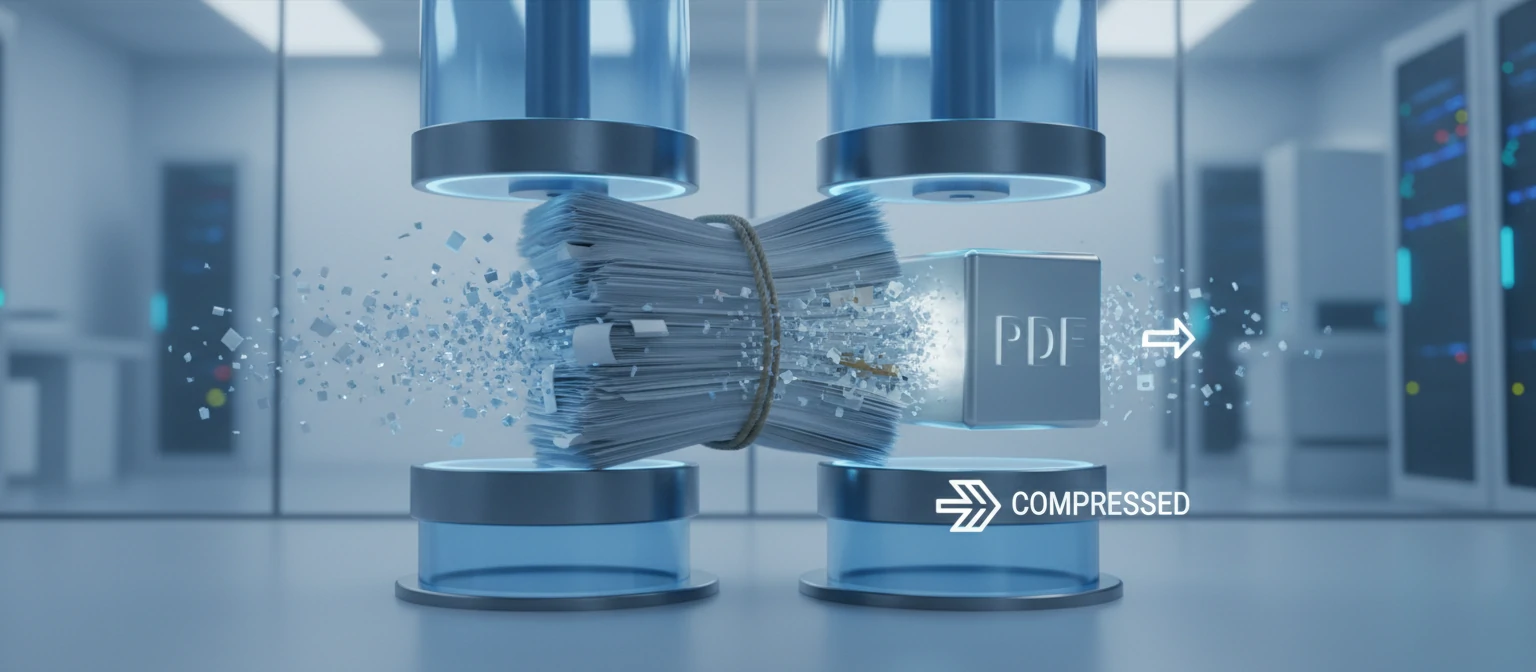
Why PDFs Get So Large
Before we start shrinking files, let’s understand what’s actually taking up all that space. Once you know what’s making your PDF bloated, you can target the right solution.
The Usual Suspects
High-Resolution Images
THE #1 CULPRITImages are almost always the reason PDFs balloon in size. A single high-res photo from a modern smartphone can be 5–10MB. Embed a few of those, and you’ve got yourself a monster file. The irony? Most of that resolution is completely wasted when viewed on screen.
Embedded Fonts
OFTEN OVERLOOKEDWhen you embed fonts in a PDF, you’re including the entire font file — sometimes multiple versions of it. A document using 5 different fonts might have 2–3MB of font data alone. Full font embedding ensures compatibility but adds significant bulk.
Scanned Pages
COMMON IN OFFICESScanned documents are essentially full-page images. A 10-page scanned document can easily hit 50MB because each page is stored as a high-resolution image rather than efficient text data.
Complex Vector Graphics
DESIGN-HEAVY FILESDetailed illustrations, CAD drawings, and complex charts contain thousands of vector points. While vectors are usually efficient, extremely complex graphics can actually take more space than raster images.
Redundant Data & Metadata
HIDDEN BLOATPDFs can accumulate “digital cruft” — edit histories, unused objects, duplicate resources, and verbose metadata. Files that have been edited many times often contain remnants of previous versions hidden inside.
📏 Quick Size Reference
Email-friendly: Under 10MB • Web upload: Under 25MB • Most file sharing: Under 100MB. If your PDF exceeds these, compression isn’t optional — it’s essential.
Types of PDF Compression
Understanding the difference between lossless and lossy compression will help you make better decisions about which settings to use.
No Quality Loss
Lossless compression reduces file size by finding and eliminating redundancies in the data. When you decompress, you get back exactly what you started with — bit for bit identical.
Best For:
- Legal documents
- Technical drawings
- Archive copies
- Files you’ll edit later
Typical reduction: 10–30%
Some Quality Sacrifice
Lossy compression achieves much smaller files by permanently removing some data. It’s like JPEG compression — you lose some detail, but the file is dramatically smaller.
Best For:
- Email attachments
- Web uploads
- Photo-heavy documents
- Screen viewing only
Typical reduction: 50–90%
💡 The Practical Reality
Most PDF compressors use a combination of both techniques. They apply lossless compression to text and fonts while using lossy compression on images. The “quality” slider you see in most tools controls how aggressive the lossy compression is.

Best Online PDF Compressors
For most people, online compressors are the fastest solution. Upload your file, click compress, download the result. Here are the ones I’ve tested extensively and trust.
Smallpdf
smallpdf.com — The Most Popular Choice
Smallpdf has become synonymous with online PDF tools. Their compressor is clean, fast, and offers two compression modes. The free tier limits you to 2 tasks per day, but for occasional use, that’s plenty.
How to Use:
- Go to smallpdf.com/compress-pdf
- Drop your PDF or click to upload
- Choose “Basic” (free) or “Strong” (Pro) compression
- Download your compressed file
ILovePDF
ilovepdf.com — Most Generous Free Tier
ILovePDF offers more free usage than Smallpdf and includes batch processing. You get three compression levels to choose from: Extreme, Recommended, and Less compression.
Compression Levels:
Adobe Acrobat Online
adobe.com/acrobat/online — The Original
Adobe’s free online tool offers limited but high-quality compression. Since they invented the PDF format, their algorithms are top-notch. Best for when quality matters most.
PDF24 Tools
tools.pdf24.org — Completely Free, No Limits
The best-kept secret in PDF tools. PDF24 is completely free with no daily limits, no file size restrictions, and no watermarks. German-made with a focus on privacy.
🔐 Privacy Reminder
Online tools upload your files to external servers. While reputable services delete files quickly and use encryption, sensitive documents (financial records, medical files, legal contracts) should be compressed using offline tools only. When in doubt, keep it local.
Desktop Compression Software
Desktop software keeps your files on your computer and often provides more control over compression settings. Here are the best options across different price points.
🍎 Free Mac Method: Using Preview
Every Mac has a powerful PDF compressor built right in. Here’s how to use it:
- Open your PDF in Preview (double-click should do it)
- Go to File → Export
- In the “Quartz Filter” dropdown, select “Reduce File Size”
- Click Save
⚠ Warning: Preview’s compression can be quite aggressive. Always check the result quality before deleting the original. For more control, consider ColorSync Utility to create custom filters.
Adobe Acrobat Pro Methods
If you have Adobe Acrobat Pro (or access through work), you have the most powerful PDF compression tools available. Here are all the ways to shrink files.
Reduce File Size (Quick Method)
- Open your PDF in Acrobat Pro
- Go to File → Save As Other → Reduced Size PDF
- Choose compatibility version (newer = smaller files)
- Click OK and save
Best for: Quick compression when you don’t need fine-tuned control.
PDF Optimizer (Advanced Method)
- Go to File → Save As Other → Optimized PDF
- Click Audit Space Usage to see what’s taking space
- Adjust settings for Images, Fonts, and Discard Objects
- Click OK to optimize
Pro tip: The “Audit Space Usage” feature shows exactly what’s bloating your file. Target those elements specifically.
Compress PDF Tool (Newest)
- Open your PDF
- Go to Tools → Compress PDF
- Choose compression level (High, Medium, Low)
- Click Compress
New feature: This simplified tool was added in recent versions for users who want results without complexity.
Balancing File Size vs Quality
The eternal compression dilemma: smaller files or better quality? Here’s how to make the right choice for different situations.
MINIMAL COMPRESSION When Quality is Critical
Use minimal or lossless compression when:
- Documents will be professionally printed
- Legal or official records requiring authenticity
- Technical drawings with fine details
- Archive copies you may need to edit later
BALANCED The Everyday Sweet Spot
Medium compression works well for:
- General business documents
- Reports and presentations
- Documents viewed on screens
- Standard home/office printing
MAXIMUM COMPRESSION When Size Matters Most
Aggressive compression is appropriate for:
- Email attachments with strict size limits
- Web uploads and form submissions
- Quick reference copies
- Documents where text is more important than images
🎯 The Golden Rule
Always keep your original, uncompressed file. Compress copies for distribution. You can always compress again differently, but you can never restore lost quality.
Compression for Specific Situations
📧 For Email Attachments
Most email providers limit attachments to 25MB. Gmail blocks anything over that. For email, aim for under 10MB to be safe.
Recommended: Use “Maximum” or “Extreme” compression. ILovePDF’s extreme mode or Smallpdf’s strong compression work well. Quality loss is usually acceptable for screen viewing.
📝 For Scanned Documents
Scanned PDFs are image-heavy by nature. The key is to reduce image DPI while keeping text readable.
Recommended: Use tools that specifically handle scans. Set DPI to 150 for screen viewing, 200–300 for printing. Consider running OCR first — text layers compress much better than images.
📊 For Presentations with Photos
Photo-heavy presentations can balloon quickly. Each high-res photo adds megabytes.
Recommended: Use medium compression with JPEG quality around 60–70%. This dramatically reduces file size while keeping photos looking good on projectors and screens.
🌐 For Website Upload
Website PDFs need to load fast. Visitors won’t wait for large files to download.
Recommended: Aim for under 5MB when possible. Use “web optimized” or “linearized” PDF settings if available — this allows the first page to display while the rest loads.
📚 For Long-Term Archives
Archive storage is cheap, but corrupted files are worthless. Prioritize reliability over size.
Recommended: Use lossless compression only. Consider PDF/A format for guaranteed future compatibility. Keep original plus compressed copy if storage allows.
Advanced Compression Techniques
These techniques require more effort but can achieve the best results for specific situations.
Pre-Compression Image Optimization
Before creating the PDF, optimize your images in the source application:
- In Word: Select images → Format → Compress Pictures → Choose target output
- In design software: Export images at 150–200 DPI for screen, 300 DPI max for print
- Convert PNG screenshots to JPEG (unless transparency needed)
- Remove EXIF data from photos before inserting
Font Subsetting
Instead of embedding entire fonts, embed only the characters actually used:
- Adobe Acrobat’s PDF Optimizer includes font subsetting options
- Can reduce font data from several MB to just kilobytes
- Note: Subset fonts can’t be edited later without original font files
Command Line: Ghostscript
For batch processing or scripting, Ghostscript is incredibly powerful:
gs -sDEVICE=pdfwrite -dCompatibilityLevel=1.4
   -dPDFSETTINGS=/ebook -dNOPAUSE -dQUIET
   -dBATCH -sOutputFile=output.pdf input.pdf
Settings options: /screen (lowest), /ebook (medium), /printer (high), /prepress (highest)
Frequently Asked Questions
How much can I compress a PDF?
It depends on the content. Image-heavy PDFs can often be reduced by 70–90%. Text-heavy PDFs might only shrink 10–30%. Scanned documents usually have the most room for compression.
Will compression affect my document’s printability?
Aggressive compression can reduce print quality. For documents you’ll print, use medium compression and keep images at 200+ DPI. For screen-only viewing, lower quality is fine.
Is online PDF compression safe?
Reputable services use encrypted connections and delete files quickly. However, for truly sensitive documents (legal, medical, financial), use desktop software that keeps files on your computer.
Can I compress a PDF multiple times?
Technically yes, but it’s not recommended. Each compression pass can degrade quality further. If the first compression wasn’t enough, try different settings rather than compressing again.
Why didn’t my PDF get smaller after compression?
Some PDFs are already optimized or contain mostly text (which doesn’t compress much). Also, PDFs from certain sources are pre-compressed. Try the “Audit Space Usage” in Acrobat to see what’s actually in the file.
Do compressed PDFs retain their hyperlinks?
Yes, proper compression tools preserve hyperlinks, bookmarks, and other interactive elements. Only the image and font data should be affected by compression.
Compression Complete!
You now have everything you need to shrink any PDF to a manageable size. Remember: keep the original, compress copies, and always check your results.
Want more PDF tips? We regularly publish guides on PDF tools, document management, and productivity. Check back for the latest articles on getting the most from your digital documents.
About This Guide
Written by someone who’s compressed thousands of PDFs and learned which methods actually work. This guide is regularly updated with the latest tools and techniques.