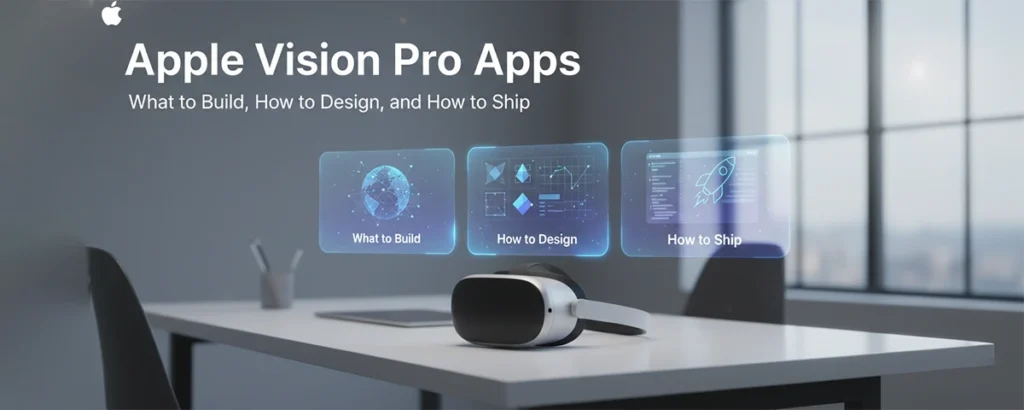
This knowledge-based, visitor-centric guide explains how to create Apple Vision Pro apps that feel natural, useful, and delightful—from spatial design principles and interaction models to the tools, code architecture, testing, performance, and business models that stand up in the real world.
Table of contents
- What Makes Apple Vision Pro Different
- Platform Capabilities You Can Leverage
- Interaction: Eyes, Hands, and Voice
- Design Principles for Spatial Apps
- UI Patterns That Consistently Work
- Use Cases Worth Building Now
- Development Stack and Architecture
- Performance, Thermal, and Battery Discipline
- Testing, Accessibility, and Quality
- Monetization: Pricing for Value, Not Novelty
- Distribution, App Review, and Ops
- Privacy and Security for Spatial Apps
- Mini Case Studies (Hypothetical)
- FAQ: Straight Answers
- Downloadable Checklist: Vision Pro App Readiness
- Conclusion: Build for Presence, Not Novelty
What Makes Apple Vision Pro Different
Apple Vision Pro introduces spatial computing—apps live in your space rather than inside a flat screen. Instead of windows bound to a monitor, you compose workspaces across your room, pinning apps to walls, placing 3D objects on tables, and using your eyes, hands, and voice to interact. For product makers, it’s not about porting iOS apps; it’s about rethinking context, depth, and presence.
Three pillars shape the experience: 1) a crisp passthrough view that preserves presence, 2) precise eye tracking that makes pointing effortless, and 3) hand gestures that replace clicks. Your app competes not just on features, but on how gracefully it coexists with a user’s environment and other apps in the same spatial canvas.

Platform Capabilities You Can Leverage
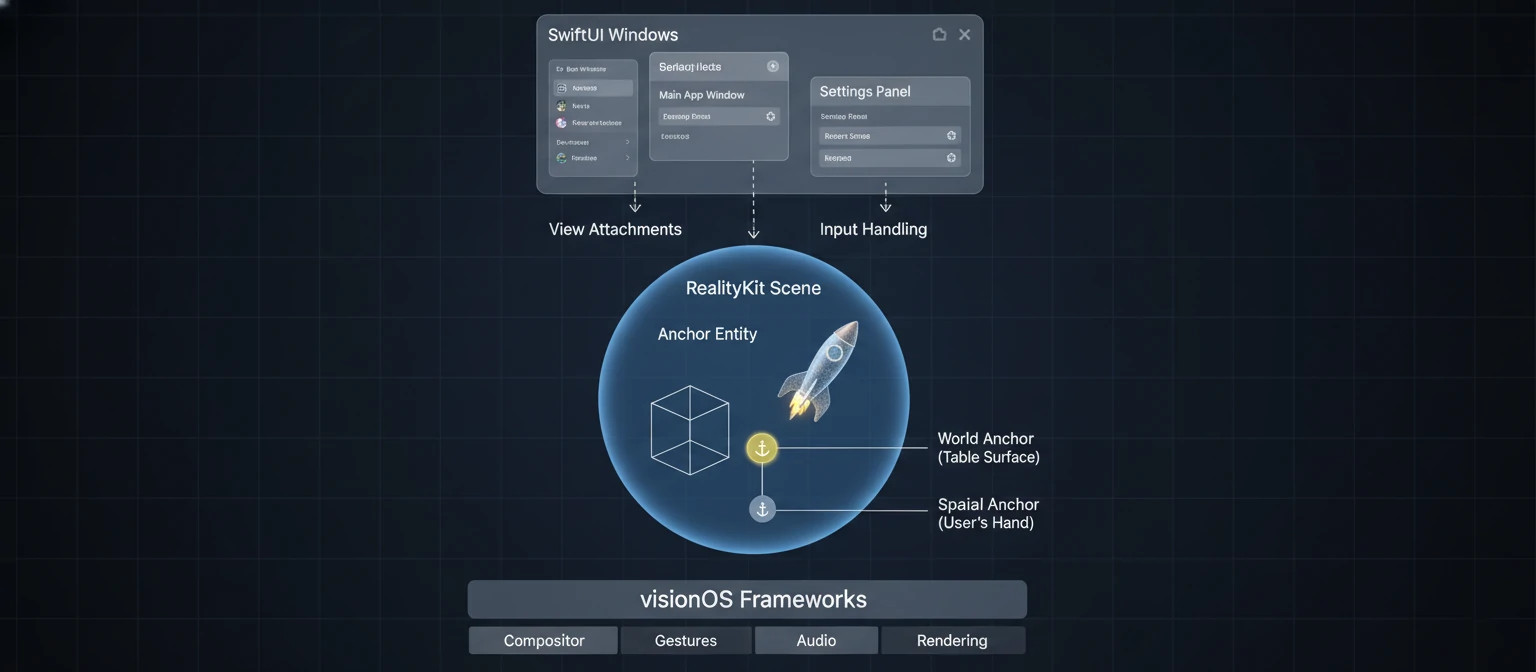
Vision Pro blends familiar Apple stacks with spatial-only APIs. You can mix 2D windows (SwiftUI) with 3D content (RealityKit) in the same scene, animate objects with physics, and anchor them to the room or to a specific surface. Cameras and sensors enable scene understanding, hand/eye input, and realistic lighting estimation for 3D materials.
- SwiftUI for visionOS: Build windows, ornaments, sidebars, and controls that scale elegantly in 3D space.
- RealityKit + ARKit: Render 3D models, physics, occlusion, shadows, and spatial audio. Anchor content to walls, tables, or the world.
- Eye and hand input: Gaze highlights targets; gentle tap gestures select; pinch-and-drag manipulates objects.
- Passthrough and immersion: Blend reality and virtual objects; graduate to full immersion with care and clear exits.
- Shared spaces: Multi-app coexistence; pin elements for persistence across sessions.
- Spatial audio: Position sound where objects live; leverage head-related transfer functions for presence.
Interaction: Eyes, Hands, and Voice
Interaction on Vision Pro is subtle by design. Users look where they intend to act, then confirm with a small pinch, tap, or voice command. The best apps reduce friction by using gaze as a lightweight pointer, reserving hand gestures for confirmation or manipulation, and leaning on voice for text-heavy tasks.
- Gaze: Treat gaze highlight as hover. Avoid auto-triggering actions on gaze alone to prevent accidental activation.
- Hands: Pinch to select, pinch-and-drag to move/scale/rotate. Provide visual affordances and snap behavior.
- Voice: Dictation for text; commands for mode switches. Always display what the system heard, with quick correction.
Design Principles for Spatial Apps
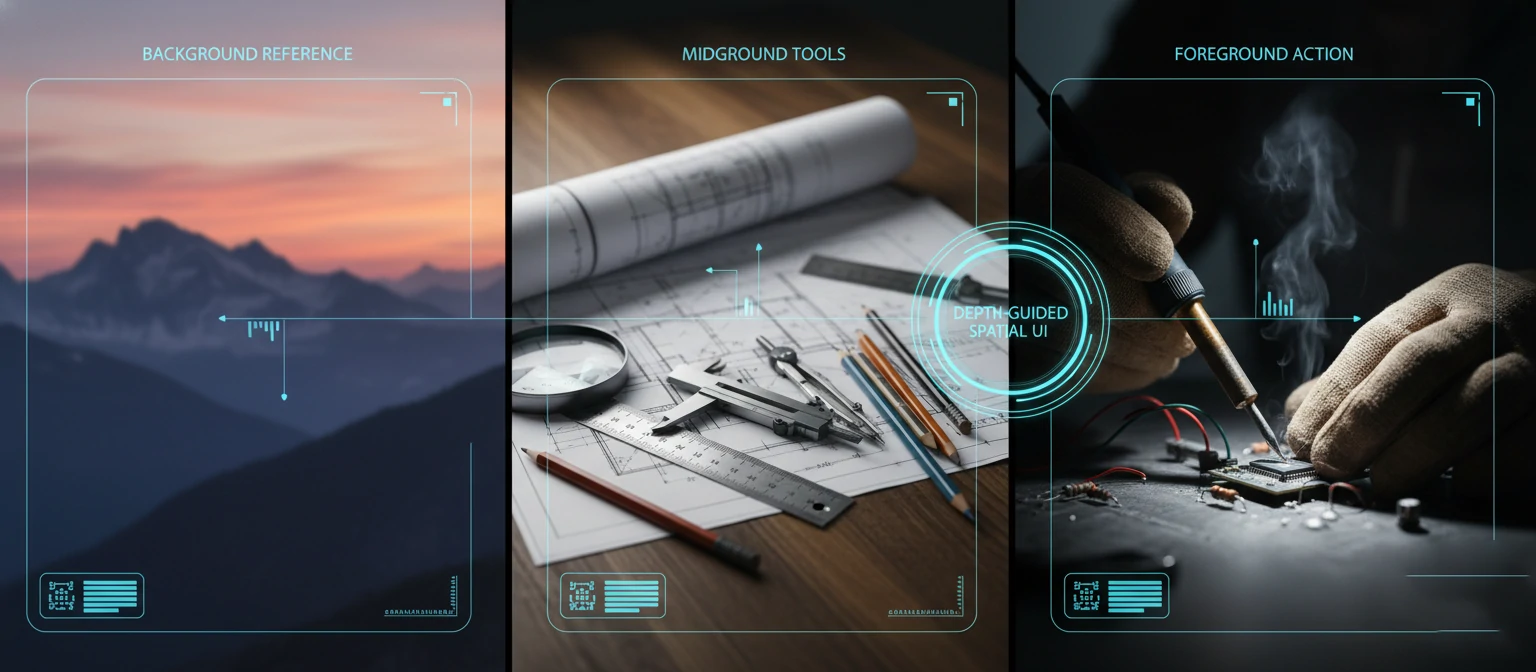
Designing for depth requires restraint. You’re not painting a skybox; you’re augmenting a real place where the user lives or works. Prioritize legibility, comfort, and context. Use depth to reduce clutter: place reference content behind, active tools in front, and peripheral information to the side.
- Respect the room: Don’t take over the environment. Keep scale life-sized and honor user-chosen placements.
- Use depth intentionally: Stack layers to guide focus; decrease contrast for distant elements.
- Comfort first: Limit large, fast motion; provide anchors to reduce motion sickness; offer stationary modes.
- Readable typography: Large, high contrast text with generous spacing; avoid thin fonts in low light.
- Lighting and materials: Match environmental light; use subtle shadows and occlusion for realism.
UI Patterns That Consistently Work
Pinned dashboards
Lightweight 2D panels you can pin to walls for persistent status (home automation, monitoring, productivity sidebars).
Tabletop 3D scenes
Place models on a real surface; use natural scale and shadows for understanding (education, visualization, planning).
Guided workflows
Step-by-step overlays with spatial cues and short videos; great for training and maintenance.
Immersive focus rooms
Use partial immersion to block distractions while keeping a few pinned references nearby.
Use Cases Worth Building Now
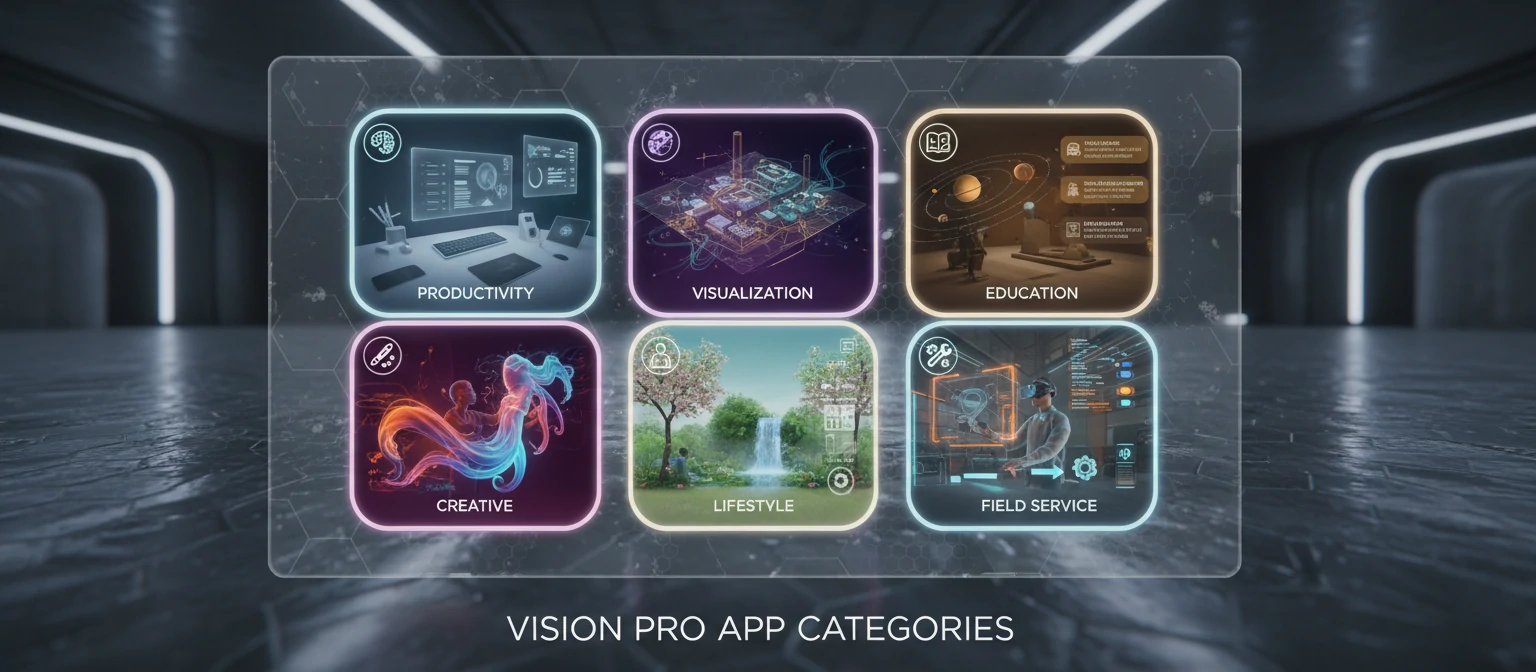
- Productivity: Multi-app spatial workspaces, research + writing with reference panels, meeting prep with pinned boards.
- Visualization: 3D data, architecture, medical, engineering, and geospatial models with tabletop context.
- Education & training: Spatial labs, chemistry/biology visualizations, hands-on tutorials with guided overlays.
- Creative tools: Storyboarding in space, 3D sculpting, spatial mood boards, and scene composition.
- Home & lifestyle: Interior planning, fitness with proper depth cues, cooking assistants with timers and steps.
- Field service: Remote assistance with annotations, step-by-step maintenance in industrial settings.
Development Stack and Architecture
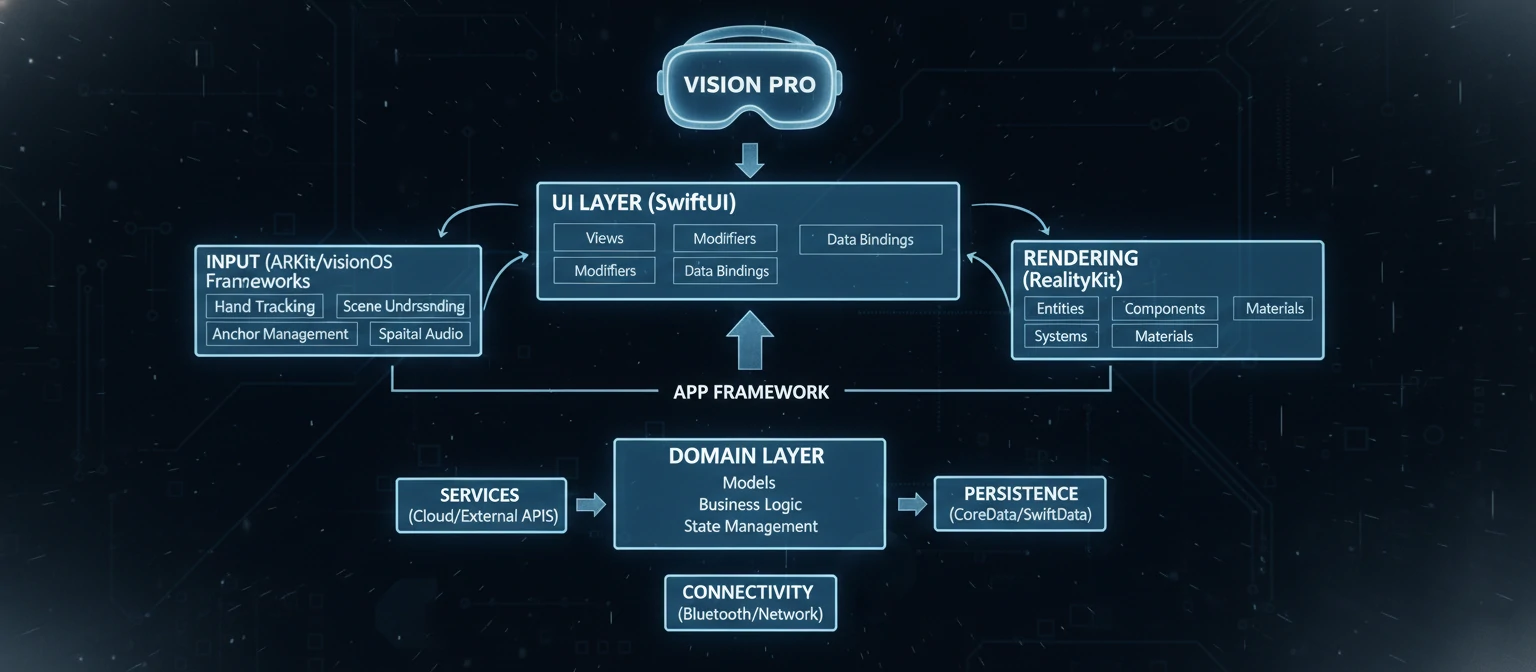
Vision Pro apps are built primarily with Swift and SwiftUI for UI, RealityKit for 3D content, and ARKit for scene understanding. For shared codebases, modularize: a domain layer (business logic), a rendering layer (RealityKit scenes), and a UI layer (SwiftUI). Keep the 3D scene isolated behind interfaces, so non-3D features can be tested in headless environments.
- SwiftUI windows and ornaments: Toolbars, side panels, and controls.
- RealityKit scene graph: Entities, components, physics, materials; decouple from app state via binding.
- Data and networking: Combine/async; cache assets locally; stream updates efficiently.
- Asset pipeline: USDZ/Reality Composer Pro for models; compress textures; manage variants.
- Analytics and logging: Track interactions, dwell time, and comfort-related signals.
Performance, Thermal, and Battery Discipline
Spatial apps must stay smooth and comfortable. Favor stable frame times over peak throughput. Reduce overdraw, cull unseen objects, and minimize heavy shaders. Pre-bake lighting when possible and stream large assets progressively. Avoid unnecessary full-immersion unless the use case demands it and always include a quick way back to the real world.
- Use level-of-detail (LOD) models and frustum culling for complex scenes.
- Batch draw calls; share materials and textures; prefer instancing.
- Throttle non-critical updates; decimate physics outside focus.
- Cache results of expensive computations and reuse across frames.
Testing, Accessibility, and Quality
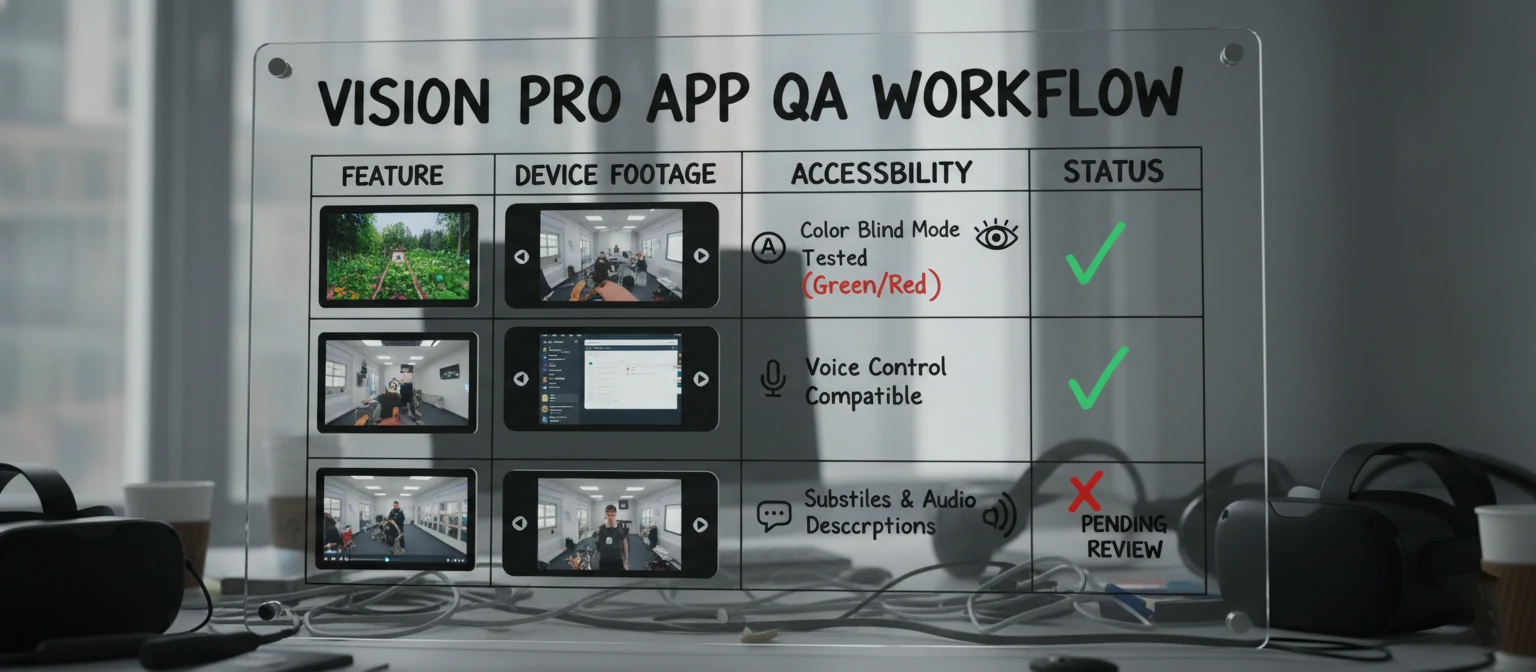
Test on-device early and often. Simulators can validate logic, but comfort and legibility require real hardware. Build scripts to create demo scenes and sample datasets. Record short session videos for reviewers and internal QA to replicate issues quickly.
- Unit test domain logic; snapshot test SwiftUI; smoke test scenes with scripted camera paths.
- Accessibility: large text options, clear focus rings for gaze, voice-friendly commands, high-contrast palettes.
- Localization: prefer icons with labels; keep text in memory-light bundles; test right-to-left layouts.
Monetization: Pricing for Value, Not Novelty
Successful Vision Pro apps charge for outcomes—time saved, clarity gained, joy created. Price based on utility and frequency. For pro tools, consider tiered licensing with feature gates. For consumer apps, blend a fair upfront price with optional content packs or subscriptions. Always justify cost through clear, repeatable use cases.
- Paid app with generous trial or demo scenes.
- Subscription for ongoing content, multi-device sync, or collaboration features.
- One-time packs (models, lessons, scenes) that respect user ownership and storage.
Distribution, App Review, and Ops
Ship with empathy for reviewers and users. Provide a rich App Store page with short videos showing real usage in space. Include clear instructions and a help panel inside your app. Use TestFlight to validate onboarding and performance with a small cohort, then scale gradually with canary releases for content updates.
- Capture short clips of gaze + hand gestures to demonstrate affordances.
- Provide a Support link with FAQs, known issues, and a quick feedback form.
- For enterprise, consider custom app distribution with MDM.
Privacy and Security for Spatial Apps
Spatial data is intimate. Treat rooms, objects, and gaze as sensitive, even if APIs abstract raw signals. Minimize collection, store locally when possible, and be transparent about what you log. Never surprise users with sudden immersion, and avoid recording without an explicit reason and consent.
- Data minimization: collect only what’s needed to deliver value.
- Clear permission prompts with in-app explanations and controls.
- Encrypt sensitive content in transit and at rest; rotate keys.
- Respect platform privacy boundaries for camera and sensor data.
Mini Case Studies (Hypothetical)
1) Spatial Research Desk
A writing and research app lets users pin articles to walls, keep a drafting window front and center, and visualize outlines as movable cards. Result: faster synthesis and fewer context switches. Monetization: paid app with a pro tier for cloud sync and collaboration.
2) Tabletop Anatomy
Students place a life-size heart model on a desk and explore layers and blood flow. Step-by-step lessons appear beside the model with voice playback. Monetization: school licenses + content packs.
3) Scene Composer
Creators storyboard in space: arrange props, adjust lighting, and export stills or short clips. Pro tier unlocks asset libraries and export presets.
FAQ: Straight Answers
Is porting my iPad app enough?
Probably not. Users expect spatial value: depth, context, and presence. Revisit your core value proposition and amplify it with spatial affordances.
Do I need 3D artists?
For anything beyond basic shapes, yes. Use USDZ and Reality Composer Pro; invest in good materials and lighting to avoid “plastic” looks.
How do I avoid motion sickness?
Keep movement slow and predictable, anchor content to the environment, and prefer stationary camera setups. Offer an easy exit from immersive scenes.
How long does v1 take?
With a focused scope, 8–16 weeks is realistic for a polished pilot, assuming you have assets ready and a small, senior team.
Downloadable Checklist: Vision Pro App Readiness
- Clear spatial value proposition and use-case storyboard
- UI plan: windows, ornaments, and a 3D scene map
- Asset pipeline (USDZ), compression, and variants
- Interaction map: gaze, hand, and voice shortcuts
- Performance plan: LOD, culling, batching, metrics
- Testing on device; QA scenes and scripted camera paths
- Accessibility and localization checklist
- Privacy policy, permissions copy, and data retention
- Launch assets: App Store media and support docs
Conclusion: Build for Presence, Not Novelty
Apple Vision Pro is not just a new screen—it’s a new medium. The best apps respect the user’s space, deliver clear value, and keep comfort front and center. Start small: identify a high-frequency scenario, design a depth-aware workflow, and test on real hardware. Iterate with a tight feedback loop and ship a version that solves a real problem beautifully.
When you combine thoughtful spatial design with a disciplined engineering stack, your Vision Pro app earns a place in the user’s room—and their routine.