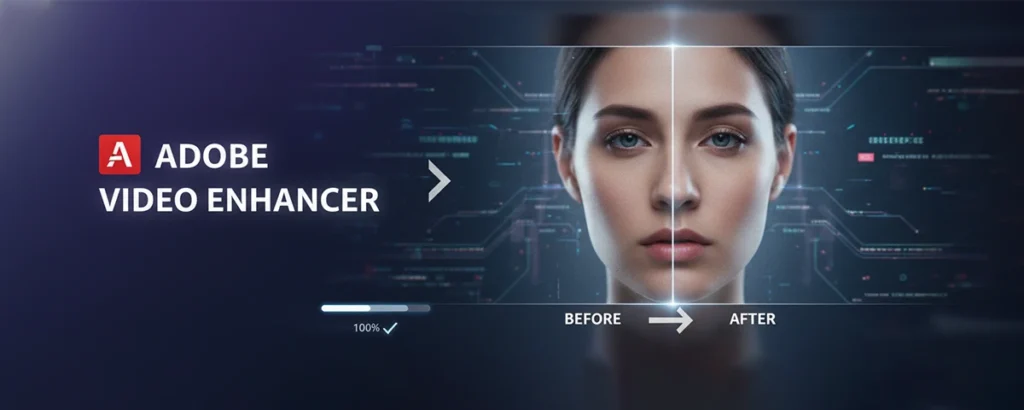
Transform Ordinary Footage into Stunning Visual Masterpieces
Discover how Adobe's powerful suite of tools can enhance video quality, upscale resolution, perfect colors, and restore audio. From AI-powered magic to professional techniques, master the art of video enhancement.
Table of contents
- What is Adobe Video Enhancement?
- Adobe Video Enhancement Tools
- Color Enhancement & Grading
- Resolution & Quality Enhancement
- Audio Enhancement in Adobe
- AI-Powered Video Enhancement
- Complete Enhancement Workflow
- Frequently Asked Questions
- Does Adobe have a dedicated video enhancer app?
- Can Adobe tools upscale video to 4K?
- How do I remove background noise from video in Adobe?
- What's the best Adobe app for color correction?
- Can I fix blurry video with Adobe software?
- How much does Adobe video enhancement cost?
- Is Adobe Sensei AI good for video enhancement?
- What computer specs do I need for video enhancement?
- Transform Your Video Today
What is Adobe Video Enhancement?
Adobe video enhancement refers to the comprehensive set of tools and features within Adobe's creative software suite designed to improve video quality, fix imperfections, and transform ordinary footage into professional-grade content. While Adobe doesn't offer a single product called "Video Enhancer," their ecosystem provides the most powerful video enhancement capabilities in the industry.
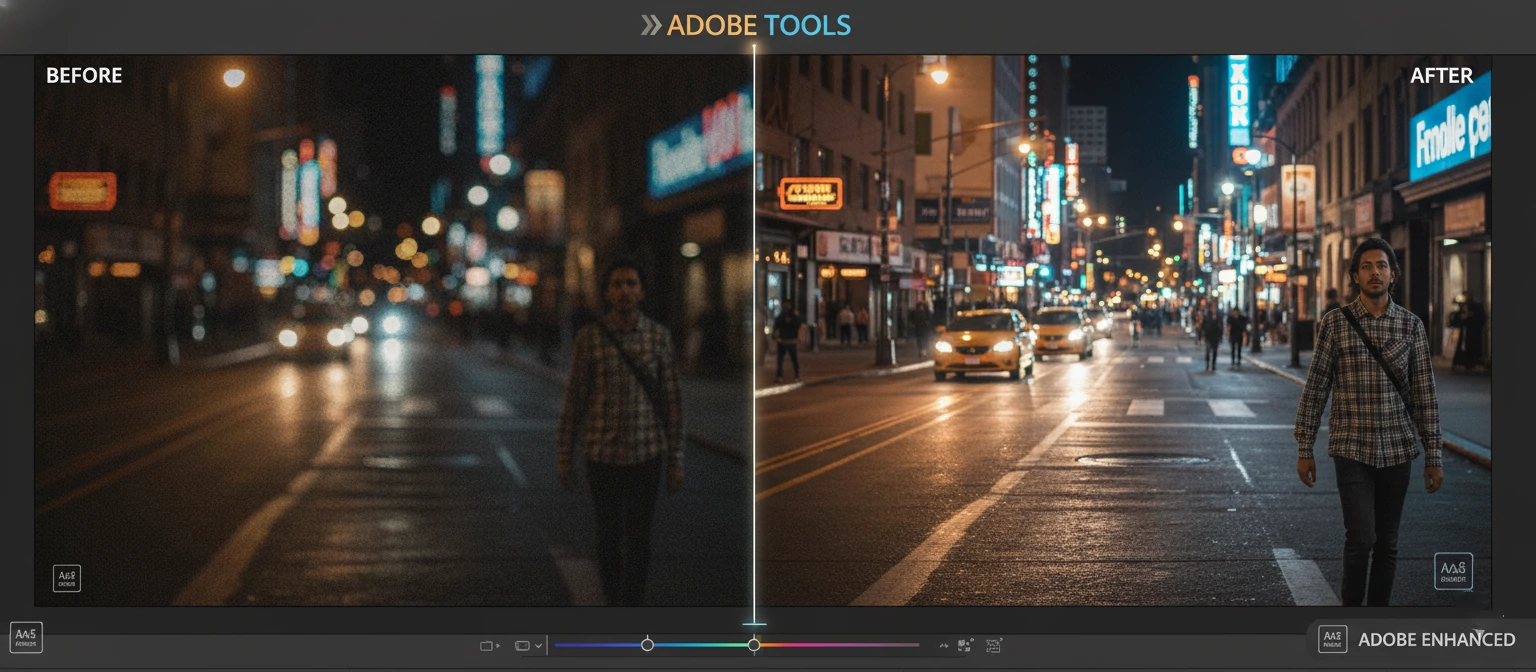
Video enhancement encompasses a wide range of improvements: correcting exposure and color issues, reducing noise and grain, sharpening soft footage, upscaling resolution, stabilizing shaky video, enhancing audio quality, and applying creative looks. Adobe's tools address all these needs through applications like Premiere Pro, After Effects, Audition, and the AI-powered features of Adobe Sensei.
In 2026, video enhancement has become increasingly accessible thanks to artificial intelligence. Adobe Sensei powers automated features that can analyze footage and apply intelligent corrections automatically. Tasks that once required hours of manual work—like noise reduction, color matching, and audio cleanup—now happen with a few clicks. This democratization of professional-quality enhancement means creators at all skill levels can produce stunning results.
🎯 What Can Video Enhancement Fix?
Dark/Underexposed
Brighten shadows, recover detail
Noisy/Grainy
Reduce digital noise and film grain
Color Issues
White balance, saturation, tint
Shaky Footage
Stabilize handheld video
Low Resolution
AI upscaling to 4K+
Poor Audio
Noise, echo, clarity issues
Whether you're working with smartphone footage that needs professional polish, archival video that requires restoration, or professional footage that needs color grading and finishing, Adobe's suite provides solutions. The key is understanding which tools to use for specific enhancement tasks—and that's exactly what this guide will teach you.
Adobe Video Enhancement Tools
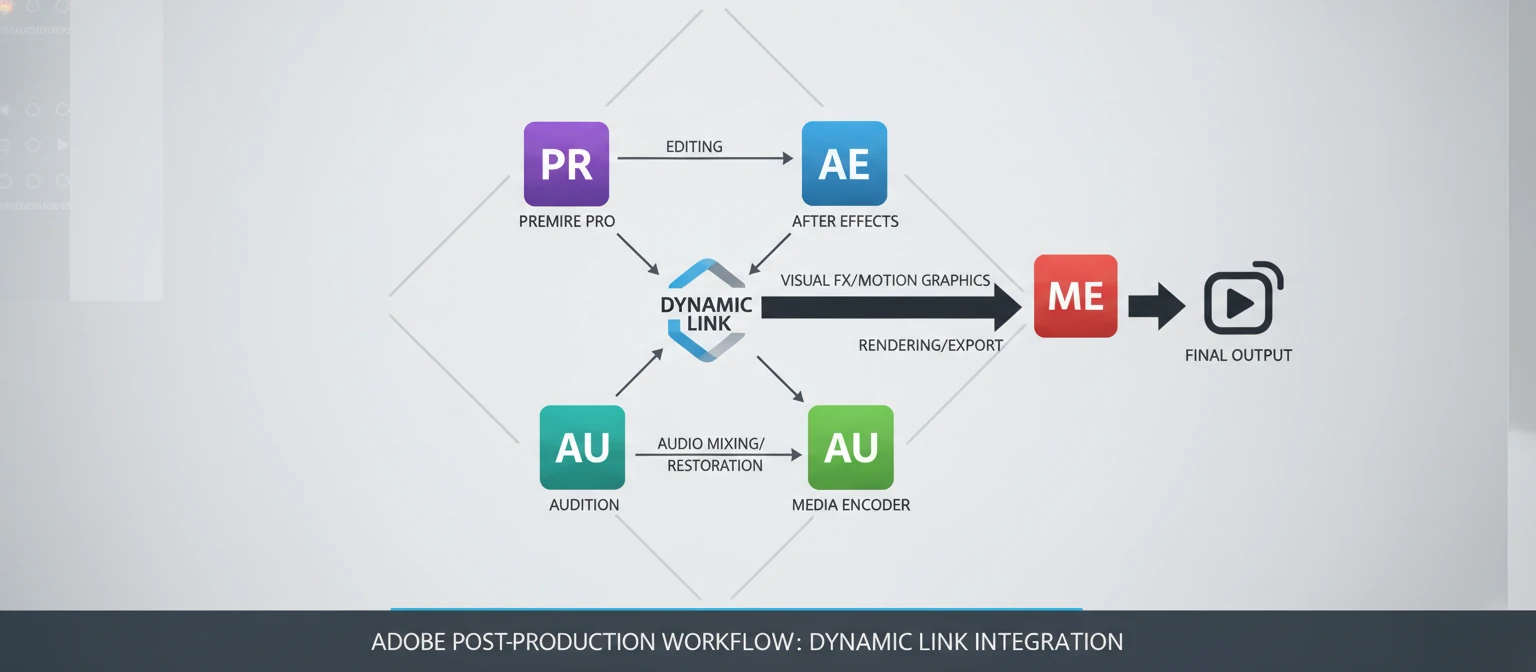
Adobe offers multiple applications for video enhancement, each with specialized strengths. Here's how they work together.
Adobe Premiere Pro
Primary Video Enhancement Hub
Premiere Pro is the central hub for most video enhancement work. The Lumetri Color panel provides comprehensive color correction and grading. Essential Sound offers AI-powered audio enhancement. Built-in effects handle noise reduction, sharpening, and stabilization. For most enhancement tasks, Premiere Pro is your starting point and often your complete solution.
Adobe After Effects
Advanced Enhancement & Effects
After Effects handles enhancement tasks requiring more precision or power than Premiere Pro offers. Advanced tracking for stabilization, sophisticated color work, detailed noise reduction with third-party plugins, and frame-by-frame corrections all happen here. Use Dynamic Link to move between Premiere and After Effects seamlessly without rendering.
Adobe Audition
Professional Audio Enhancement
When your video's audio needs serious help, Audition is the answer. Professional-grade noise reduction, spectral editing to remove specific sounds, dialogue enhancement, echo reduction, and multitrack mixing all happen here. Audition integrates directly with Premiere Pro—send audio for enhancement and it returns automatically.
Adobe Media Encoder
Quality Export & Optimization
Media Encoder ensures your enhanced video maintains quality through export. It offers precise control over compression, format conversion, and quality settings. The Maximum Render Quality option uses advanced algorithms during scaling. Hardware acceleration speeds up processing. Batch processing handles multiple versions efficiently.
Color Enhancement & Grading
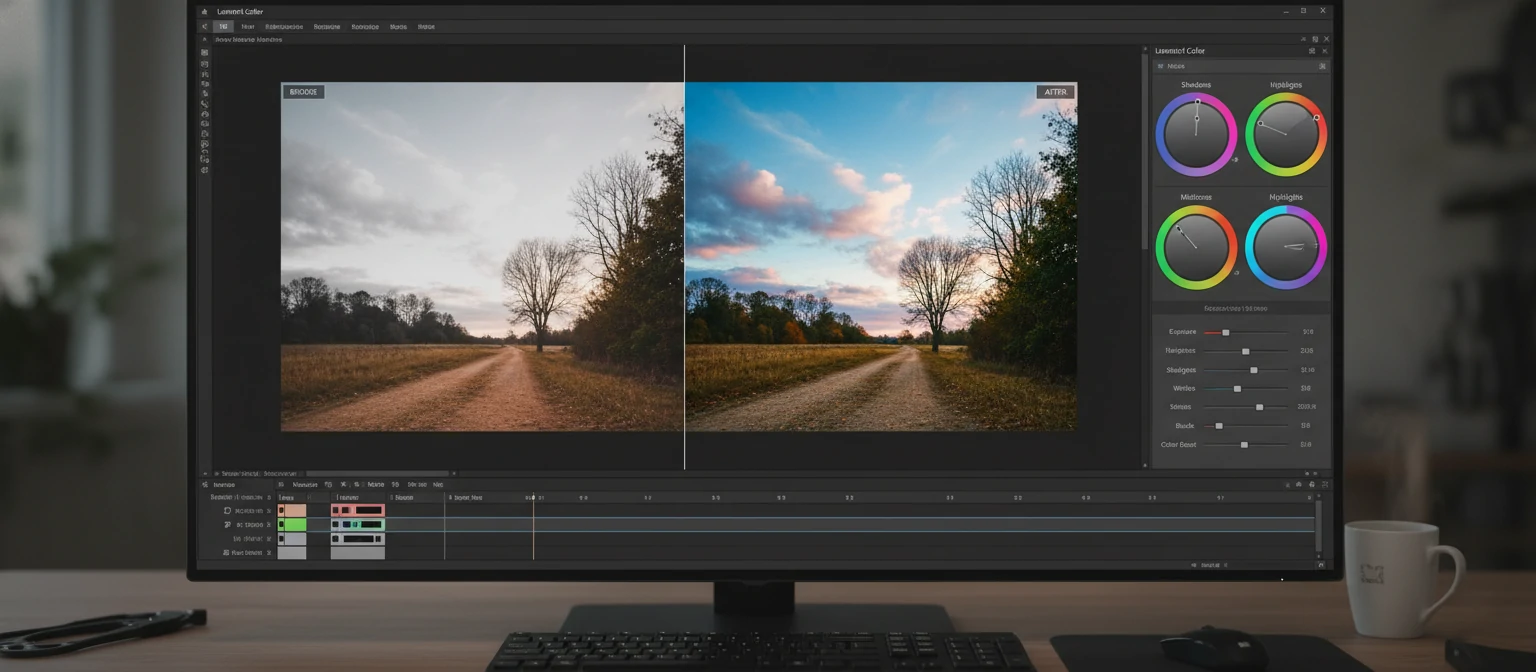
Color enhancement is often the most impactful improvement you can make to video. Adobe's Lumetri Color panel in Premiere Pro provides everything from basic corrections to cinematic color grading, organized in a logical workflow.
Step 1: Exposure Correction
Start by fixing exposure issues in the Basic Correction section. Adjust the Exposure slider to set overall brightness. Use Highlights and Shadows to recover detail in bright and dark areas independently. The Whites and Blacks controls set the extreme ends of your tonal range. Watch the waveform scope to ensure you're not clipping—the signal should stay between 0 and 100 IRE for broadcast, though you have more flexibility for web delivery.
Step 2: White Balance
Correct color temperature using the Temperature (blue to orange) and Tint (green to magenta) sliders. Use the white balance selector eyedropper on something that should be neutral—a white surface or gray card. Proper white balance ensures skin tones look natural and colors are accurate. If footage was shot under mixed lighting, you may need to grade different sections separately.
Step 3: Contrast & Saturation
Add punch to your image with Contrast—but don't overdo it, as excessive contrast crushes detail. Saturation controls overall color intensity; Vibrance is gentler, boosting muted colors while protecting already-saturated tones (especially skin). For most enhancement work, a subtle increase in both contrast and vibrance adds visual appeal without looking over-processed.
Step 4: Creative Color Grading
Once correction is complete, apply creative looks. The Color Wheels let you push specific colors into shadows, midtones, and highlights—the classic "teal and orange" look uses cool shadows and warm highlights. Apply LUTs (Look-Up Tables) for instant cinematic looks, but always adjust intensity. The HSL Secondary section lets you target specific colors for adjustment—perfect for making skies bluer or skin tones warmer.
💡 Color Enhancement Pro Tips
- Use Adjustment Layers — Apply grades to adjustment layers to affect multiple clips at once
- Work in order — Always correct before grading; fix problems first, then get creative
- Use scopes — Don't trust your monitor alone; waveform, vectorscope, and parade show objective data
- Color Match feature — Use AI Color Match to automatically match shots from different cameras or conditions
- Save presets — Create presets from your favorite corrections to speed up future projects
Resolution & Quality Enhancement
Upscaling low-resolution footage and enhancing overall sharpness are common enhancement needs. Adobe provides several approaches, from built-in scaling to AI-powered solutions and third-party plugins that integrate seamlessly.
📐 Maximum Render Quality
When exporting via Media Encoder, enable Maximum Render Quality in the export settings. This uses advanced algorithms during any scaling operation, producing smoother results when upscaling or downscaling. It significantly increases render time but maintains the best possible quality. Essential when scaling 1080p footage to 4K sequences or vice versa.
✨ Sharpening Effects
Premiere Pro's Unsharp Mask effect adds perceived sharpness by increasing contrast along edges. Use Amount of 50-150%, Radius of 1-2 pixels, and Threshold of 0-10 for most footage. The Sharpen effect is simpler but less controllable. Always apply sharpening as the last step, after scaling. Over-sharpening creates ugly halos and artifacts—subtlety is key.
🔊 Noise Reduction
Noisy footage appears soft and low-quality. Premiere Pro's Median effect reduces noise but can soften detail. For better results, use After Effects' Remove Grain effect or third-party plugins like Neat Video. The key is finding the balance between noise reduction and detail preservation. Always zoom to 100% when adjusting noise reduction to see the actual effect.
🤖 AI Upscaling (Third-Party)
For serious upscaling—like converting SD to HD or HD to 4K—AI-powered solutions deliver the best results. Topaz Video AI integrates with Adobe workflows and can genuinely add detail that wasn't visible in the original. Process footage through Topaz, then import the upscaled version into Premiere. Adobe's own AI upscaling capabilities continue to improve with each update to Sensei.
| Issue | Adobe Tool | Solution |
|---|---|---|
| Soft/Blurry Footage | Premiere Pro | Unsharp Mask effect, subtle Amount & Radius |
| Digital Noise/Grain | After Effects | Remove Grain effect or Neat Video plugin |
| Low Resolution | Media Encoder + External | Maximum Render Quality + Topaz Video AI |
| Compression Artifacts | Premiere Pro | Light blur + sharpening, work from best source possible |
Audio Enhancement in Adobe
Audio quality can make or break your video. Viewers will tolerate imperfect visuals far longer than poor audio. Adobe provides powerful tools for cleaning up, enhancing, and perfecting your video's sound—from quick fixes in Premiere Pro to surgical precision in Audition.
Background Noise Removal
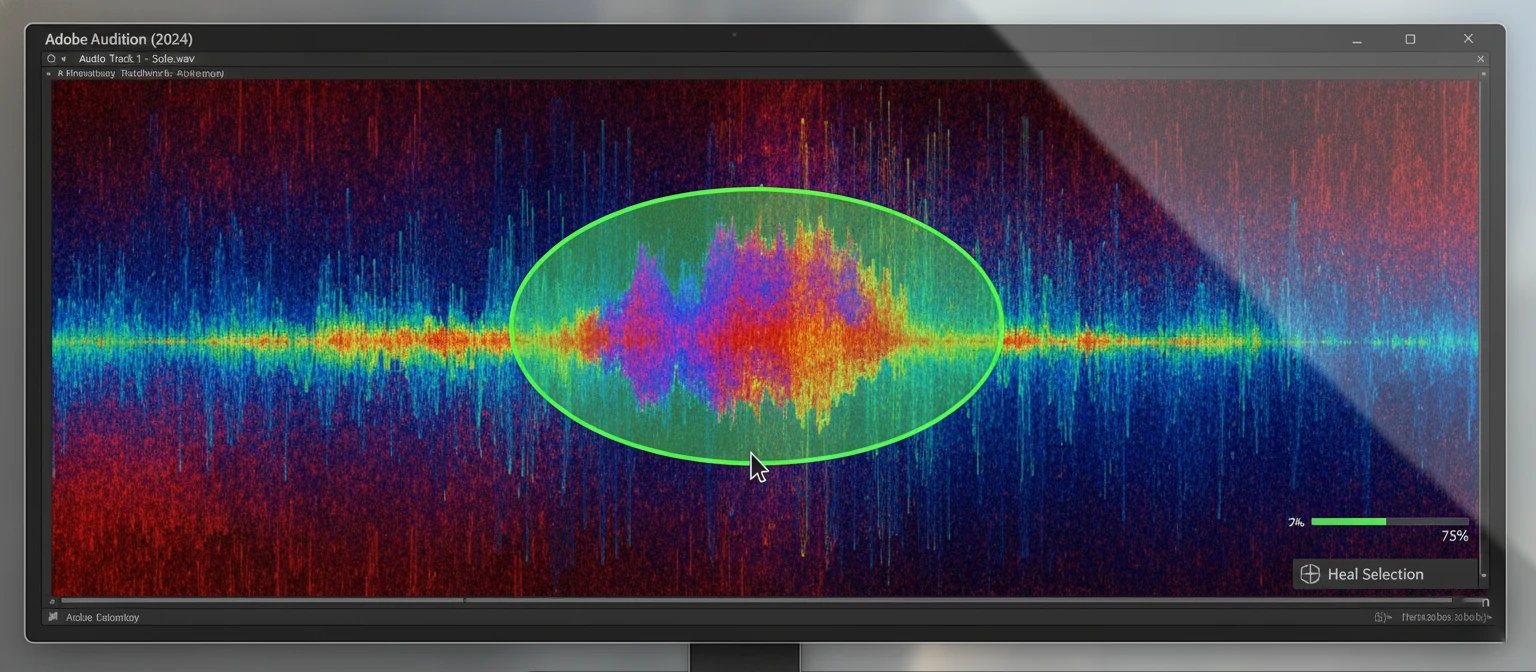
In Premiere Pro, open Essential Sound panel, tag your clip as Dialogue, and enable Reduce Noise. Adjust the slider until noise disappears without making speech sound artificial. For severe noise, send to Audition where you can use Noise Reduction (process) with a noise print for surgical removal.
Echo & Reverb Reduction
Room echo makes audio sound amateur. Essential Sound's Reduce Reverb slider handles mild echo. For severe reverb, Audition's DeReverb effect provides more control. Adjust Amount, Processing Focus, and other parameters while monitoring. Some reverb reduction is always possible; complete removal without artifacts often isn't.
Voice Enhancement
Essential Sound's Dialogue preset includes Enhance Speech which uses AI to improve voice clarity. Dynamics controls compression and expansion to even out volume. EQ presets like "Vocal Presence" boost speech frequencies. The combination of noise reduction, dynamics, and EQ can transform thin, quiet recordings into broadcast-quality dialogue.
Music & Dialogue Balance
Auto Ducking automatically lowers music when dialogue plays. In Essential Sound, tag your music track and enable "Duck against" your dialogue tracks. Set sensitivity, duck amount, and fade times. This creates professional-sounding audio where music enhances rather than competes with speech—all without tedious keyframing.
🎧 Adobe Audition: Advanced Audio Enhancement
Spectral Frequency Display
Visualize audio as frequencies over time. Select and remove specific sounds—a cough, a car horn, a phone ring—without affecting surrounding audio.
Adaptive Noise Reduction
Real-time noise reduction that adapts to changing noise conditions throughout your clip. Better than static noise prints for variable backgrounds.
Sound Remover
AI-powered tool that learns a sound and removes all instances of it. Select one example of the unwanted sound and remove it throughout.
Click/Pop Eliminator
Automatically detects and removes clicks, pops, and crackle. Essential for restoring old recordings or fixing digital glitches.
AI-Powered Video Enhancement
Adobe Sensei brings machine learning to video enhancement, automating complex tasks that once required hours of manual work.
Auto Color Match
Select a reference clip and a target clip, and Sensei analyzes both to create color corrections that make them match. This is invaluable when cutting between cameras, matching footage shot at different times, or applying the look of a reference image to your footage. What colorists spend hours doing manually happens in seconds—though fine-tuning is still recommended.
Auto Reframe
Converting horizontal video to vertical (or any aspect ratio) while keeping subjects in frame traditionally required tedious keyframing. Auto Reframe uses AI to track the most important visual elements and automatically adjusts the crop throughout the clip. Perfect for repurposing content across platforms. The AI understands faces, motion, and visual importance.
Enhance Speech
Essential Sound's Enhance Speech toggle uses machine learning to improve dialogue clarity automatically. It analyzes the audio and applies appropriate processing—EQ adjustments, dynamics, de-essing—based on the specific characteristics of the recording. One checkbox does the work of multiple manual adjustments.
Morph Cut
When you remove sections from talking head videos, jump cuts are jarring. Morph Cut uses face detection and intelligent morphing to create seamless transitions across cuts. It analyzes facial features and generates intermediate frames that make the edit invisible. Works best on stable, well-lit footage with minimal head movement.
Remix (Music Duration)
Need a 30-second music bed from a 3-minute song? Remix uses AI to intelligently shorten or lengthen music tracks while maintaining musical sense. It analyzes the song structure, identifies similar segments, and creates seamless edits. The result is a properly-structured musical piece at exactly the length you need.
Complete Enhancement Workflow
Assess Your Footage
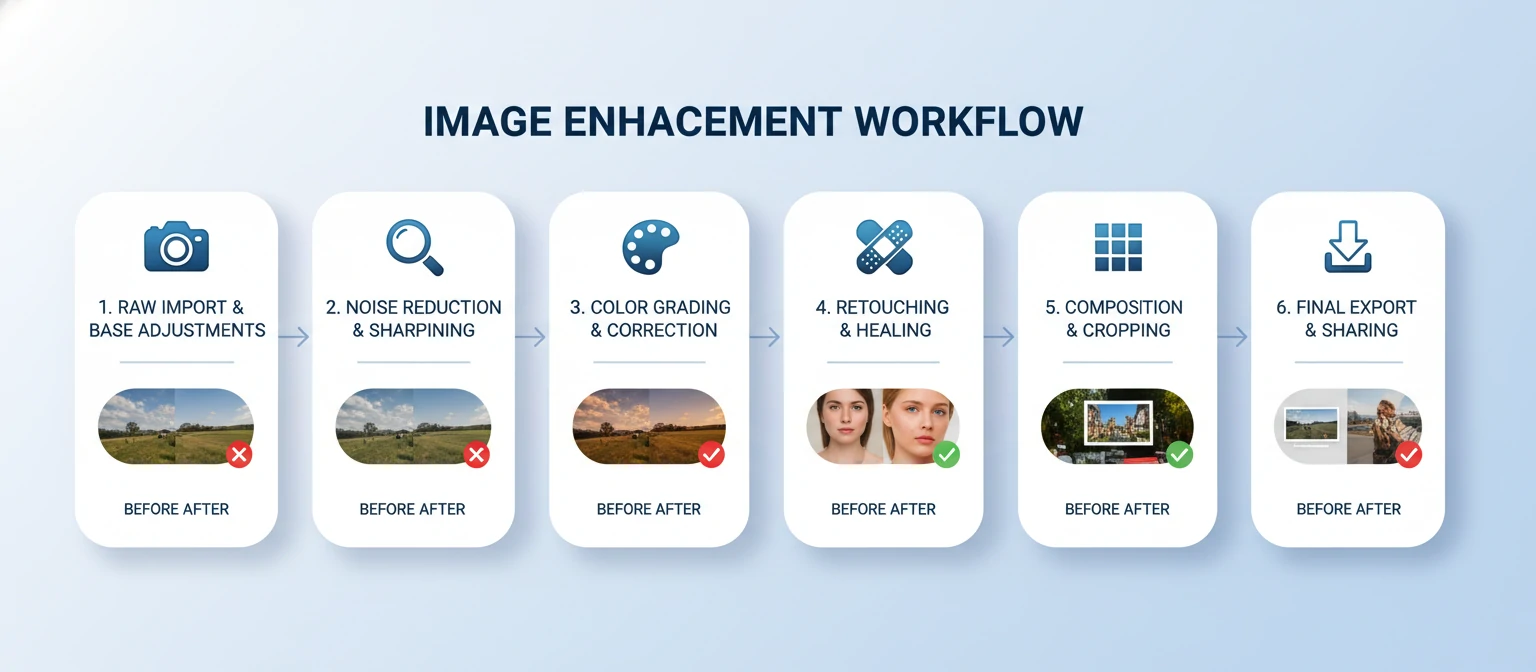
Before applying any enhancements, analyze what your footage actually needs. Watch it at 100% zoom. Check for: exposure issues, color casts, noise levels, soft focus, shaky movement, audio problems. Make notes on what needs fixing. Prioritize—not every imperfection needs correction. Understanding the issues informs your enhancement strategy.
Fix Audio First
Address audio issues before video because audio problems are often more distracting. Remove background noise, reduce reverb, enhance speech clarity, and normalize levels. Use Essential Sound in Premiere Pro for quick fixes; send problematic audio to Audition for surgical repair. Lock in good audio before spending time on visuals.
Stabilize Shaky Video
If footage is shaky, apply Warp Stabilizer. In Premiere Pro, apply the effect and let it analyze. Adjust Smoothness (higher = more stable but more crop). Choose between Smooth Motion and No Motion depending on the shot. Stabilization needs to happen before other visual enhancements because it crops and transforms the frame.
Color Correct & Grade
Work through Lumetri Color systematically: fix exposure, correct white balance, adjust contrast and saturation, then apply creative grading. Use adjustment layers to apply looks across multiple clips. Match shots using the Color Match feature. Ensure consistency throughout your project—viewers notice when colors shift between cuts.
Reduce Noise & Sharpen
Apply noise reduction if needed—this softens the image slightly, so do it before sharpening. Then apply subtle sharpening with Unsharp Mask. For upscaled footage or footage that will be upscaled, these steps are critical. Always check results at 100% zoom—what looks fine at fit-to-screen may reveal problems at full resolution.
Export with Quality Settings
Your enhancement work is only as good as your export. Use Media Encoder with appropriate settings. Enable Maximum Render Quality for scaled footage. Choose sufficient bitrate—don't let compression undo your enhancement work. Consider creating a high-quality master archive and separate delivery copies optimized for specific platforms.
Frequently Asked Questions
Does Adobe have a dedicated video enhancer app?
Adobe doesn't offer a single app called "Video Enhancer." Instead, video enhancement capabilities are distributed across their Creative Cloud applications. Premiere Pro is the primary tool for most enhancement tasks, with After Effects handling advanced work and Audition specializing in audio. This integrated approach actually provides more power and flexibility than a standalone enhancer.
Can Adobe tools upscale video to 4K?
Yes, but with caveats. Premiere Pro and Media Encoder can scale footage to 4K resolution, and Maximum Render Quality improves the scaling algorithm. However, true AI upscaling that adds genuine detail is better handled by specialized tools like Topaz Video AI. You can process footage through Topaz, then import the upscaled version into Premiere for further work.
How do I remove background noise from video in Adobe?
In Premiere Pro, open the Essential Sound panel, tag your clip as Dialogue, and enable Reduce Noise. Adjust the slider until noise is gone without making speech sound artificial. For more control, right-click your clip and select "Edit Clip in Adobe Audition." Use Audition's Noise Reduction effect with a noise print for surgical removal, then save to automatically update in Premiere.
What's the best Adobe app for color correction?
Premiere Pro's Lumetri Color panel handles color correction and grading excellently for most users. It offers everything from basic corrections to advanced curves, color wheels, and secondary adjustments. For extremely demanding color work, some professionals use DaVinci Resolve alongside Adobe tools, but Premiere Pro's color tools are genuinely professional-grade and sufficient for broadcast and film work.
Can I fix blurry video with Adobe software?
You can improve perceived sharpness using the Unsharp Mask effect, but genuinely out-of-focus footage cannot be truly fixed—that information was never captured. Sharpening enhances edge contrast to create the impression of more detail. AI tools are getting better at this, but physics limits what's possible. Prevention (proper focus during shooting) is always better than correction.
How much does Adobe video enhancement cost?
Premiere Pro as a single app costs approximately $22.99/month. The All Apps Creative Cloud plan ($59.99/month) includes Premiere Pro, After Effects, Audition, and 20+ other applications—the best value for serious video work. Student/teacher discounts are significant. A 7-day free trial lets you test the enhancement capabilities before committing.
Is Adobe Sensei AI good for video enhancement?
Yes, Adobe Sensei powers genuinely useful AI features. Auto Color Match, Auto Reframe, Enhance Speech, Morph Cut, and other Sensei-powered features save significant time and produce good results. They're best used as starting points—AI suggestions that you refine with human judgment. The technology continues improving with each Adobe update.
What computer specs do I need for video enhancement?
Video enhancement is demanding work. Recommended specs: modern CPU (Intel i7/AMD Ryzen 7 or better), 16-32GB RAM, dedicated GPU with 4GB+ VRAM (NVIDIA RTX recommended for GPU-accelerated effects), fast SSD storage. More RAM and faster storage help most. For 4K work, aim for the higher end of these specs. Effects like noise reduction and stabilization are particularly GPU-intensive.
Transform Your Video Today
Adobe's video enhancement capabilities represent the gold standard in the industry. Whether you're rescuing problematic footage, polishing already-good content, or pushing creative boundaries with color grading and visual effects, the tools are there—powerful, professional, and increasingly accessible thanks to AI assistance.
The key to great video enhancement is understanding what your footage needs and applying corrections in the right order. Start with audio—it matters more than most people realize. Stabilize before you grade. Correct before you get creative. Reduce noise before you sharpen. Follow the workflow, and imperfect footage becomes polished content.
Remember that enhancement has limits. You can't add information that was never captured—severely out-of-focus footage, extremely dark shadows, or heavily compressed files can only improve so much. But within those physical limits, Adobe's tools let you achieve remarkable transformations. Start with the techniques in this guide, experiment with your own footage, and watch your video quality transform.