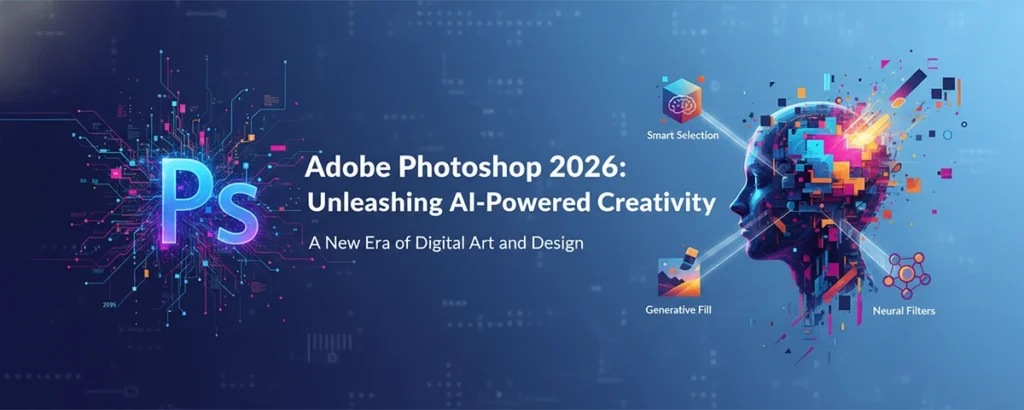
Explore the latest Photoshop version with revolutionary AI features and enhanced editing tools.
Table of contents
- Introduction to Adobe Photoshop 2026
- Revolutionary New Features in Photoshop 2026
- System Requirements for Photoshop 2026
- How to Download and Install Photoshop 2026
- Pricing and Subscription Plans
- Tutorials and Tips for Photoshop 2026
- Alternatives to Photoshop 2026
- ⭐ What Users Are Saying About Photoshop 2026
- 🌟 Beginner's Guide: Getting Started with Photoshop 2026
- 🔬 Deep Dive: Advanced AI Features in Photoshop 2026
- ⚡ Photoshop 2026 vs. Previous Versions: What's New?
- Frequently Asked Questions About Photoshop 2026
- Conclusion: Embrace the Future of Photo Editing
- Start Creating with Photoshop 2026!
Introduction to Adobe Photoshop 2026
Hey there, fellow creatives! Imagine waking up one morning and realizing that your favorite photo editing software just got a massive upgrade – one that feels like it read your mind and added exactly what you've been dreaming of. That's Photoshop 2026 for you! As someone who's spent countless hours tweaking pixels and bringing visions to life, I can tell you this version is a total game-changer.
Picture this: You're working on a family photo, and with just a few words, AI fills in the missing pieces perfectly. Or you're a designer racing against a deadline, and the Contextual Task Bar anticipates your every move. It's not just software anymore; it's like having a creative superpower at your fingertips. In this guide, we'll walk through all the exciting features, share some real-world tips, and help you get started on your Photoshop 2026 adventure. Ready to level up your editing game? Let's dive in! 🎨🤖
💡 Did you know? Photoshop's journey started back in 1990, and 2026 marks over 30 years of pushing the boundaries of digital creativity!
Revolutionary New Features in Photoshop 2026
Photoshop 2026 isn't just an incremental update – it's a bold leap forward powered by artificial intelligence. Let's explore the standout features that are making waves in the creative community.
Generative Fill and AI-Powered Editing
The Generative Fill feature uses advanced AI to intelligently fill in missing parts of your images. Want to extend a background or remove an object seamlessly? Just describe what you want, and let AI do the magic!
Enhanced Neural Filters
Neural Filters have been supercharged with more options for style transfer, colorization, and even reconstructing damaged photos. It's like having a team of expert retouchers at your fingertips.
Improved Content-Aware Fill
The classic Content-Aware Fill tool now uses AI to provide even more accurate and natural-looking results when removing objects or filling in gaps.
Sky Replacement with AI
Replace skies in your photos with stunning accuracy. The AI analyzes lighting, perspective, and atmosphere to create perfectly blended results.
Contextual Task Bar
A smart toolbar that adapts to your current task, suggesting relevant tools and features to streamline your workflow.
System Requirements for Photoshop 2026
Before you dive into Photoshop 2026, make sure your computer can handle its powerful features. Here's what you need:
- Operating System: Windows 10 (64-bit) version 20H2 or later, or macOS Big Sur (11.0) or later
- Processor: Intel or AMD processor with 64-bit support; 2 GHz or faster
- RAM: 8 GB minimum, 16 GB recommended for optimal performance
- Storage: 4 GB of available hard-disk space for installation
- Graphics: DirectX 12 compatible graphics card with at least 1 GB VRAM
Recommended Specifications
For the best experience with AI features, aim for 16 GB RAM, a modern GPU with at least 4 GB VRAM, and an SSD for faster loading times.
How to Download and Install Photoshop 2026
Getting Photoshop 2026 is straightforward if you have an Adobe Creative Cloud subscription. Here's your step-by-step guide:
Step 1: Check Your Subscription
Ensure you have an active Adobe Creative Cloud subscription. Photoshop is included in the Photography plan or higher.
Step 2: Download the Creative Cloud App
If you haven't already, download and install the Adobe Creative Cloud desktop app from adobe.com.
Step 3: Install Photoshop 2026
Open the Creative Cloud app, find Photoshop in the Apps tab, and click Install. The app will automatically download the latest version.
Step 4: Sign In and Activate
Launch Photoshop and sign in with your Adobe ID. The software will activate automatically.
Step 5: Update to Latest Version
Check for updates in the Creative Cloud app to ensure you have the most recent features and bug fixes.
Pricing and Subscription Plans
Photoshop 2026 is available through Adobe's subscription model. Here's what you need to know about pricing:
Individual Plans
Photography Plan: $9.99/month (includes Photoshop and Lightroom). All Apps Plan: $52.99/month (full Creative Cloud suite).
Student and Teacher Discounts
Eligible users can get 60% off with valid student/teacher credentials.
Free Trial
Adobe offers a 7-day free trial of the Photography plan, giving you full access to Photoshop 2026.
Annual vs. Monthly Billing
Annual plans save you money – pay for 12 months upfront and get 2 months free.
Tutorials and Tips for Photoshop 2026
Ready to master the new features? Here are some essential tutorials and tips to get you started:
Getting Started with Generative Fill
Select an area, describe what you want to add or change, and watch AI work its magic. Perfect for extending backgrounds or adding creative elements.
Mastering Neural Filters
Experiment with Smart Portrait for automatic skin smoothing, or use Colorize to add color to black and white photos.
Sky Replacement Made Easy
Select the sky with the Sky Replacement tool, choose from presets or upload your own, and let AI blend it seamlessly.
Keyboard Shortcuts and Efficiency Tips
Learn essential shortcuts like Ctrl+T for Transform, and use the Contextual Task Bar to speed up your workflow.
Alternatives to Photoshop 2026
While Photoshop 2026 is incredible, there are other great options depending on your needs and budget:
Affinity Photo
One-time purchase, no subscription. Excellent Photoshop alternative with powerful features.
GIMP
Free and open-source. Great for basic to intermediate editing, though less user-friendly.
Pixelmator Pro
Mac-exclusive with one-time purchase. Modern interface and powerful AI features.
Adobe Photoshop Elements
Simplified version of Photoshop with one-time purchase. Great for beginners.
⭐ What Users Are Saying About Photoshop 2026
Don't just take our word for it – hear from real creatives who've experienced the magic of Photoshop 2026 firsthand!
"Photoshop 2026's Generative Fill saved me hours on a client project. I described what I needed, and boom – perfect results!"
- Sarah M., Professional Photographer
"As a beginner, the Contextual Task Bar feels like having a personal assistant. It suggests tools I didn't even know I needed!"
- Alex K., Aspiring Graphic Designer
"The AI features are incredible, but what really impresses me is how they integrate seamlessly with traditional editing workflows."
- Maria L., Digital Artist
🌟 Beginner's Guide: Getting Started with Photoshop 2026
New to Photoshop or upgrading from an older version? Here's your friendly guide to hitting the ground running with 2026.
Step 1: Familiarize Yourself with the Interface
Take a few minutes to explore the new Contextual Task Bar. It changes based on what you're doing – super helpful for beginners!
Step 2: Start with Basic Adjustments
Use the Neural Filters for quick wins. Try the Smart Portrait filter for automatic skin smoothing – it's like magic for portrait photos.
Step 3: Experiment with AI Features
Don't be afraid to play! Select an area and try Generative Fill with simple prompts like "add flowers" or "make it sunny." You'll be amazed.
Pro Tip for Beginners
Remember, every expert was once a beginner. Save your work frequently (Ctrl+S is your friend!), and don't hesitate to undo (Ctrl+Z) if something doesn't look right. Photoshop 2026 is designed to be intuitive – trust your instincts!
🔬 Deep Dive: Advanced AI Features in Photoshop 2026
For the power users and professionals, let's explore how Photoshop 2026's AI features can supercharge your workflow.
Generative Fill for Creative Composition
Beyond simple fills, use detailed prompts to create complex scenes. Try "add a futuristic city skyline at dusk" – the AI understands context and lighting!
Neural Filters for Professional Retouching
Combine multiple Neural Filters for stunning results. Apply Colorize first, then use Style Transfer to match a specific artistic look.
AI-Powered Selection and Masking
The improved Content-Aware Fill now uses AI to understand object relationships, making complex extractions a breeze.
Workflow Integration Tips
Use the Contextual Task Bar with keyboard shortcuts for lightning-fast editing. Pro tip: Create custom workspaces for different project types.
⚡ Photoshop 2026 vs. Previous Versions: What's New?
Curious about how 2026 stacks up against what you know? Here's a quick comparison to highlight the evolution.
💡 Bottom line: Photoshop 2026 isn't just an update – it's a revolution that makes professional-grade editing accessible to everyone!
Frequently Asked Questions About Photoshop 2026
Conclusion: Embrace the Future of Photo Editing
Adobe Photoshop 2026 represents a quantum leap in photo editing technology. With its powerful AI features, intuitive interface, and endless creative possibilities, it's more than just software – it's a creative partner that amplifies your vision.
Whether you're a professional photographer, a graphic designer, or a hobbyist exploring digital art, Photoshop 2026 has the tools to bring your ideas to life. The combination of traditional editing power and cutting-edge AI makes it an indispensable tool for modern creatives.
Ready to unleash your creativity? Download Photoshop 2026 today and discover what the future of photo editing looks like. Your next masterpiece is just a few clicks away! 🚀🎨