Everything you need to know about industry-standard audio software for podcasts, music, video production, and broadcast.
Table of contents
- 🎧 Key Takeaways
- 1. What Is Adobe Audition?
- 2. The History and Evolution of Audition
- 3. Key Features and Capabilities
- 4. Waveform Editor: Destructive Editing
- 5. Multitrack Session: Non-Destructive Workflow
- 6. Spectral Frequency Display Magic
- 7. Audio Restoration and Cleanup
- 8. Podcast Production in Audition
- 9. Adobe Integration and Workflow
- 10. Pricing, Alternatives, and Who Should Use It
- ❓ Frequently Asked Questions
- Final Thoughts on Adobe Audition
🎧 Key Takeaways
- Adobe Audition is the industry-standard DAW for podcast production, video post-production, and broadcast audio
- Features both destructive (Waveform Editor) and non-destructive (Multitrack) editing environments
- The Spectral Frequency Display allows surgical noise removal impossible in other software
- Seamless integration with Premiere Pro makes it essential for video editors
- Available through Adobe Creative Cloud starting at $22.99/month standalone or included in All Apps plan
After spending over fifteen years working with virtually every digital audio workstation on the market, I keep returning to Adobe Audition for one simple reason: it solves real-world audio problems faster than any other software I've used. Whether I'm cleaning up dialogue from a noisy film set, producing a podcast episode, or mastering audio for broadcast, Audition provides the precision tools I need without getting in the way of my creative process.
Adobe Audition occupies a unique position in the audio software landscape. Unlike music-focused DAWs like Pro Tools, Logic, or Ableton, Audition was specifically designed for spoken word, sound design, and audio restoration. This specialized focus makes it the go-to choice for podcasters, video editors, broadcast engineers, and audio restoration specialists worldwide.
This comprehensive guide will walk you through everything you need to know about Adobe Audition, from understanding its core capabilities to mastering advanced techniques that will transform your audio production workflow. Whether you're considering Audition for the first time or looking to deepen your existing knowledge, you'll find practical insights drawn from real production experience.
1. What Is Adobe Audition?
Adobe Audition is a professional digital audio workstation (DAW) developed by Adobe Inc. as part of the Creative Cloud suite. Unlike music production DAWs that emphasize MIDI, virtual instruments, and beat-making, Audition focuses on audio recording, editing, mixing, and restoration. It's the Swiss Army knife for anyone working with recorded sound.
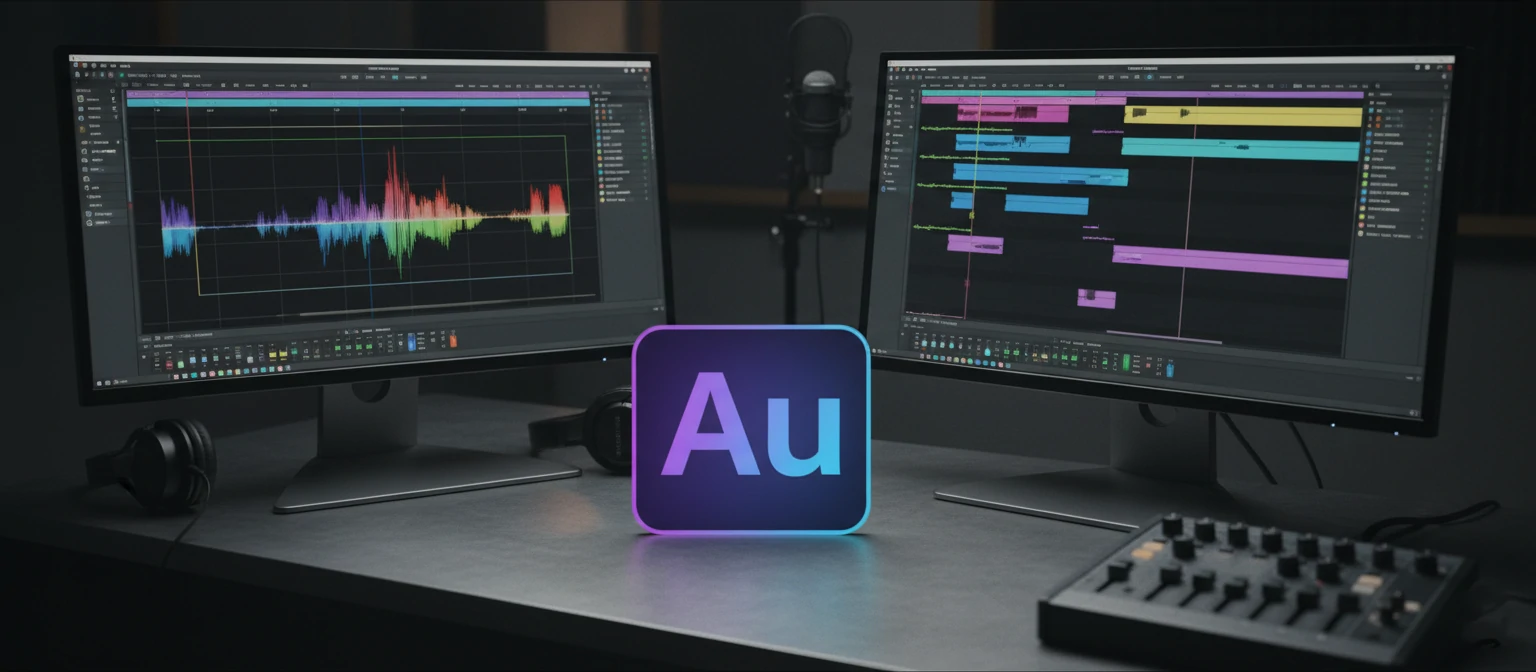
The software serves several distinct user groups. Video editors use Audition to clean up dialogue and create sound mixes for their projects. Podcasters rely on it for recording, editing, and mastering episodes. Broadcast engineers depend on its precision tools for meeting strict technical specifications. Audio restoration specialists use its spectral editing capabilities to rescue damaged recordings. Musicians working with audio recordings (as opposed to MIDI composition) find its editing tools superior to many music-focused alternatives.
"Adobe Audition isn't trying to be everything to everyone. It excels at audio editing and restoration in ways that music-focused DAWs simply don't. That focus is exactly what makes it indispensable for spoken word production."
— Professional Audio Engineer Perspective
What distinguishes Audition from competitors is its dual-environment approach. The Waveform Editor provides destructive editing for detailed work on individual files, while the Multitrack Session offers non-destructive editing for assembling complex projects. This combination, paired with industry-leading spectral editing tools, creates a workflow that's both powerful and intuitive.
Audition runs on both Windows and macOS, maintaining feature parity across platforms. It supports virtually every audio format you might encounter, from common formats like MP3 and WAV to professional standards like AIFF, FLAC, and various broadcast formats. This broad compatibility eliminates the format conversion hassles that plague users of more limited software.
2. The History and Evolution of Audition
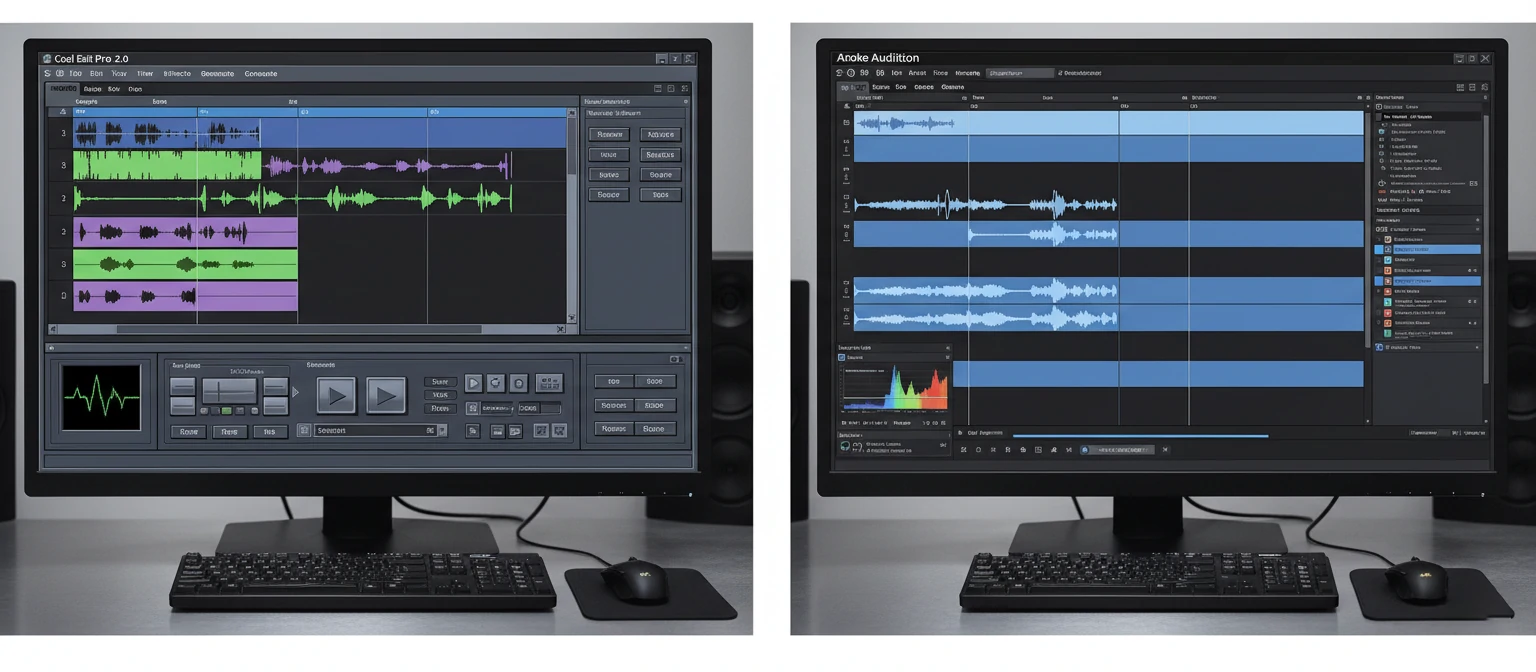
Understanding Audition's history helps explain why it excels in certain areas. The software's DNA traces back to a program called Cool Edit Pro, developed by Syntrillium Software starting in 1992. Cool Edit became legendary among audio enthusiasts for its powerful editing capabilities and reasonable price point.
📅 Adobe Audition Timeline
1992 - Cool Edit Origins
Syntrillium releases Cool Edit, establishing the foundation for audio editing software
2003 - Adobe Acquisition
Adobe acquires Syntrillium and rebrands Cool Edit Pro as Adobe Audition 1.0
2011 - CS5.5 Mac Debut
Audition finally comes to macOS, expanding its user base significantly
2013 - Creative Cloud
Audition transitions to subscription model with continuous updates
2020s - AI Integration
Adobe Sensei AI powers features like automatic loudness matching and enhanced speech processing
Adobe acquired Syntrillium in 2003, releasing Adobe Audition 1.0 shortly after. The acquisition brought Cool Edit's robust codebase under Adobe's umbrella while integrating it into their expanding creative software ecosystem. Early versions remained Windows-only, frustrating Mac users who wanted access to Audition's unique capabilities.
The 2011 release of Audition CS5.5 marked a significant milestone with the introduction of a native Mac version. Adobe essentially rewrote the application from scratch using modern development frameworks, ensuring feature parity between platforms while improving performance on both.
The transition to Creative Cloud in 2013 shifted Audition to a subscription model, which remains contentious among users but has enabled continuous development. Recent versions have incorporated Adobe Sensei AI technology for features like automatic loudness matching, enhanced noise reduction, and improved voice processing. The software continues evolving with each quarterly update, adding features users actually request while maintaining the stability professional workflows demand.
3. Key Features and Capabilities
Adobe Audition packs an impressive array of features designed for professional audio production. Understanding these capabilities helps you leverage the software's full potential and determine whether it fits your specific needs.
Multitrack Recording
Record unlimited tracks simultaneously with full monitoring, punch-in recording, and automatic take management for complex sessions.
Spectral Editing
Visualize and edit audio by frequency, enabling surgical removal of specific sounds without affecting surrounding audio content.
Audio Restoration
Industry-leading noise reduction, hum removal, click/pop elimination, and adaptive noise reduction for challenging recordings.
Effects Processing
Comprehensive effects library including EQ, compression, reverb, delay, and specialized broadcast-ready processors.
Loudness Metering
Broadcast-standard loudness measurement including LUFS, true peak, and compliance checking for various delivery standards.
Adobe Integration
Seamless Dynamic Link with Premiere Pro, After Effects, and other Creative Cloud applications for efficient workflows.
Beyond these headline features, Audition includes batch processing for applying effects to multiple files simultaneously, essential transcription tools, automatic speech alignment for ADR work, and extensive format support including video files (allowing you to work with audio while viewing video frames).
💡 Pro Tip: Essential Keyboard Shortcuts
Master these shortcuts to dramatically speed up your workflow: Spacebar (play/stop), I/O (set in/out points), Shift+W (toggle waveform/spectral view), M (add marker), and Ctrl/Cmd+Shift+N (new multitrack session). Learning Audition's keyboard shortcuts can cut your editing time in half.
The software also supports VST, VST3, and AU plugin formats, meaning you can extend its capabilities with third-party effects and processors. This extensibility allows professionals to incorporate their favorite tools while benefiting from Audition's native capabilities.
4. Waveform Editor: Destructive Editing
The Waveform Editor is where Adobe Audition's precision truly shines. This environment provides destructive editing capabilities, meaning changes are applied directly to audio files. While this sounds concerning, it's actually essential for detailed work like noise removal, restoration, and file preparation.
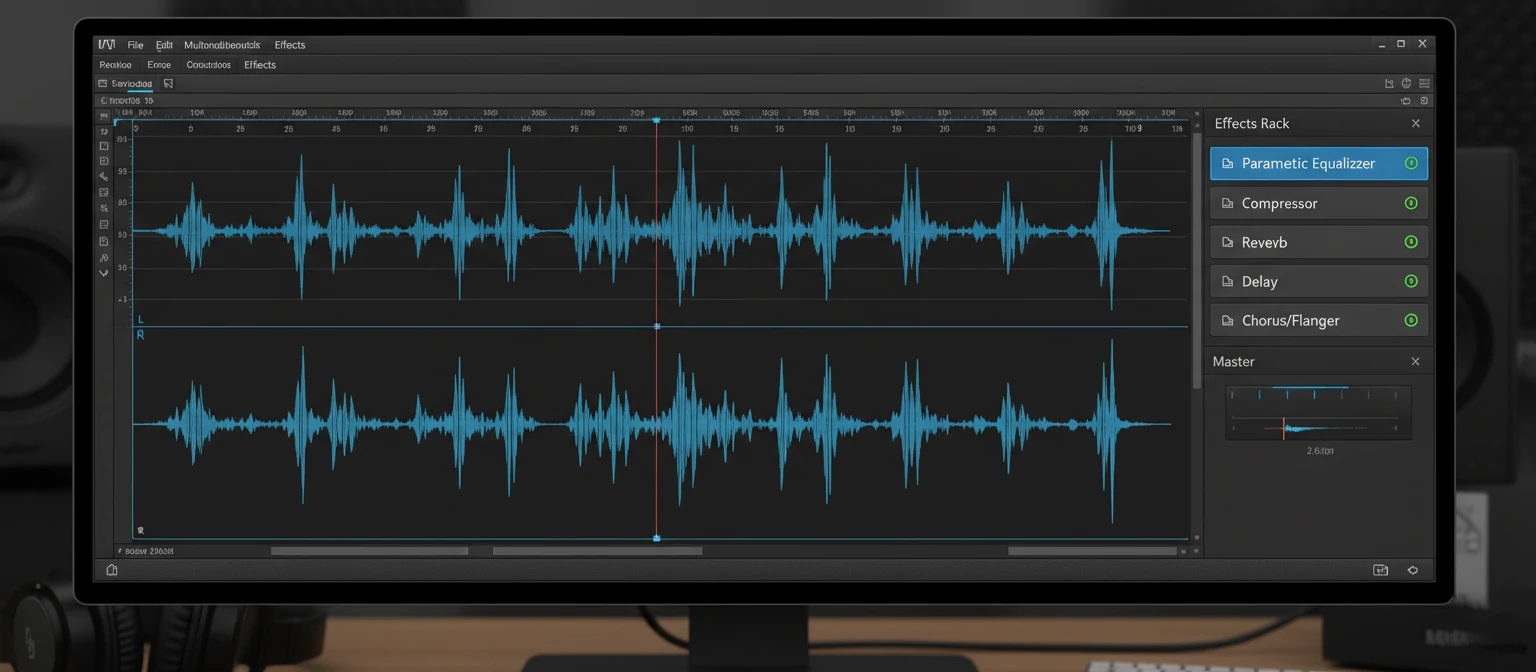
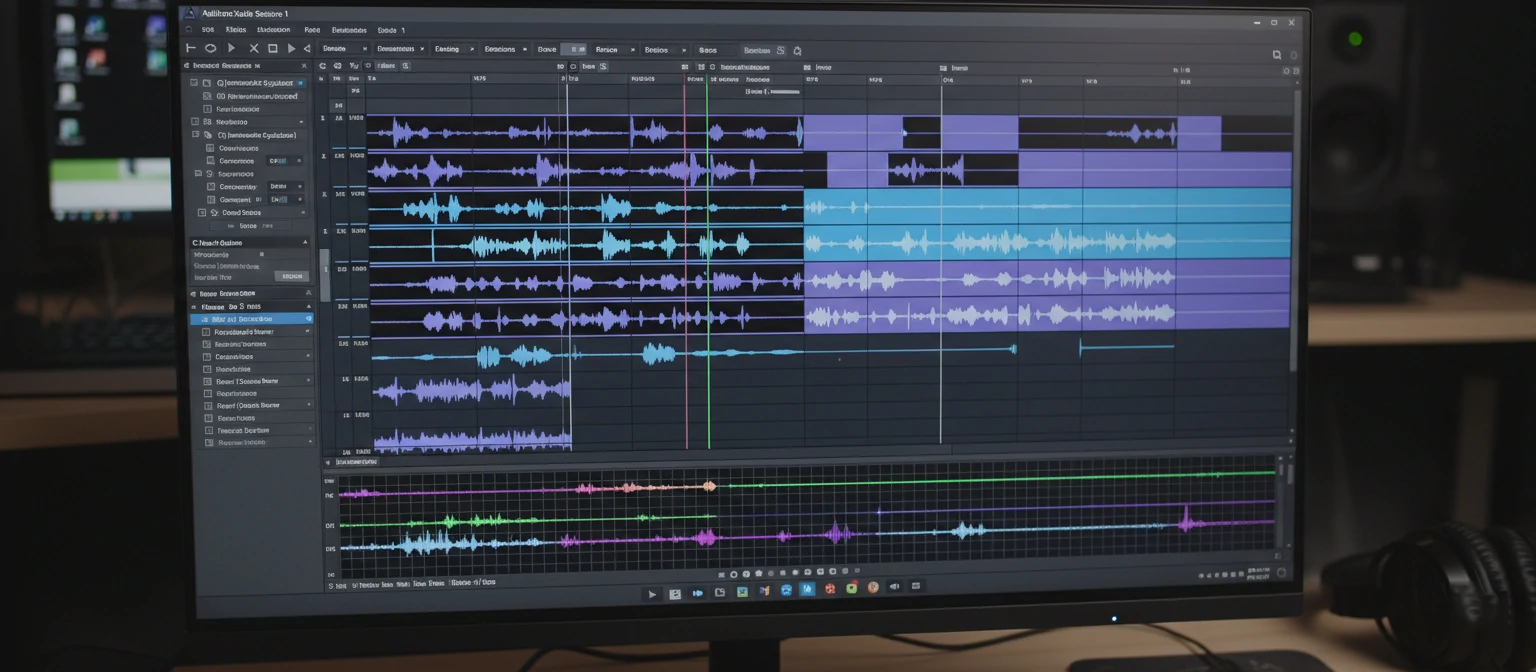
When you open an audio file in Audition, it automatically loads in the Waveform Editor. Here you see your audio represented visually as a waveform, with amplitude displayed vertically and time horizontally. You can zoom in to sample-level accuracy, making edits at the most granular level possible.
The editor offers multiple view options. The standard waveform view shows amplitude over time. The spectral frequency display shows frequency content over time using color intensity to represent amplitude. You can split your view to see both simultaneously, which proves invaluable for complex editing tasks.
🛠 Essential Waveform Editor Tools
Selection Tools
Time Selection for choosing audio ranges, Marquee Selection for spectral editing, and Lasso Selection for irregular frequency regions.
Healing Tools
Spot Healing Brush for automatically fixing transient problems, and manual healing options for precise corrections.
Diagnostics Panel
Automated detection and repair of clicks, pops, clipping, and silence with adjustable sensitivity settings.
One feature that sets Audition apart is the Favorites menu. You can save any combination of effects and settings as a preset, then apply them instantly. I maintain favorites for common tasks like podcast voice processing, dialogue cleanup, and music bed preparation. This eliminates repetitive setup and ensures consistent results across projects.
Remember that destructive editing modifies files permanently (though Audition maintains unlimited undo within a session). I recommend always working on copies of original files or using the Multitrack Session for non-destructive workflows when appropriate. The Waveform Editor excels when you need to create a "fixed" version of a problematic file that you'll use across multiple projects.
5. Multitrack Session: Non-Destructive Workflow
The Multitrack Session environment transforms Audition from a file editor into a complete production platform. Here, you assemble projects using multiple audio clips, apply effects non-destructively, automate parameters over time, and create polished final mixes without altering your original files.
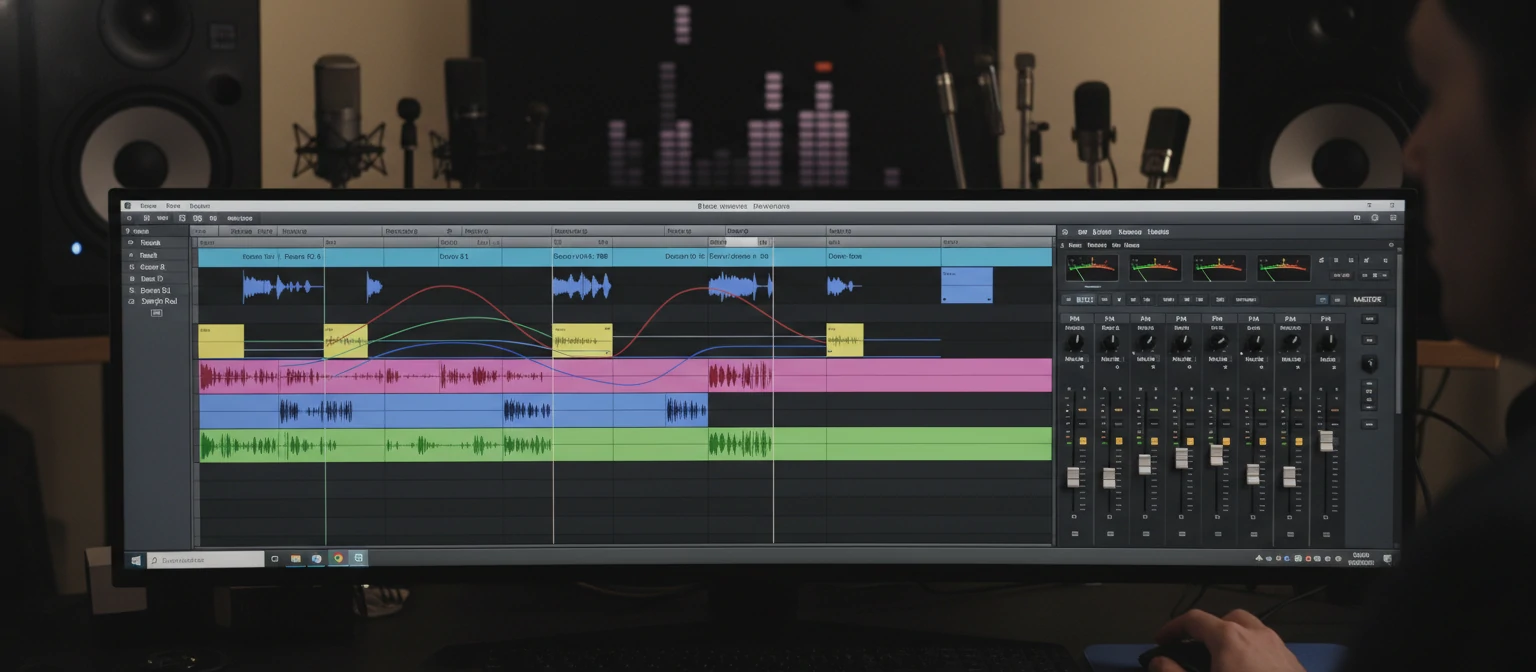
Think of the Multitrack Session as your audio canvas. You create tracks (mono, stereo, or 5.1 surround), then place audio clips on those tracks. Clips can be moved, trimmed, faded, and layered without affecting the source files. Every edit remains reversible, and you can experiment freely knowing your originals stay untouched.
Each track functions like a channel on a mixing console. You have volume faders, pan controls, mute/solo buttons, and insert slots for effects. Effects added to tracks process audio in real-time, allowing you to hear results immediately and adjust parameters while playback continues.
Track Types
Audio tracks for clips, bus tracks for submixing groups, and the master track for final output processing.
Automation
Draw volume, pan, and effect parameter changes over time using envelope lanes attached to each track.
Clip Editing
Trim, split, crossfade, stretch, and loop clips directly in the timeline with visual feedback.
The routing flexibility in Multitrack Sessions proves essential for complex projects. You can route tracks to bus tracks, creating submixes for different elements like dialogue, music, and effects. These submixes can then receive their own processing before reaching the master track. This structure mirrors professional mixing workflows used in broadcast and film post-production.
⚠️ Session Management Tip
Use "Save As" regularly to create session versions at major milestones. Audition sessions reference external files, so organize your audio assets in dedicated project folders. The "Save All Audio With Session" option creates a complete, portable project package.
When your project is complete, Audition offers multiple export options. Mixdown exports the entire session as a single file. You can also export individual tracks or selected time ranges. The export dialog includes presets for common formats and lets you add loudness normalization, limiting, and format conversion in a single step.
6. Spectral Frequency Display Magic
If there's one feature that truly distinguishes Adobe Audition from every other DAW, it's the Spectral Frequency Display. This visualization transforms how you perceive and edit audio, revealing information invisible in traditional waveform views and enabling corrections that would otherwise be impossible.
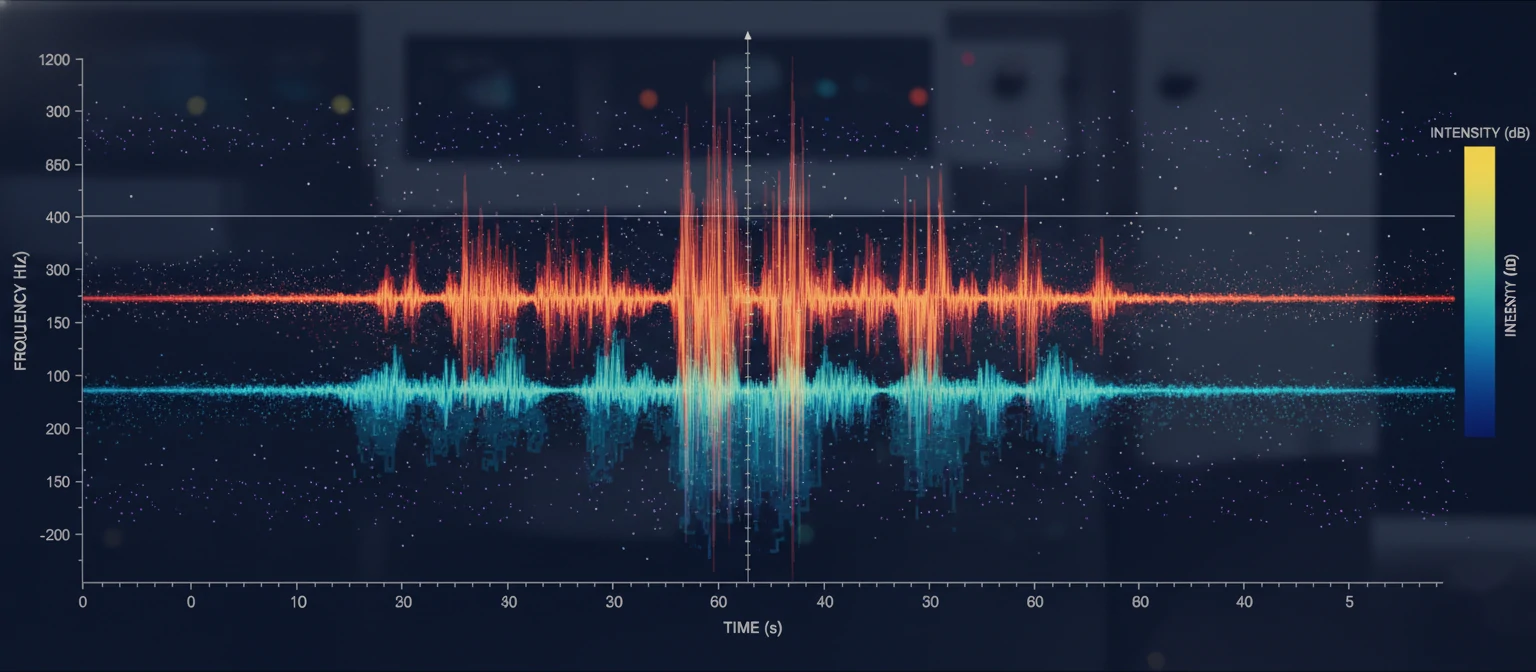
The spectral display shows audio as a spectrogram: time runs horizontally, frequency runs vertically (low frequencies at the bottom, high at top), and color intensity represents amplitude at each frequency. Different sounds create distinctive visual patterns. Voice appears as horizontal bands with harmonic overtones. Clicks show as vertical lines. Hums display as steady horizontal lines at specific frequencies.
This visualization enables surgical editing impossible in any other view. See a cough in the middle of a vocal take? Select just that cough using the Marquee tool and delete it or paint it out with the Spot Healing Brush. The surrounding audio remains completely untouched because you're editing specific frequencies at specific moments, not entire time ranges.
🌟 Spectral Editing Use Cases
Removing Unwanted Sounds
Coughs, sneezes, phone rings, sirens, bird chirps, and other transient noises that interrupt otherwise good takes.
Eliminating Constant Hum
60Hz electrical hum and its harmonics appear as horizontal lines. Select and delete them without affecting other frequencies.
Fixing Sibilance
Harsh "S" and "T" sounds show as bright spots in high frequencies. Reduce them individually without dulling the entire voice.
Rescuing Damaged Recordings
Historical recordings with scratches, pops, and degradation can often be restored by visually identifying and removing damage.
The Spot Healing Brush deserves special mention. Like its Photoshop counterpart, this tool analyzes surrounding audio and synthesizes replacement content. Paint over a click or unwanted sound, and Audition fills the gap using audio from nearby regions. The results often sound completely natural, with no audible evidence of editing.
I've used spectral editing to remove cell phone vibrations from interview recordings, eliminate air conditioning drone from voiceovers, and rescue irreplaceable archival recordings thought to be unusable. No other mainstream audio software offers this level of visual audio editing. It's genuinely transformative once you learn to read the display and use the tools effectively.
7. Audio Restoration and Cleanup
Audio restoration represents one of Audition's strongest suits. The software includes a comprehensive toolkit for addressing every common audio problem, from background noise to clipping distortion. These tools can transform unusable recordings into broadcast-quality audio.
The Noise Reduction effect deserves detailed explanation because it's used so frequently. The process involves two steps. First, you select a section of audio containing only the noise you want to remove (no speech or desired audio). Click "Capture Noise Print" to teach Audition what the noise sounds like. Then select the entire file and apply reduction, adjusting the amount until you achieve the best balance between noise removal and audio quality.
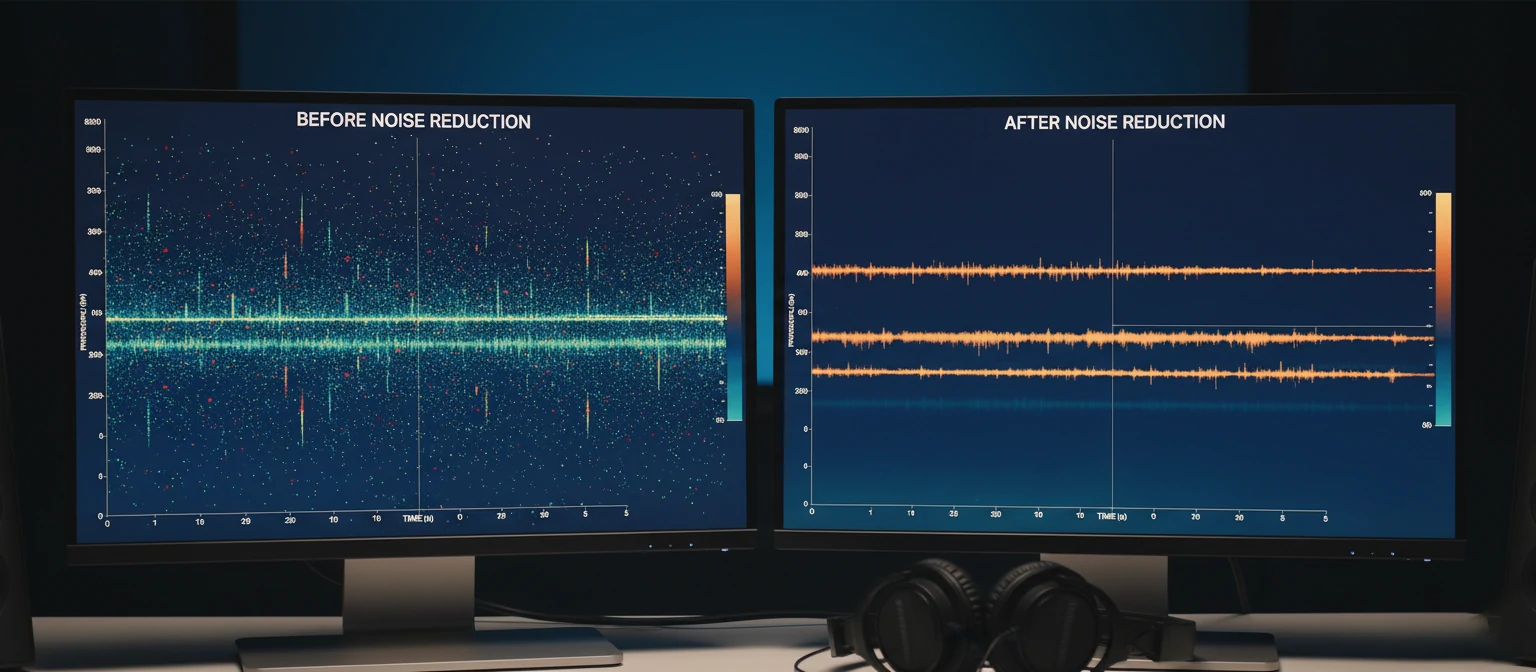
Adaptive Noise Reduction provides an alternative approach for recordings where noise changes over time. Rather than using a static noise print, this effect continuously analyzes audio and adapts its reduction accordingly. It's particularly useful for field recordings where environmental noise fluctuates.
✅ Restoration Best Practice
Apply restoration effects in the correct order: noise reduction first, then click removal, then hum removal, and finally EQ/compression. Each subsequent process works better on cleaner audio. Always compare against the original to ensure you're improving rather than degrading the recording.
The Diagnostics panel automates common restoration tasks. It can scan files for clicks, clipping, and silence, then automatically repair detected problems. While manual restoration produces superior results for critical work, the Diagnostics panel handles routine cleanup efficiently, especially when processing multiple files.
8. Podcast Production in Audition
Podcasting has become one of Adobe Audition's most popular use cases, and for good reason. The software provides everything podcasters need from recording through distribution-ready export, with specialized features that address common podcast production challenges.
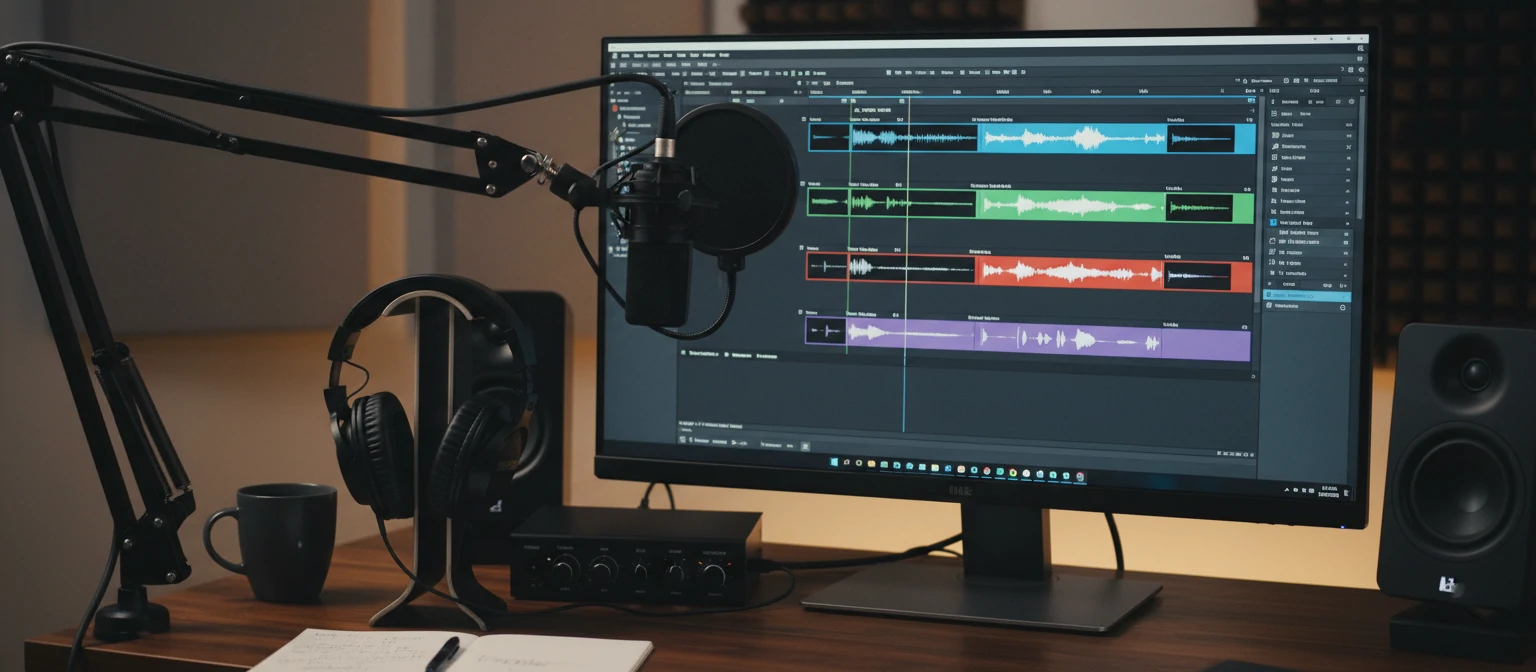
Setting up a podcast template in Audition saves enormous time. Create a Multitrack Session with your standard track layout: separate tracks for each host, interview guests, music beds, and sound effects. Add your typical effects chain to each track type. Configure routing to appropriate bus tracks. Save this as a template, and every new episode starts with your production framework already in place.
🎙 Recommended Podcast Processing Chain
Noise Gate
Reduces background noise between words. Set threshold just above room noise level.
High-Pass Filter (EQ)
Roll off frequencies below 80-100Hz to remove rumble and proximity effect.
Compression
Even out volume differences. Start with 3:1 ratio, medium attack, medium release.
DeEsser
Tame harsh sibilance. Target the 5-8kHz range with gentle reduction.
Limiter
Prevent peaks from exceeding -1dB true peak, required for most podcast platforms.
Audition's Match Loudness feature solves one of podcasting's most frustrating problems: volume inconsistency between speakers, episodes, or segments. Select multiple clips or files, specify your target loudness (typically -16 LUFS for podcasts), and Audition adjusts each to match. This ensures consistent listening experience across your entire catalog.
The Essential Sound panel provides simplified controls for common podcast tasks. Rather than diving into complex effect parameters, you can adjust controls labeled with intuitive terms like "Reduce Background Noise," "Remove Rumble," and "Make Vocals More Present." Behind the scenes, Audition applies appropriate processing, but you don't need deep audio engineering knowledge to achieve professional results.
For remote recording, Audition integrates well with various capture methods. You can record local microphone input while simultaneously capturing Zoom or Skype audio on separate tracks. The ability to sync double-ender recordings (where each participant records locally for maximum quality) streamlines post-production for remote interviews.
9. Adobe Integration and Workflow
One of Audition's greatest strengths is its seamless integration with other Adobe applications. If you already use Premiere Pro, After Effects, or other Creative Cloud tools, Audition becomes an even more powerful choice because it eliminates the friction of moving audio between applications.
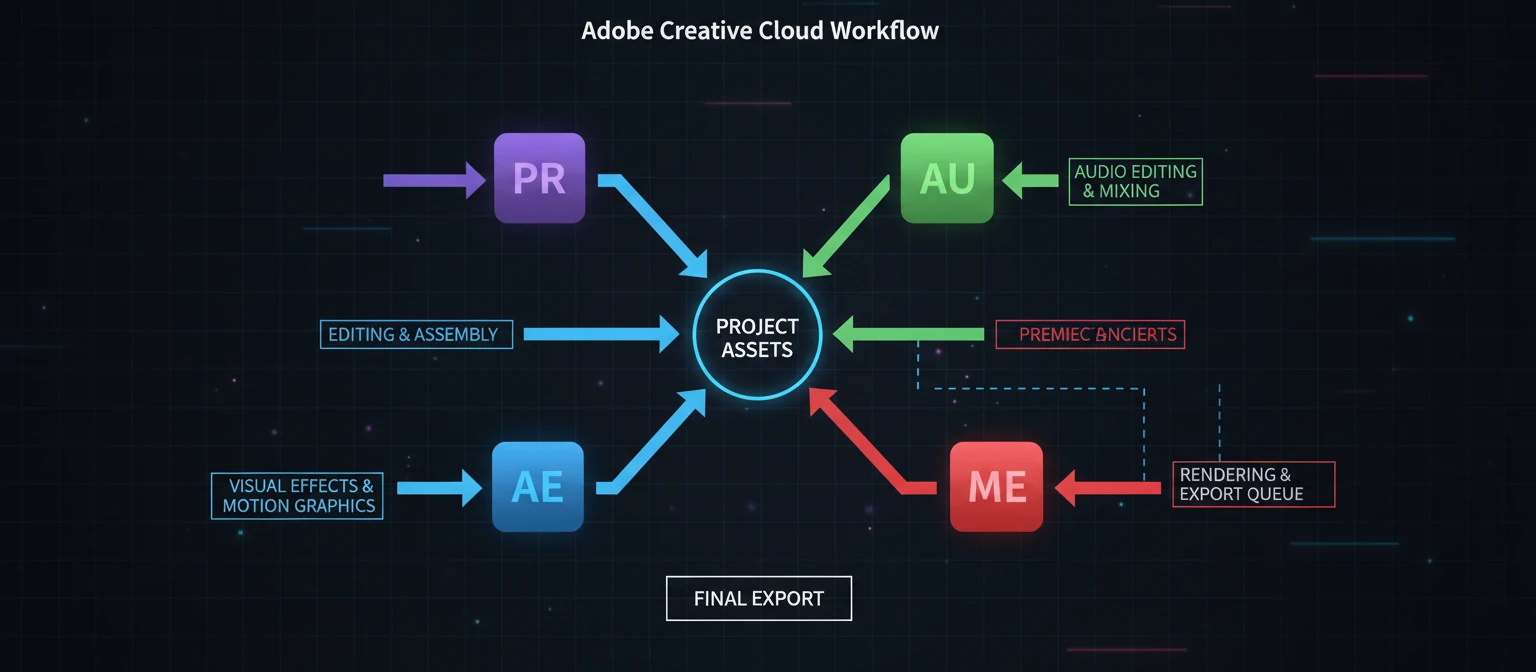
Dynamic Link between Premiere Pro and Audition represents the most valuable integration. Right-click any clip in Premiere and select "Edit in Adobe Audition." The software opens that clip with full editing capabilities. Make your changes, save, and they automatically appear in your Premiere timeline. No exporting, importing, or file management required.
🎥 Premiere Pro
Send clips or entire sequences to Audition. Changes sync automatically. Perfect for dialogue cleanup and audio mixing.
🎬 After Effects
Replace audio in compositions, sync sound design to animations. Audio changes update across linked projects.
📷 Media Encoder
Queue exports from Audition to Media Encoder for background rendering while continuing to work.
For comprehensive audio post-production, you can send an entire Premiere Pro sequence to Audition. This creates a multitrack session with all your clips, maintaining their timeline positions and preserving any keyframe automation. Perform detailed audio work in Audition's superior environment, then send everything back to Premiere with full fidelity.
Audition also integrates with Adobe's cloud services. Creative Cloud Libraries let you store and access audio assets, favorites, and presets across devices. Project files can be saved to Creative Cloud for backup and collaboration. While Audition doesn't offer real-time collaboration like some Adobe apps, the cloud integration simplifies working across multiple machines.
💡 Integration Workflow Tips
- Use "Edit in Adobe Audition" for quick fixes; send entire sequences for complex mixing
- Set Premiere Pro's audio preferences to match your Audition defaults for consistency
- Create Audition presets for common Premiere workflows (dialogue, music, effects)
- Use Media Encoder queues for batch processing exports overnight
The integration extends to speech-to-text functionality. Audition can generate transcriptions that sync with your audio, useful for creating captions or searching for specific words in long recordings. This transcription data transfers to Premiere Pro, where it can drive caption generation for video delivery.
10. Pricing, Alternatives, and Who Should Use It
Understanding Audition's pricing and how it compares to alternatives helps you make an informed decision about whether it's the right tool for your needs. Like all Adobe Creative Cloud software, Audition requires a subscription rather than a one-time purchase.
💰 Adobe Audition Pricing (2024)
Single App
$22.99
/month (annual plan)
All Apps
$59.99
/month (annual plan)
Education
$19.99
/month (students/teachers)
If you're already paying for Creative Cloud All Apps (which includes Premiere Pro, Photoshop, Illustrator, and everything else), Audition comes included at no extra cost. This makes it essentially free for many creative professionals. If you only need Audition, the single-app subscription costs significantly less than perpetual licenses for competing professional software.
Alternatives to Consider
Who Should Use Adobe Audition?
✅ Ideal For
- Video editors using Premiere Pro
- Podcast producers
- Broadcast audio engineers
- Audio restoration specialists
- Voiceover artists and dialogue editors
❌ Not Ideal For
- MIDI-heavy music production
- Electronic music with virtual instruments
- Users who refuse subscription software
- Very basic editing needs (Audacity suffices)
- Live performance/DJ applications
Adobe offers a seven-day free trial of Audition, providing enough time to evaluate whether it meets your needs. I recommend using the trial on a real project rather than just exploring features. That practical experience reveals whether Audition's workflow suits how you actually work, which matters more than any feature list.
❓ Frequently Asked Questions
Is Adobe Audition good for beginners?
Yes, particularly with the Essential Sound panel that provides simplified controls for common tasks. The interface can be overwhelming initially, but Adobe provides excellent tutorials, and most users become comfortable within a few sessions. The learning curve is moderate compared to professional alternatives like Pro Tools.
Can Adobe Audition record music?
Absolutely. Audition handles multitrack recording professionally, supports unlimited tracks, and includes quality effects for mixing. However, it lacks MIDI support and virtual instruments, making it less suitable for electronic music production or compositions that rely heavily on software instruments.
Does Adobe Audition work on Mac?
Yes, Audition runs natively on both macOS and Windows with full feature parity. It supports Apple Silicon (M1/M2/M3) Macs with native ARM performance. Project files transfer seamlessly between platforms, making collaboration between Mac and PC users straightforward.
What's the difference between Adobe Audition and Premiere Pro for audio?
Premiere Pro handles basic audio editing within video projects, while Audition provides professional-grade audio tools for complex work. Use Premiere for simple cuts and basic adjustments; send to Audition for noise reduction, spectral editing, detailed mixing, and restoration. They're designed to work together.
Can I buy Adobe Audition permanently without subscription?
No, Adobe discontinued perpetual licenses for Audition in 2013. The software is only available through Creative Cloud subscription. Some users find older CS6 versions available secondhand, but these lack years of updates, features, and compatibility improvements. For perpetual licenses, consider alternatives like Reaper or Logic Pro.
Final Thoughts on Adobe Audition
Adobe Audition occupies a unique position in the audio software landscape. Its combination of precise waveform editing, industry-leading spectral analysis, comprehensive restoration tools, and seamless Creative Cloud integration creates a package that's genuinely difficult to match with any single alternative.
For video editors, podcasters, broadcast professionals, and anyone working primarily with recorded audio rather than composed music, Audition offers capabilities that justify both the learning investment and subscription cost. The spectral editing alone solves problems that would be impossible or extremely time-consuming in other software.