Everything you need to know about downloading, installing, and getting started with the world's most popular free audio editor.
Table of contents
- 🔑 Key Takeaways
- What Is Audacity and Why Download It?
- System Requirements for Audacity
- Where to Download Audacity Safely
- Downloading Audacity for Windows
- Downloading Audacity for Mac
- Downloading Audacity for Linux
- Step-by-Step Installation Guide
- First Launch and Initial Setup
- Essential Plugins and Add-ons
- Download and Installation Troubleshooting
- Frequently Asked Questions
- Getting Started with Your Audio Journey
🔑 Key Takeaways
- 100% Free and Open Source: Audacity is completely free to download and use, with no hidden costs, subscriptions, or premium features locked behind paywalls.
- Cross-Platform Compatibility: Available for Windows, macOS, and Linux, making it accessible to virtually anyone with a computer.
- Official Download Only: Always download from audacityteam.org to ensure you get the genuine, malware-free version of the software.
- Lightweight Installation: Audacity requires minimal system resources and installs quickly on most computers.
- Professional Features: Despite being free, Audacity offers professional-grade audio editing capabilities used by millions worldwide.
If you have ever wanted to edit audio on your computer without spending money on expensive software, Audacity is almost certainly the answer you have been looking for. This remarkable piece of software has been helping people record, edit, and transform audio for over two decades, and it remains one of the most downloaded audio applications in the world.
But here is the thing that catches many people off guard: downloading Audacity should be simple, yet countless users end up on the wrong websites, downloading fake versions bundled with malware, or getting confused by the various download options available. This guide exists to make sure that does not happen to you.
Whether you are a podcaster looking to edit your first episode, a musician wanting to record demos, a student working on a class project, or simply someone who needs to clean up an audio file, this comprehensive guide will walk you through everything you need to know about downloading and installing Audacity safely and correctly.
What Is Audacity and Why Download It?
Audacity is a free, open-source digital audio editor and recording application that has been in continuous development since 1999. Originally created by Dominic Mazzoni and Roger Dannenberg at Carnegie Mellon University, it has grown into one of the most widely used audio applications in the world, with hundreds of millions of downloads across its lifetime.
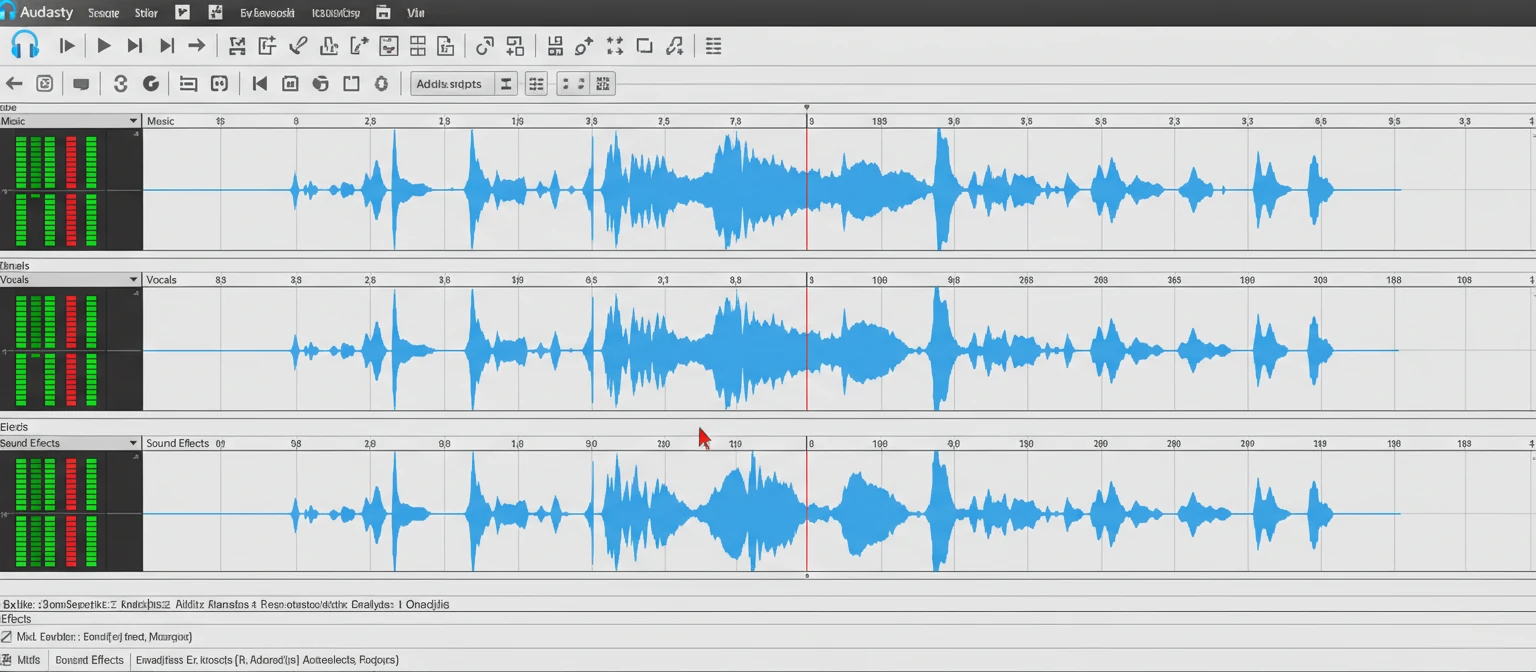
What makes Audacity special is not just that it is free, though that certainly helps. The software genuinely delivers professional-quality audio editing capabilities that rival applications costing hundreds of dollars. From simple tasks like trimming audio clips to complex operations like multi-track mixing and noise reduction, Audacity handles it all.
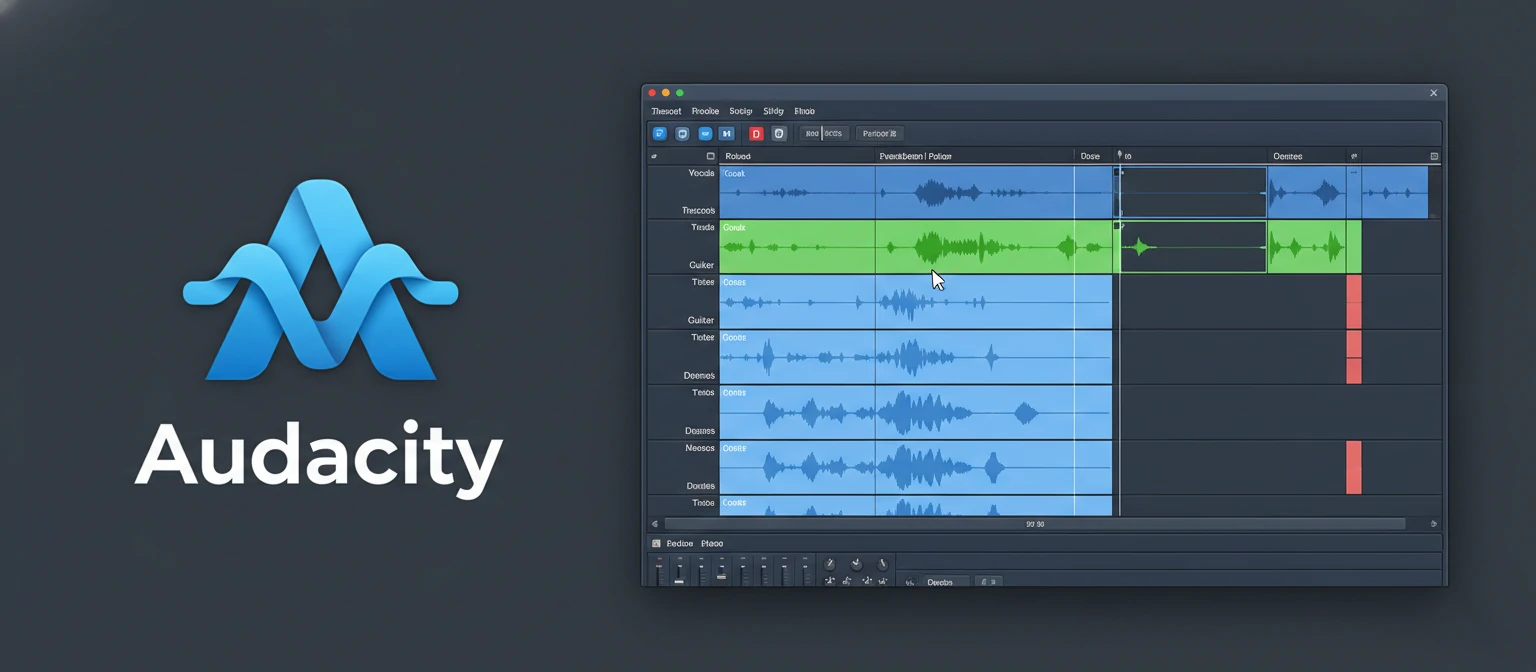
The reasons people download Audacity are as varied as the users themselves. Podcasters use it to record and edit their shows. Musicians rely on it for demo recordings and basic mixing. Audiobook narrators clean up their recordings before submission. Teachers create audio lessons. Students work on multimedia projects. Voice actors edit their auditions. The list goes on and on.
Core Features You Get with Audacity:
- Multi-track audio recording and editing
- Support for numerous audio formats including WAV, MP3, FLAC, and OGG
- Built-in effects including noise reduction, compression, and equalization
- Spectral analysis and visualization tools
- Plugin support for expanded functionality
- Batch processing capabilities for handling multiple files
Perhaps most importantly, Audacity's open-source nature means that a global community of developers continuously improves and updates the software. Unlike commercial software that might be discontinued when it stops being profitable, Audacity's future is secured by its community of users and contributors.
System Requirements for Audacity
One of Audacity's greatest strengths is its modest system requirements. Unlike many modern audio applications that demand high-end hardware, Audacity runs smoothly on computers that are several years old. This accessibility is a core part of the project's philosophy: everyone should have access to quality audio editing tools.
Before you download, it helps to understand what your computer needs to run Audacity effectively. Here are the requirements broken down by operating system:
The disk space requirement listed above is just for the application itself. You will need additional space for your audio projects, which can vary dramatically depending on what you are working on. A one-hour uncompressed audio file at CD quality takes up about 635 megabytes, so plan accordingly if you work with long recordings.
💡 Pro Tip: Audio Interface Compatibility
If you plan to record audio rather than just edit existing files, Audacity works with virtually any audio interface or microphone that your operating system recognizes. You do not need specialized hardware, but having a dedicated audio interface will improve recording quality significantly compared to built-in computer microphones.
Where to Download Audacity Safely
This section might be the most important in the entire guide, and here is why: searching for "Audacity download" online will present you with dozens of results, and many of them are not legitimate. Some third-party sites bundle the real Audacity installer with unwanted software, adware, or even malware. Others offer outdated versions with known security vulnerabilities.
The only sources you should trust for downloading Audacity are:
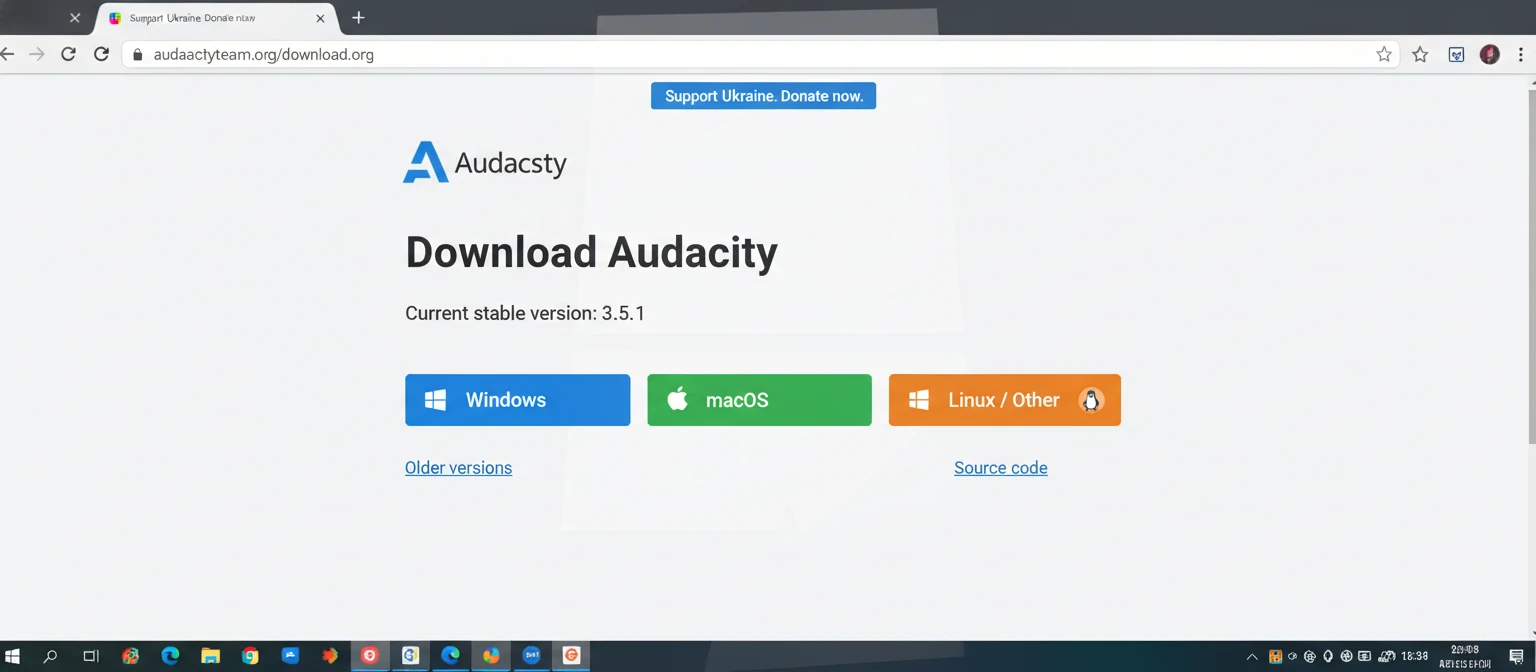
✓ Official Website: audacityteam.org
This is the primary and most recommended source. The official Audacity website always has the latest stable version and is guaranteed to be free of bundled software or malware.
✓ GitHub Repository
The official GitHub page hosts all releases and source code. This is a legitimate alternative if the main website is experiencing issues.
✓ FossHub
An authorized mirror that hosts legitimate Audacity downloads. The Audacity team has explicitly partnered with FossHub as a trusted distribution point.
⚠ Warning: Sites to Avoid
Be extremely cautious of sites that:
- Require you to install a "download manager" first
- Show multiple confusing download buttons
- Ask for payment (Audacity is always free)
- Have domain names similar to but not exactly "audacityteam.org"
- Pressure you to download immediately with countdown timers
Taking an extra moment to verify you are on the correct website can save you hours of frustration dealing with unwanted software or, worse, security problems. When in doubt, type "audacityteam.org" directly into your browser's address bar rather than clicking links from search results.
Downloading Audacity for Windows
Windows users make up the largest portion of Audacity's user base, and the download process for Windows is straightforward once you know which file to choose. The official download page presents several options, and understanding the difference between them will help you make the right choice.
Here is the step-by-step process for Windows users:
- Navigate to the Download Page: Go to audacityteam.org and click on the "Download" button prominently displayed on the homepage.
- Select Windows: The website should automatically detect your operating system, but verify that Windows is selected.
- Choose Your Installer Type: You will typically see options for an installer (.exe) and a zip file. Most users should choose the installer for the simplest experience.
- Wait for Download: Click the download button and wait for the file to download. The installer is approximately 30-35 megabytes.
- Verify the File: Before running the installer, you can verify its authenticity by checking the file hash against those published on the download page.
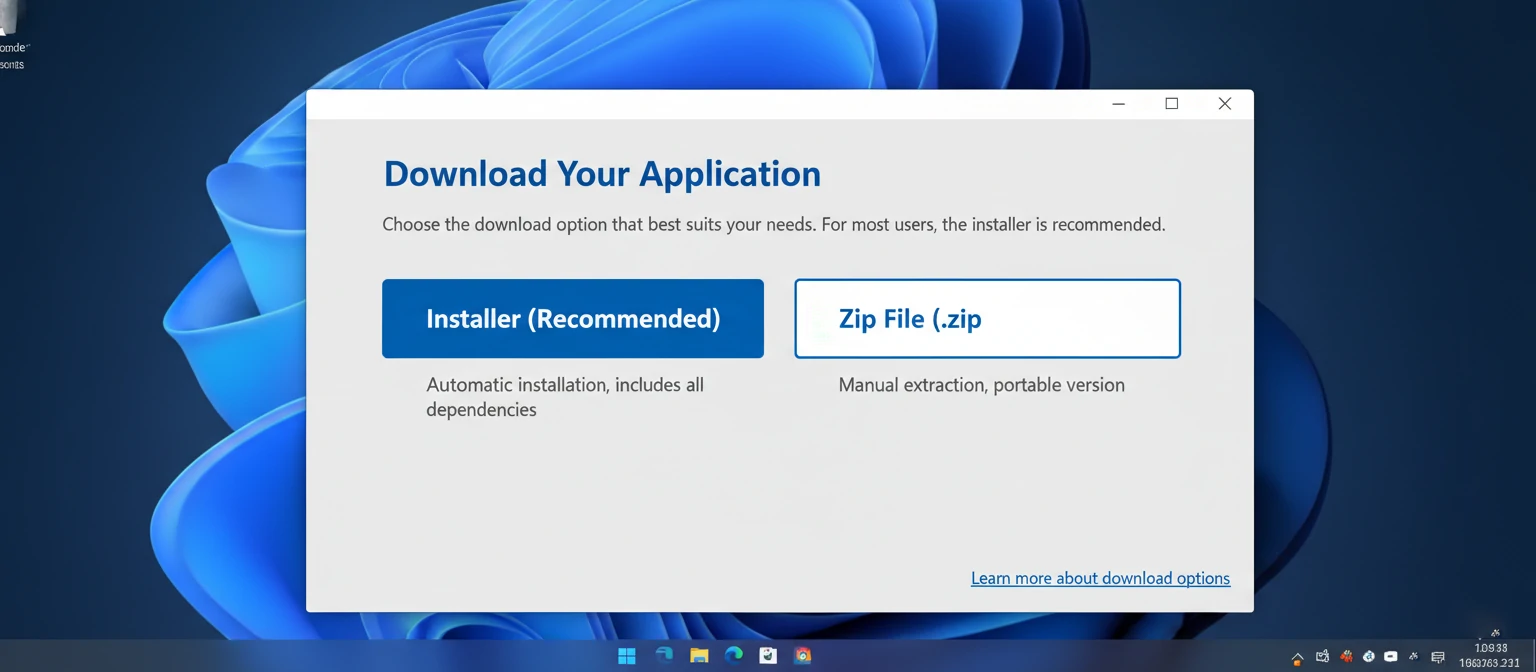
Understanding Windows Download Options
Installer (.exe): This is the recommended option for most users. It guides you through the installation process, creates Start menu shortcuts, and handles file associations automatically. You need administrator privileges to run the installer.
Zip Package: This option is designed for portable use or for situations where you cannot or do not want to install software. Extract the zip file to any location and run Audacity directly from that folder. This is useful for running Audacity from a USB drive.
Windows users should note that the current versions of Audacity only support 64-bit Windows. If you are running an older 32-bit system, you will need to use an older version of Audacity, though this is not recommended for security reasons.
Downloading Audacity for Mac
Mac users have a few additional considerations when downloading Audacity, particularly if you are using a newer Mac with Apple Silicon. The good news is that Audacity now offers universal builds that work on both Intel and Apple Silicon Macs, so you do not have to worry about choosing the wrong version.
The download process for Mac is similar to Windows but with some platform-specific steps:
- Visit the Official Site: Navigate to audacityteam.org and click Download.
- Select macOS: Choose the Mac download option. You will receive a DMG (disk image) file.
- Download the DMG: The macOS download is typically 40-50 megabytes.
- Handle Security Warnings: Because Audacity is not distributed through the Mac App Store, you may need to approve it in System Settings under Privacy & Security.
- Prepare for Installation: Once downloaded, you will mount the DMG and drag Audacity to your Applications folder.
Apple Silicon Note
Audacity 3.2 and later versions include native support for Apple Silicon (M1, M2, M3 chips). This means significantly better performance and battery efficiency on newer Macs. The universal binary runs natively on both Intel and Apple Silicon, so you only need to download one version regardless of your Mac's processor.
Handling macOS Gatekeeper
macOS includes a security feature called Gatekeeper that may initially prevent Audacity from running. This is not because Audacity is dangerous but because it is not from the Mac App Store. Here is how to handle this:
When you first try to open Audacity, you might see a message saying the application cannot be opened because it is from an unidentified developer. To bypass this:
Downloading Audacity for Linux
Linux users have the most diverse set of installation options, which is both a blessing and a complication. Depending on your distribution and preferences, you can install Audacity through your distribution's package manager, as a Flatpak, as an AppImage, or by building from source.
Here are the most common methods for installing Audacity on Linux:
Distribution Package Manager
Most Linux distributions include Audacity in their official repositories. Use your package manager to install:
sudo apt install audacity  # Debian/Ubuntu
sudo dnf install audacity  # Fedora
sudo pacman -S audacity    # Arch Linux
Flatpak (Recommended for Latest Version)
Flatpak packages are maintained by the Audacity team and always have the latest version:
flatpak install flathub org.audacityteam.Audacity
AppImage
Download the AppImage from the official site for a portable, no-installation option:
chmod +x Audacity-linux-*.AppImage
./Audacity-linux-*.AppImage
Which Linux Installation Method Is Best?
The answer depends on your priorities. If you want the latest features and bug fixes, Flatpak is your best choice because the Audacity team directly maintains these packages. If you prefer software that integrates seamlessly with your distribution and do not mind being a version or two behind, your distribution's package manager is the way to go.
AppImages are excellent for testing new versions without affecting your system or for running multiple versions side by side. They are also useful if you work across different Linux machines and want a consistent experience without having to install anything.
Step-by-Step Installation Guide
Now that you have downloaded Audacity, let us walk through the installation process. While installation is generally straightforward, there are a few things to keep in mind to ensure everything works correctly.
Windows Installation
- Locate the Downloaded File: Find the .exe installer file in your Downloads folder.
- Run the Installer: Double-click the file. If prompted by User Account Control, click "Yes" to allow the installation.
- Select Language: Choose your preferred language for the installer interface.
- Accept License Agreement: Read and accept the GPL license agreement to continue.
- Choose Installation Location: The default location (Program Files) works for most users. Change it only if you have a specific reason.
- Select Components: Keep the default selections unless you specifically do not want desktop shortcuts or Start menu entries.
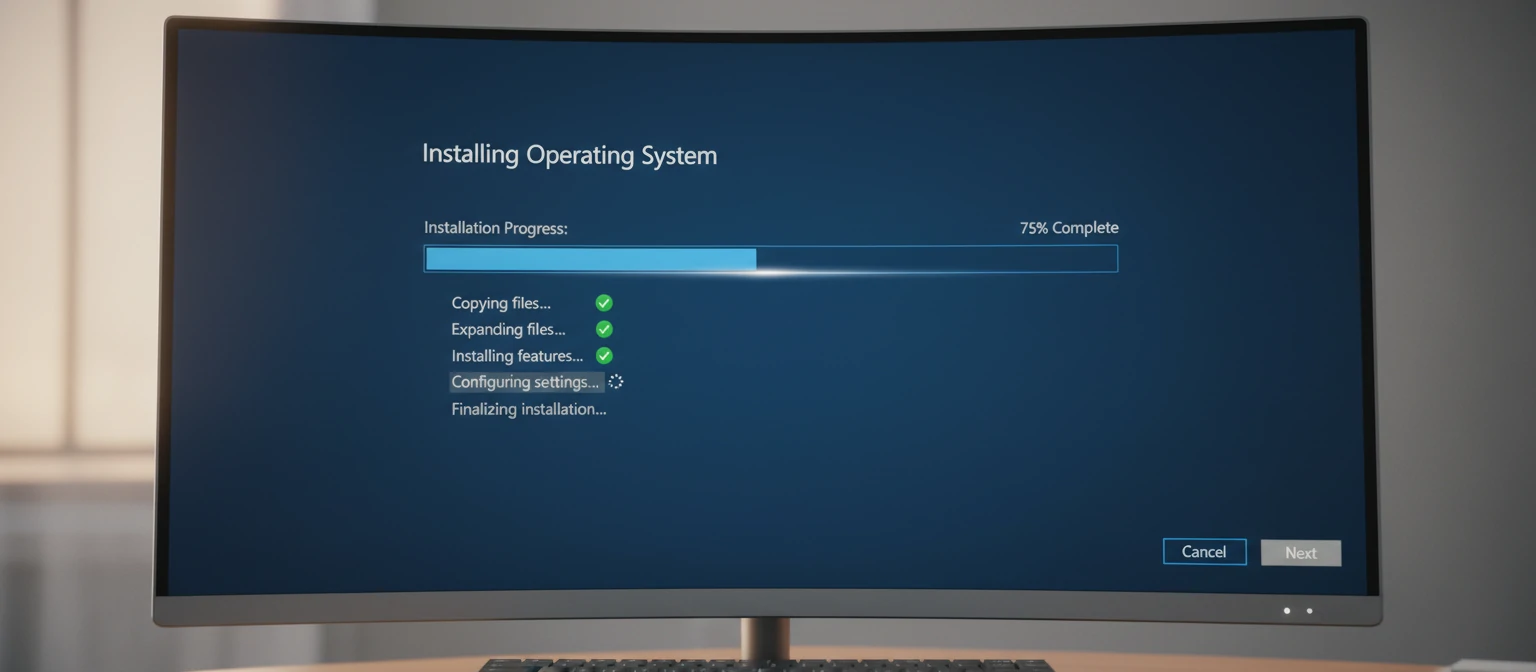
- Complete Installation: Click Install and wait for the process to complete. This typically takes less than a minute.
- Launch Audacity: Check the "Launch Audacity" box and click Finish, or find it in your Start menu later.
macOS Installation
- Open the DMG: Double-click the downloaded .dmg file to mount the disk image.
- Drag to Applications: A window will appear showing the Audacity icon and your Applications folder. Drag Audacity to the Applications folder.
- Wait for Copy: Wait for the copy process to complete. This may take a moment depending on your drive speed.
- Eject the DMG: Right-click on the mounted disk image on your desktop and select "Eject," or drag it to the Trash.
- First Launch: Open Applications, right-click Audacity, select "Open," and confirm you want to open it when the security dialog appears.
💡 Installation Tips
- Close any running audio applications before installing to prevent conflicts
- Ensure you have administrative privileges on the computer
- If upgrading from an older version, you do not need to uninstall it first
- Your settings and preferences will be preserved when upgrading
First Launch and Initial Setup
When you launch Audacity for the first time, you will encounter several prompts and dialogs that help configure the application for your needs. Taking a few minutes to understand these initial settings will make your Audacity experience much smoother.
Welcome Screen and Privacy Settings
Recent versions of Audacity display a welcome screen on first launch. This screen explains what data Audacity may collect (primarily anonymous usage statistics) and gives you the option to opt out. The choice is entirely yours, and opting out does not affect functionality in any way.
Audio Device Configuration
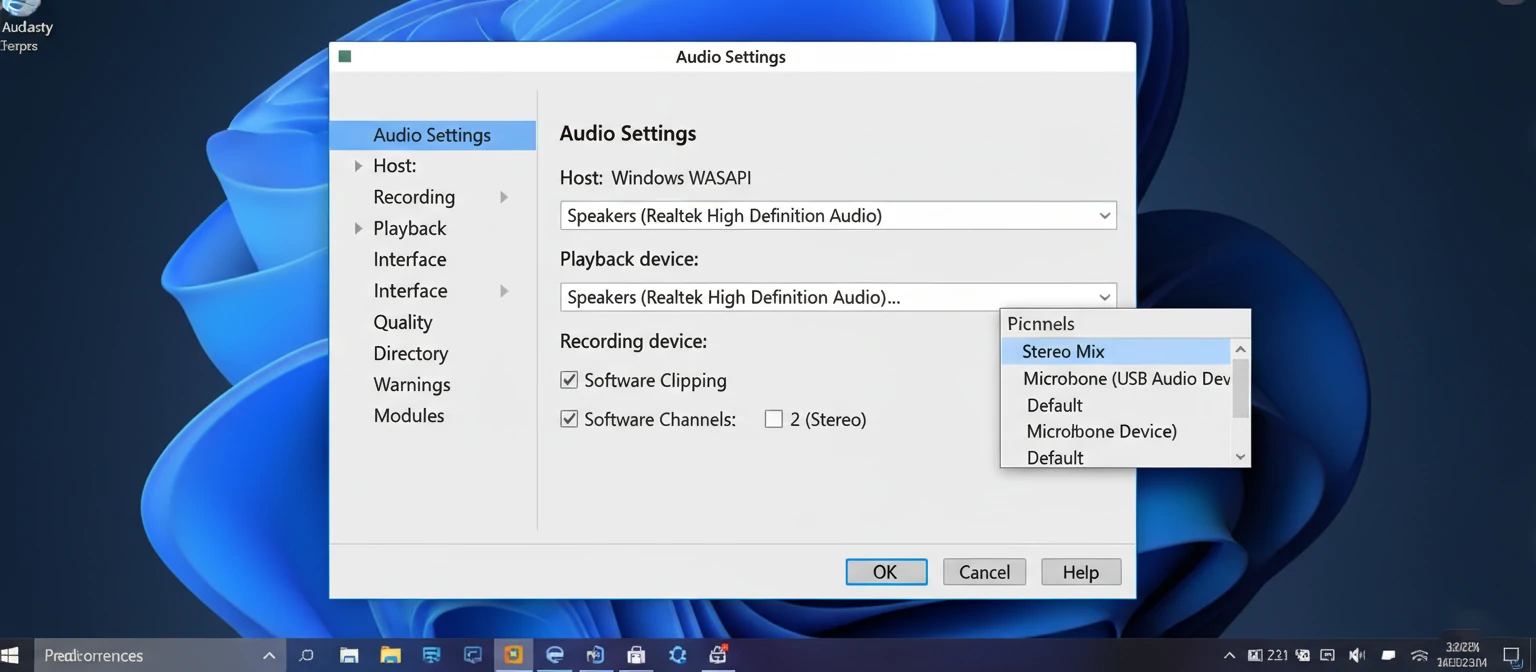
One of the first things you should do is verify that Audacity recognizes your audio devices correctly. Go to Edit > Preferences (or Audacity > Settings on Mac) and select the "Audio Settings" or "Devices" section.
Key Audio Settings to Check:
- Playback Device: Select your speakers or headphones
- Recording Device: Select your microphone or audio interface
- Recording Channels: Mono for single microphones, Stereo for stereo sources
- Sample Rate: 44100 Hz is standard for most purposes
Understanding the Interface
Audacity's interface might seem complex at first glance, but it is logically organized once you understand the layout:
- Transport Toolbar: Contains play, pause, stop, and record buttons
- Tools Toolbar: Selection, envelope, draw, and other editing tools
- Recording Meter: Shows input levels when recording
- Playback Meter: Shows output levels during playback
- Track Panel: The main area where your audio waveforms appear
- Timeline: Shows time position and allows navigation through your project
Essential Plugins and Add-ons
While Audacity comes with an impressive set of built-in features, its capabilities can be significantly extended through plugins. Understanding what plugins are available and how to install them will help you get the most out of your Audacity installation.
FFmpeg Library for Extended Format Support
One of the most important additions for many users is the FFmpeg library. While Audacity handles common formats like WAV, MP3, and OGG out of the box, FFmpeg adds support for many additional formats including AAC, AC3, WMA, and more. This is particularly useful if you work with audio from various sources.
To install FFmpeg:
- Visit the Audacity manual page for FFmpeg installation instructions
- Download the appropriate FFmpeg library for your operating system
- In Audacity, go to Edit > Preferences > Libraries
- Click "Locate" next to FFmpeg Library and point to the downloaded files
LADSPA and VST Plugin Support
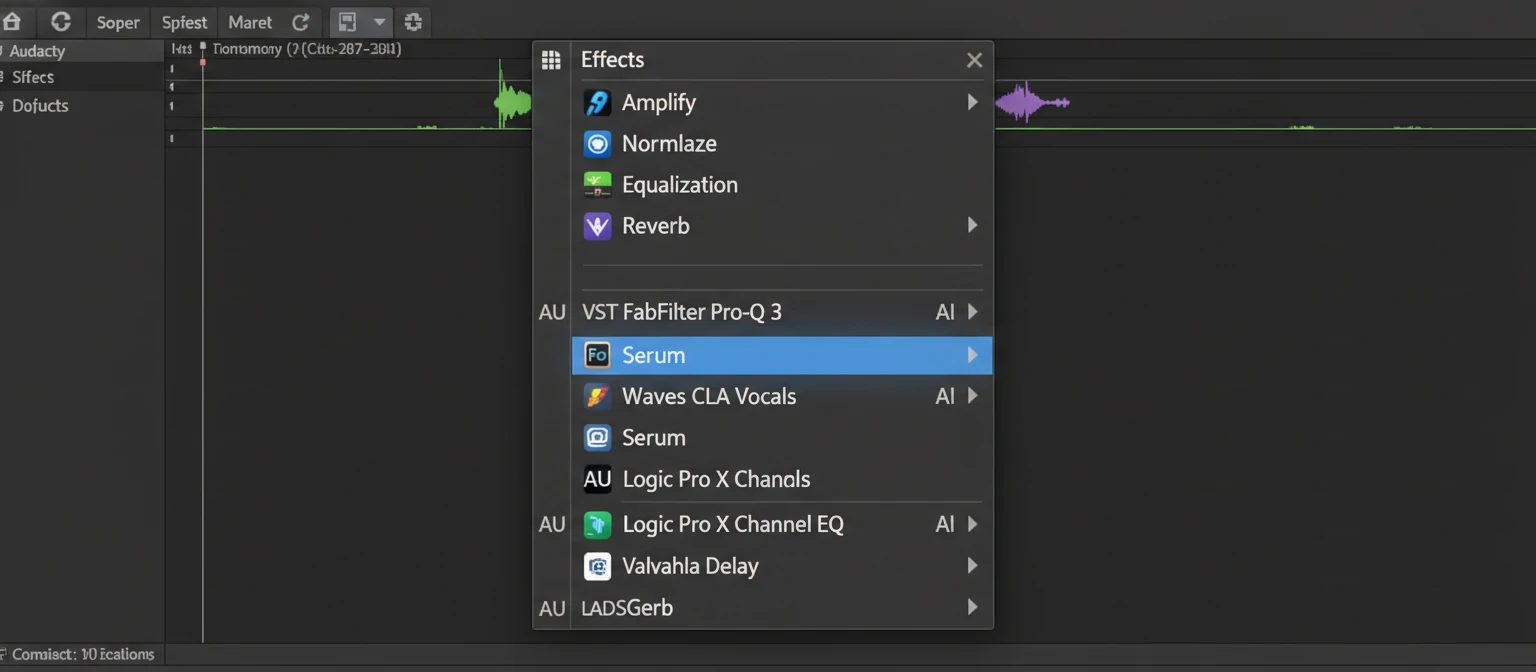
Audacity supports LADSPA plugins on all platforms and VST plugins on Windows and Mac. This opens up access to thousands of free and commercial audio effects that can enhance your editing capabilities.
Equalizers
Shape your sound with parametric and graphic EQ plugins
Compressors
Control dynamics with professional compression tools
Reverb & Delay
Add space and ambience to your recordings
Noise Reduction
Additional tools for cleaning up audio recordings
Nyquist Plugins
Audacity also has its own plugin format called Nyquist, based on the Nyquist programming language. Many useful effects and analysis tools are available as Nyquist plugins, and they can be downloaded from the Audacity wiki. Installing Nyquist plugins is simple: just place the .ny files in your Audacity plugins folder and restart the application.
Download and Installation Troubleshooting
Even with straightforward software like Audacity, things can sometimes go wrong during download or installation. Here are solutions to the most common problems users encounter.
Download Issues
Problem: Download Keeps Failing or Stopping
Solutions:
- Try a different browser (Chrome, Firefox, Edge)
- Temporarily disable antivirus software during download
- Use a download manager for more reliable large file downloads
- Try downloading from FossHub if the main site has issues
Problem: Antivirus Flags the Download
Solutions:
- Verify you downloaded from the official audacityteam.org website
- Check the file hash against published values on the download page
- False positives are common with open-source software; if verified, add an exception
- Report false positives to your antivirus vendor to help improve their database
Installation Issues
Problem: "This app can't run on your PC" (Windows)
Cause: You have downloaded the 64-bit version on a 32-bit system.
Solution: You will need to use an older version of Audacity that supports 32-bit Windows, though upgrading your system is recommended for security and performance reasons.
Problem: macOS says the app is damaged
Cause: Gatekeeper quarantine attributes are causing issues.
Solution: Open Terminal and run: xattr -cr /Applications/Audacity.app
Problem: No audio devices found
Cause: Audio drivers may not be installed or Audacity cannot access them.
Solution: Update your audio drivers, check that your audio device is working in other applications, and try restarting Audacity with the Shift key held down to reset device scanning.
Getting Additional Help
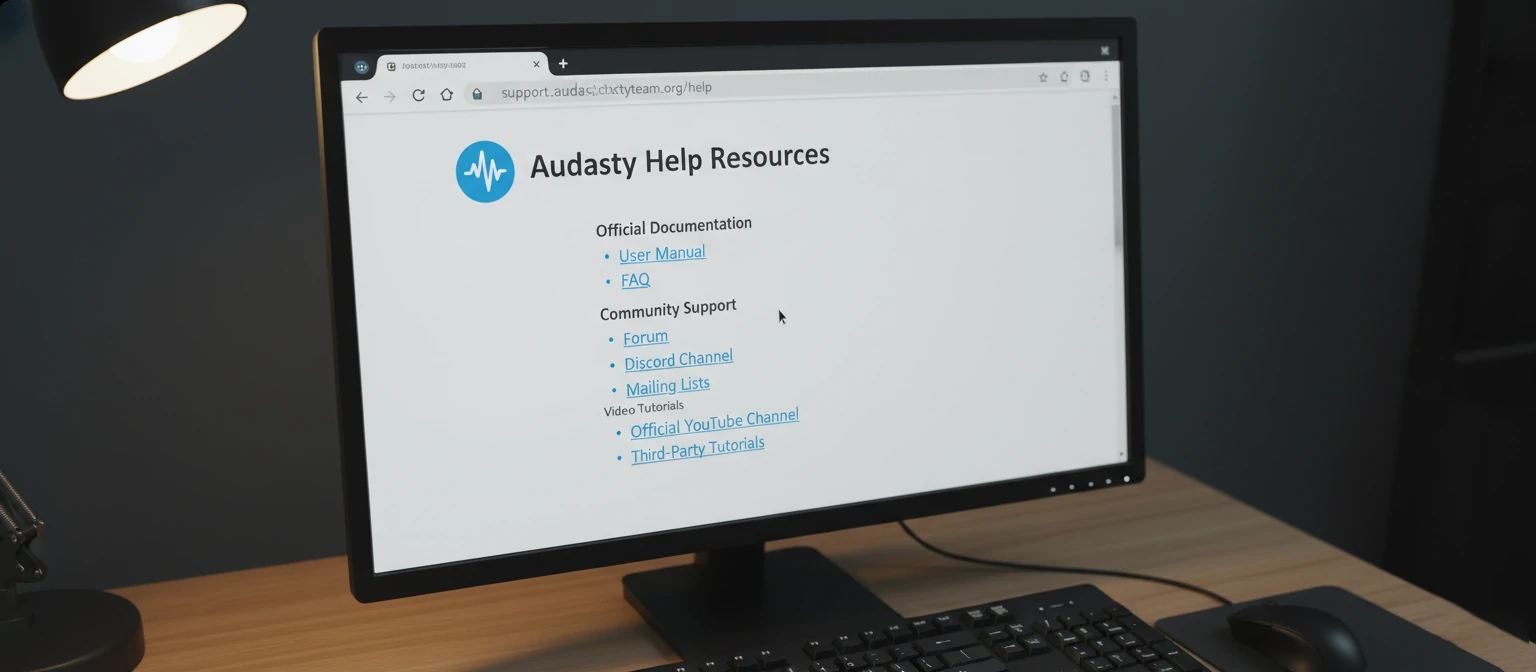
If you encounter issues not covered here, the Audacity community is incredibly helpful. The official Audacity Forum is the best place to seek assistance, where experienced users and developers regularly help newcomers solve problems. The Audacity manual, accessible from the Help menu, is also an excellent resource that covers virtually every aspect of the software.
Frequently Asked Questions
Is Audacity really completely free?
Yes, Audacity is 100% free and always has been. It is released under the GNU General Public License, which means you can download, use, and even modify the software without paying anything. There are no premium features, subscriptions, or hidden costs.
Why are there so many fake Audacity download sites?
Because Audacity is so popular, unscrupulous websites try to capitalize on people searching for it by offering downloads bundled with adware or malware. These sites make money from the bundled software. Always download from audacityteam.org to avoid these scams.
Can I use Audacity for commercial projects?
Absolutely. The GPL license allows you to use Audacity for any purpose, including commercial work. Many professional podcasters, musicians, and content creators use Audacity as their primary or secondary audio editing tool.
Do I need to uninstall my old version before upgrading?
No, the Audacity installer will update your existing installation automatically. Your settings, preferences, and plugins will be preserved. However, if you are experiencing issues, a clean install (uninstalling first, then installing fresh) can sometimes resolve problems.
How often is Audacity updated?
Audacity typically receives several updates per year, including both major feature releases and minor bug fix updates. You can check for updates from within Audacity by going to Help > Check for Updates, or by visiting the official website periodically.
Getting Started with Your Audio Journey
Downloading and installing Audacity is just the first step in what can become an incredibly rewarding journey into audio editing. Whether you are recording your first podcast episode, cleaning up an old family recording, creating sound effects for a video project, or producing music, Audacity provides the tools you need without the financial barrier that professional audio software often presents.
The key takeaways from this guide are straightforward: always download from official sources, choose the right version for your operating system, and take a few minutes to configure your audio devices properly during initial setup. These simple steps ensure you start with a solid foundation.
As you begin using Audacity, remember that the software has been developed and refined over more than two decades. The learning curve exists, but it is manageable, and the community resources available are extensive. The official manual, tutorial videos, and community forums mean that help is always available when you need it.
Ready to Start Editing?
Now that you have Audacity installed, experiment with recording your voice, importing an audio file, and trying out some of the built-in effects. The best way to learn is by doing, and you cannot break anything by experimenting. Every professional audio editor started exactly where you are now.
Welcome to the world of audio editing. With Audacity and a bit of practice, you will be amazed at what you can create.
Michael Torres
Audio Technology Specialist & Software Educator
Michael has been helping people navigate the world of audio software for over fifteen years. As a former audio engineer turned educator, he specializes in making complex technical topics accessible to beginners. His tutorials and guides have helped hundreds of thousands of users get started with audio production. When he is not writing about software, he enjoys producing electronic music and restoring vintage audio equipment.