Master the art of changing brush colors in Photoshop with our comprehensive, easy-to-follow tutorial
Table of contents
- Introduction to Changing Brush Color in Photoshop
- The Basics: Understanding Brush Colors in Photoshop
- Prerequisites: What You Need Before Starting
- Step-by-Step Guide: How to Change Brush Color
- Advanced Techniques for Brush Color Management
- Troubleshooting Common Brush Color Issues
- Pro Tips and Tricks for Efficient Color Work
- Understanding Color Theory for Better Brush Work
- Different Brush Types and Color Application
- Advanced Workflow Tips for Color Management
- Real-World Case Studies: Brush Color in Action
- Frequently Asked Questions About Brush Colors
- Additional Resources and Further Learning
- Common Mistakes to Avoid
- Best Practices for Color Management
- Video Tutorial: See It in Action
- Conclusion: Mastering Brush Colors in Photoshop
Introduction to Changing Brush Color in Photoshop
Hey there, creative friend! 🎨 Ever found yourself in Photoshop with your brush tool ready, but totally stuck on how to switch up that color? You're in the perfect spot! This guide is crafted just for you – whether you're dipping your toes into digital art for the first time or you're a seasoned pro wanting to streamline your workflow.
Changing brush color might sound simple, but it's the secret sauce behind so much amazing work in Photoshop. From subtle photo tweaks to wild artistic creations, knowing how to pick and apply colors just right can make your projects pop. In this friendly guide, we'll walk through every single method out there, share some insider tips, and help you get why brush color mastery is a game-changer for your digital masterpieces.
Stick with us till the end, and you'll not only know a bunch of ways to change your brush color but also understand the little details that turn good work into great. We'll cover basics, pro techniques, and everything in between to set you up for success with colors in Photoshop.
The Basics: Understanding Brush Colors in Photoshop
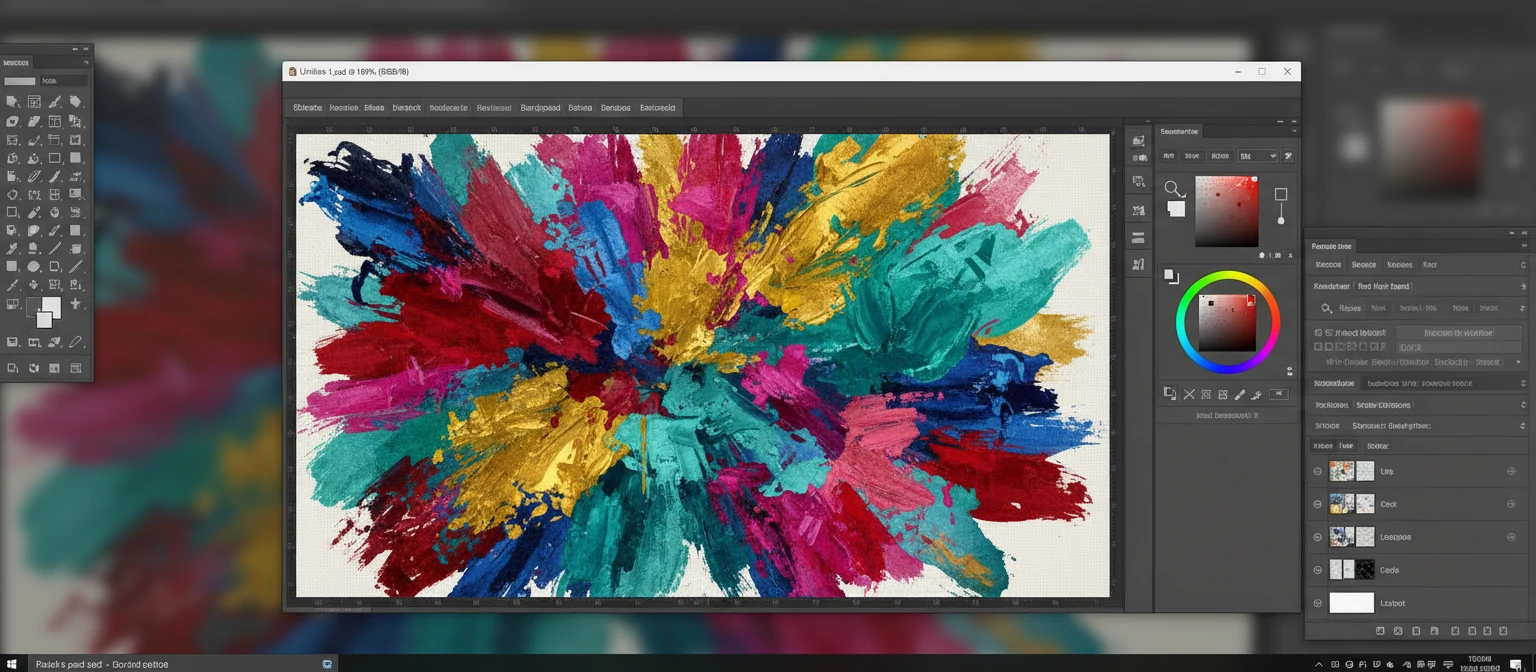
Let's kick things off with the fundamentals – what exactly are brush colors in Photoshop, and why do they matter so much? In Photoshop, your brush color is basically the foreground color that gets applied whenever you use any painting or drawing tool. This includes the Brush Tool, Pencil, and even some selection tools that let you paint selections.
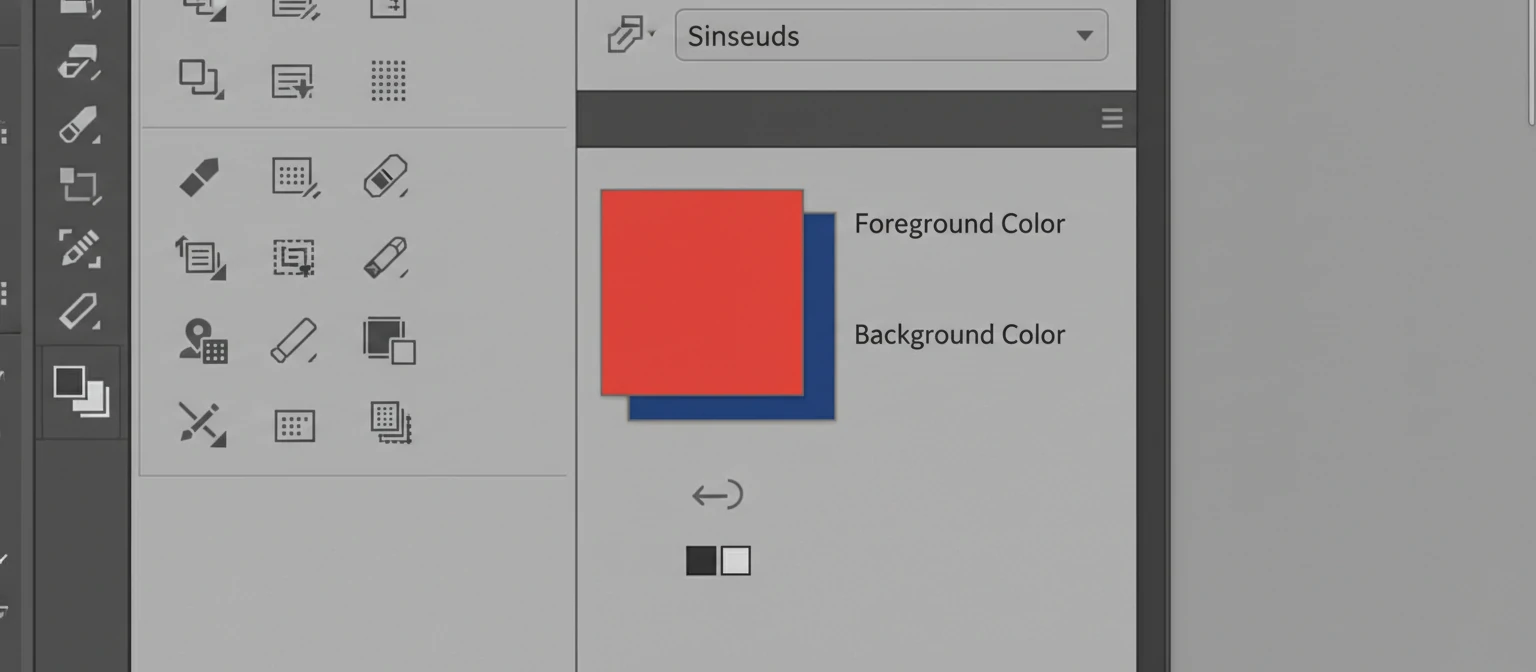
You'll spot this color in two squares at the bottom of your Tools panel – the top one's your foreground color, which is what you'll use most for painting and drawing. Getting a handle on this color system is super important for nailing Photoshop's painting features.
Photoshop uses RGB (Red, Green, Blue) for screens, but it also handles CMYK for print. The color you pick will show up differently based on your document's color mode, so it's smart to work in the right color space for your project.
Why Brush Color Matters
Picking the right brush color isn't just about looks – it's about telling a story, setting a mood, and getting things technically spot-on. The perfect color can stir emotions, add depth, and make your work look polished. For photographers, nailing color matching is key for retouching. For artists, your color choice can set the whole vibe of a piece.
Plus, learning to switch colors quickly is a must for smooth workflows. In pro settings, time flies, and being able to change colors on the fly can seriously boost your speed.
Prerequisites: What You Need Before Starting
Ready to dive in? Here's what you'll need to follow along:
- Adobe Photoshop: Grab any recent version, like Photoshop CC or the latest 2024 edition. If you don't have it, snag a free trial from Adobe's site.
- A Computer: Photoshop runs on Windows or Mac – just make sure your setup meets the basics.
- Basic Photoshop Know-How: Know how to open Photoshop and start a new doc. If you're brand new, no worries – we'll walk you through it all.
- A Mouse or Tablet: A regular mouse works, but a Wacom tablet gives you way more control for painting.
If this is your first time with Photoshop, take a sec to explore the interface. Tools panel on the left, Options bar up top, Layers panel – those are your main spots.
Step-by-Step Guide: How to Change Brush Color
Alright, let's get to the good stuff – changing your brush color in Photoshop. We've got several ways, so pick what fits your style best.
Method 1: Using the Color Picker (Most Common)
- Fire up Photoshop and open a doc or start fresh.
- Grab the Brush Tool from the Tools panel (hit B for shortcut).
- Check the bottom of the Tools panel – the top square is your foreground color.
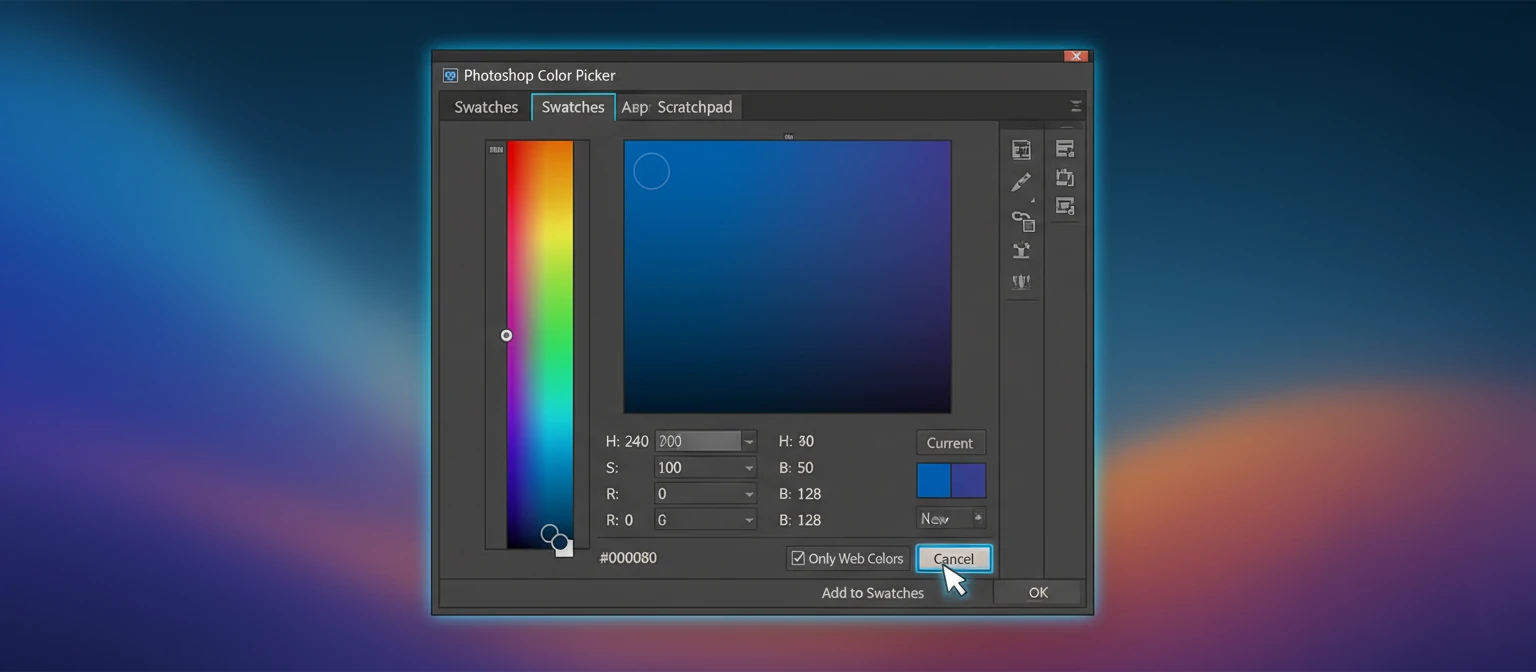
- Click that foreground square to open the Color Picker.
- In the picker, you can:
- Click the color field to pick hue and saturation.
- Slide the brightness bar on the right.
- Plug in RGB or HSB values if you know 'em.
- Use the eyedropper in the picker to grab colors from your image.
- Hit OK to lock it in.
- Paint on your canvas to see it in action.
Method 2: Using the Eyedropper Tool
The Eyedropper is awesome for matching colors already in your image.
- Pick the Eyedropper Tool (I key).
- Click any color in your image or canvas.
- That color becomes your foreground color instantly.
- Switch to Brush and paint away.
Super handy for seamless color matching in retouching or blending.
Method 3: Keyboard Shortcuts for Quick Changes
Shortcuts are a power user's best friend for staying in the flow.
- Alt + Click (Option + Click on Mac): Turns to Eyedropper for sampling.
- X: Flips foreground and background.
- D: Resets to black foreground, white background.
These keep your hands on the keyboard and your creativity rolling.
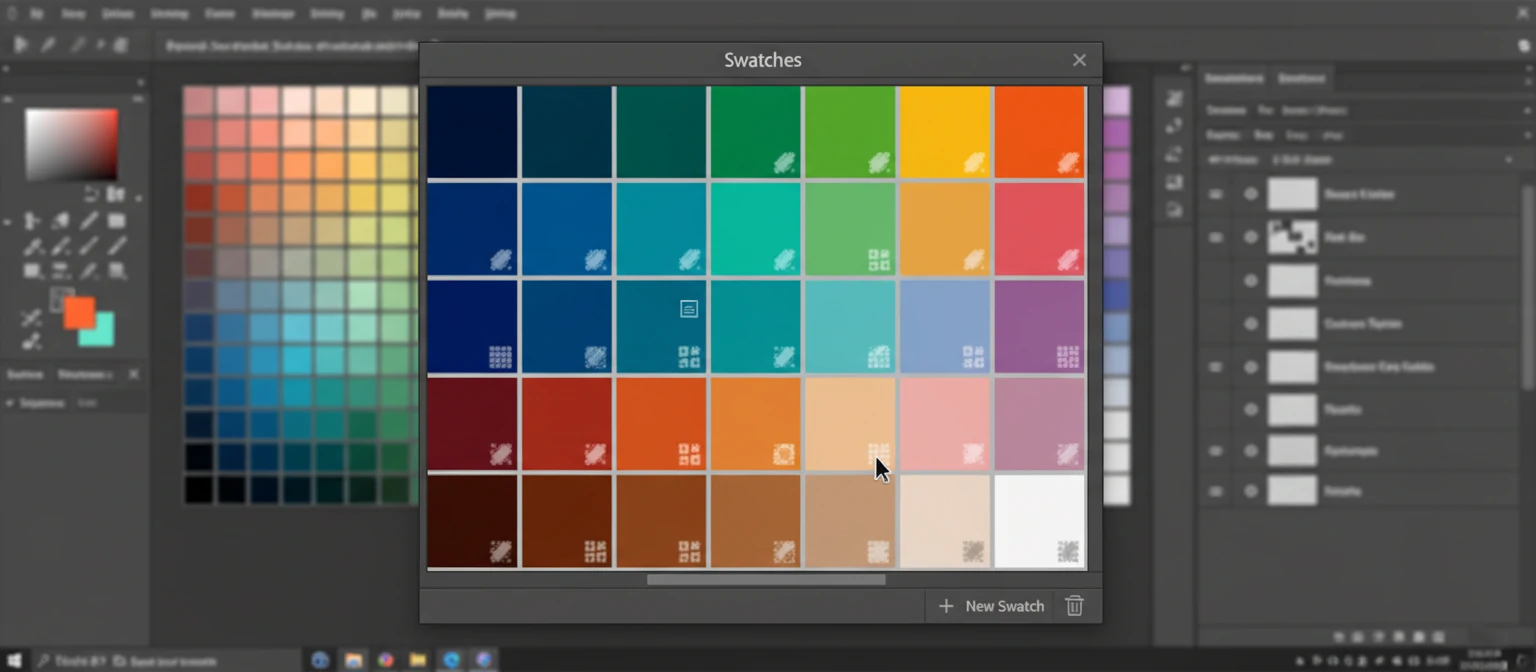
Method 4: Using Color Swatches
Swatches let you save and reuse colors easily.
- Open Swatches panel (Window > Swatches).
- Click any swatch for foreground.
- To add custom: Pick color, click empty spot in panel.
- Name it and OK.
Perfect for projects with a set color scheme.
Advanced Techniques for Brush Color Management
Got the basics down? Let's level up with some advanced moves that can take your color game to the next level.
Using Color Libraries
Photoshop hooks up with pro libraries like Pantone for spot-on colors.
- In Color Picker, hit Color Libraries.
- Pick from Pantone, ANPA, Toyo, etc.
- Select and OK.
Essential for print where color accuracy is everything.
Color Blending Modes
Blending modes tweak how your brush color mixes with what's underneath.
- Normal: Straight color application.
- Multiply: Darkens the base.
- Screen: Lightens it.
- Overlay: Mixes Multiply and Screen.
Play around to create rich effects.
Brush Opacity and Flow
These control how color applies, not the color itself.
- Opacity: Overall transparency.
- Flow: Paint buildup per stroke.
Low opacity for subtle builds, flow for accumulation.
Troubleshooting Common Brush Color Issues
Even pros hit snags with colors. Here's how to fix the usual suspects.
Brush Not Painting in Selected Color
- Double-check your layer.
- Make sure it's not locked.
- Opacity not at zero?
- Not in Quick Mask mode?
Colors Looking Different on Screen vs. Print
Often color space issues. Stick to CMYK for print and calibrate your screen.
Color Picker Not Showing Expected Colors
- Check doc color mode.
- Not in Indexed Color?
- Reset picker prefs if needed.
Pro Tips and Tricks for Efficient Color Work
Here are some insider secrets to speed up your color routine:
- Custom Shortcuts: Assign keys to favorite colors.
- Color Themes: Save whole palettes for projects.
- 32-bit Mode: For HDR work.
- Regular Correction: Use adjustment layers to tweak.
- Learn Color Theory: Complementary colors can elevate your work.
Understanding Color Theory for Better Brush Work
Knowing how to change colors is great, but color theory can make your work shine. Let's explore some key concepts to help you choose colors smarter.
The Color Wheel and Relationships
The color wheel arranges colors by how they relate. Primaries (red, blue, yellow) are the base, secondaries (green, orange, purple) mix them, tertiaries blend those.
Color relationships create harmony:
- Complementary: Opposites for contrast and energy.
- Analogous: Neighbors for calm designs.
- Triadic: Three spaced colors for balance.
Color Psychology in Digital Art
Colors trigger feelings and influence viewers:
- Red: Passion, energy, urgency.
- Blue: Trust, calm, professionalism.
- Green: Growth, nature, harmony.
- Yellow: Optimism, warmth (use sparingly).
- Purple: Luxury, creativity, mystery.
- Orange: Enthusiasm, fun, vitality.
Color Temperature and Mood
Warm colors (reds, oranges, yellows) energize, cool ones (blues, greens, purples) soothe.
Mix temperatures for focus and depth.
Different Brush Types and Color Application
Photoshop's brushes handle color differently. Here's the scoop on types.
Standard Brushes
Default set for clean, direct color application. Great for precision.
Texture Brushes
Add texture while changing color. Like painting with colored textures.
Brush Blending Modes
Modes change color interaction:
- Color Mode: Shifts hue/sat, keeps luminosity.
- Luminosity: Changes brightness, keeps colors.
- Hue: Shifts hue subtly.
Custom Brush Creation
Make brushes with built-in colors:
- Paint a pattern.
- Edit > Define Brush Preset.
- Paint with your custom color pattern.
Advanced Workflow Tips for Color Management
Pro color work needs a solid system. Here are advanced tips.
Color Sampling Techniques
Beyond basic eyedropper:
- 5x5 Average: Smoother sampling.
- 3x3 Average: For detail.
- Point Sample: Exact pixel.
Set in Options bar.
Color Correction Layers
Non-destructive tweaks:
- Curves: Tonal control.
- Levels: Quick adjustments.
- Hue/Saturation: Color shifts.
- Color Balance: Balance in ranges.
Color Spaces and Profiles
Right space for accuracy:
- sRGB: Web/digital.
- Adobe RGB: Wider for print.
- ProPhoto RGB: Largest gamut.
Real-World Case Studies: Brush Color in Action
See how it works in real projects.
Photo Retouching Scenario
For vibrant eyes:
- Sample eye color.
- Adjust hue.
- Paint softly at low opacity.
- Mask for control.
Digital Painting Example
Creating landscape depth:
- Cool blues for distance.
- Warm up closer elements.
- Use complements for contrast.
- Adjust saturation by perspective.
UI Design Application
- Brand colors for key elements.
- Accents sparingly.
- Ensure contrast for accessibility.
- Test across devices.
Frequently Asked Questions About Brush Colors
Answers to common questions.
Why does my brush color look different when I print?
Color space mismatch. Use CMYK and profiles.
Can I save custom colors for future use?
Yes, in Swatches panel. Save libraries too.
How do I change brush color for all tools at once?
Foreground applies to painting tools. Use adjustments for global.
Why can't I see the color I'm trying to use?
Monitor calibration, color blindness, or limited mode. Check settings.
Can I use gradients as brush colors?
Not directly, but create gradient brushes or use maps.
Additional Resources and Further Learning
Dive deeper into Photoshop colors:
- Adobe Tutorials: Free lessons on color.
- Books: Photoshop guides.
- Communities: Reddit, Adobe forums.
- YouTube: Color grading tutorials.
- Courses: Udemy, Skillshare.
- Tools: Adobe Color, Coolors.
Practice makes perfect. Experiment and keep learning!
Common Mistakes to Avoid
Steer clear of these pitfalls for smoother color work:
- Ignoring Layer Order: Always check you're painting on the right layer.
- Overlooking Blending Modes: Experiment with modes for better color integration.
- Not Calibrating Your Monitor: Colors look off? Calibrate for accuracy.
- Using Wrong Color Space: RGB for screen, CMYK for print.
- Forgetting to Save Swatches: Build a library of go-to colors.
Avoiding these keeps your workflow efficient and your results professional.
Best Practices for Color Management
Keep your colors consistent and creative with these tips:
- Work in the Right Color Mode: RGB for digital, CMYK for print.
- Use Adjustment Layers: Non-destructive color tweaks.
- Create Color Palettes: Save themes for projects.
- Test on Multiple Devices: Ensure colors look good everywhere.
- Learn from Pros: Study color in famous artworks.
These habits will make your color work shine.
Video Tutorial: See It in Action
Want to see brush color changing live? Check out this quick video tutorial:
Watch on YouTube: How to Change Brush Color in Photoshop
Visual demos make it easier to grasp. Happy learning! 📹
Conclusion: Mastering Brush Colors in Photoshop
Awesome! You've learned tons of ways to change brush colors in Photoshop, from simple to advanced. Remember, it's not just about changing – it's about choosing wisely.
Keep playing with colors. Make palettes for moods, practice matching for retouching, explore interactions in art. The sky's the limit!
Share this with fellow creators if it helped. And remember, the best learning happens by doing – grab your brush and create!