Unlock the power of precision and creativity with square brushes
Table of contents
- Introduction to Square Brushes in Photoshop
- Understanding Square Brushes: What Makes Them Special?
- How to Access and Customize Square Brushes in Photoshop
- Step-by-Step Tutorial: Creating Pixel Art with Square Brushes
- Designing UI Elements with Square Brushes
- Tips and Tricks for Effective Square Brush Use
- Common Mistakes and How to Avoid Them
- Alternatives to Square Brushes
- Conclusion
- Advanced Techniques with Square Brushes
- Real-World Examples: Square Brushes in Action
- Frequently Asked Questions About Square Brushes
- Resources and Further Reading
Introduction to Square Brushes in Photoshop
Have you ever found yourself frustrated with brushes that just won't give you that crisp, pixel-perfect edge? If you're a Photoshop enthusiast, you know the struggle is real. Enter the square brush – your secret weapon for precision and creativity! But what makes it so special, and how can it revolutionize your workflow?
Welcome to your ultimate guide to mastering square brushes in Photoshop. Whether you're a total beginner or a seasoned pro looking to level up, we're about to embark on an exciting journey. By the end, you'll wonder how you ever lived without this tool in your arsenal. Ready? Let's dive in!
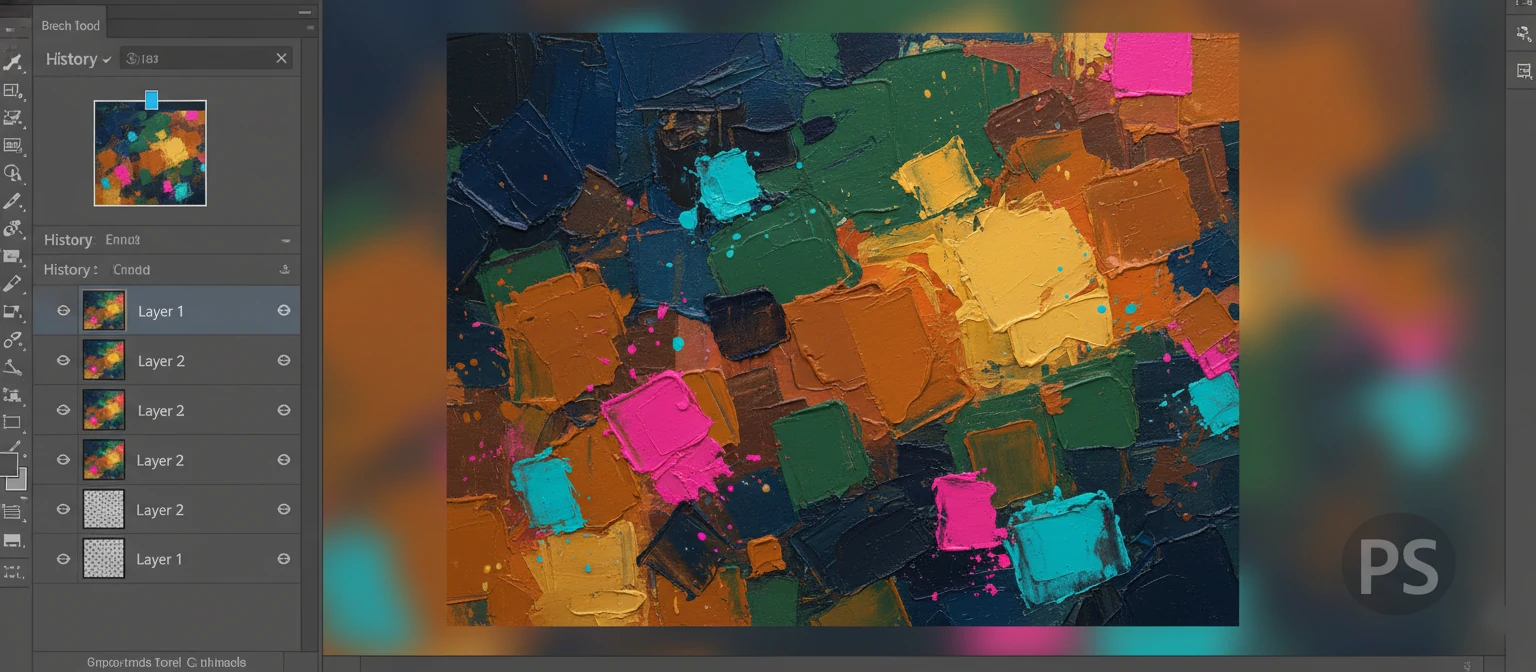
Stick with us, and soon you'll be wielding square brushes like a pro – crafting stunning pixel art, designing killer UIs, and adding that geometric flair to all your projects. We've packed this guide with step-by-step tutorials, pro tips, and real examples to get you started right away.
So, what are you waiting for? Let's unlock the magic of square brushes together!
Understanding Square Brushes: What Makes Them Special?
Before we get our hands dirty with tutorials, let's take a moment to really understand what makes square brushes tick. Why are they different from those trusty round brushes you've been using all along?
What is a Square Brush?
A square brush in Photoshop is a brush tool that creates strokes with a square-shaped tip, as opposed to the circular shape of standard brushes. This square shape gives you the ability to create sharp, angular lines and fills that are impossible with traditional round brushes.
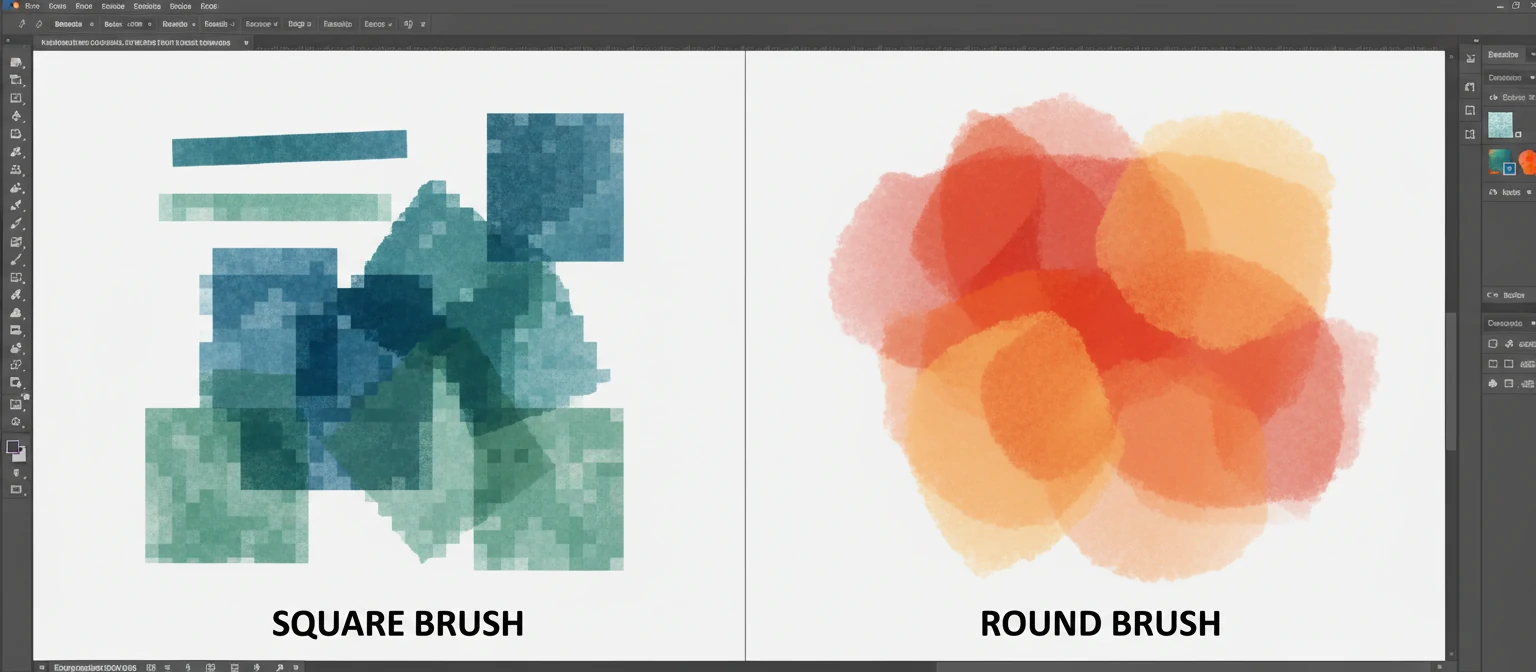
The square brush maintains its shape regardless of the angle or pressure applied, making it ideal for creating geometric patterns, pixel art, and precise digital illustrations.
Key Characteristics of Square Brushes
- Geometric Precision: Square brushes produce clean, sharp edges that align perfectly with pixel grids.
- Consistency: Unlike round brushes that can vary with angle, square brushes maintain their shape for predictable results.
- Pixel Art Friendly: Perfect for creating retro-style graphics and games.
- UI Design Applications: Excellent for creating buttons, icons, and interface elements.
Understanding these characteristics will help you appreciate when and how to use square brushes in your projects. They're not just for pixel art anymore – modern designers use them for everything from web design to digital painting.
How to Access and Customize Square Brushes in Photoshop
Now that you understand what square brushes are, let's learn how to access them and customize them to suit your needs.
Accessing Square Brushes
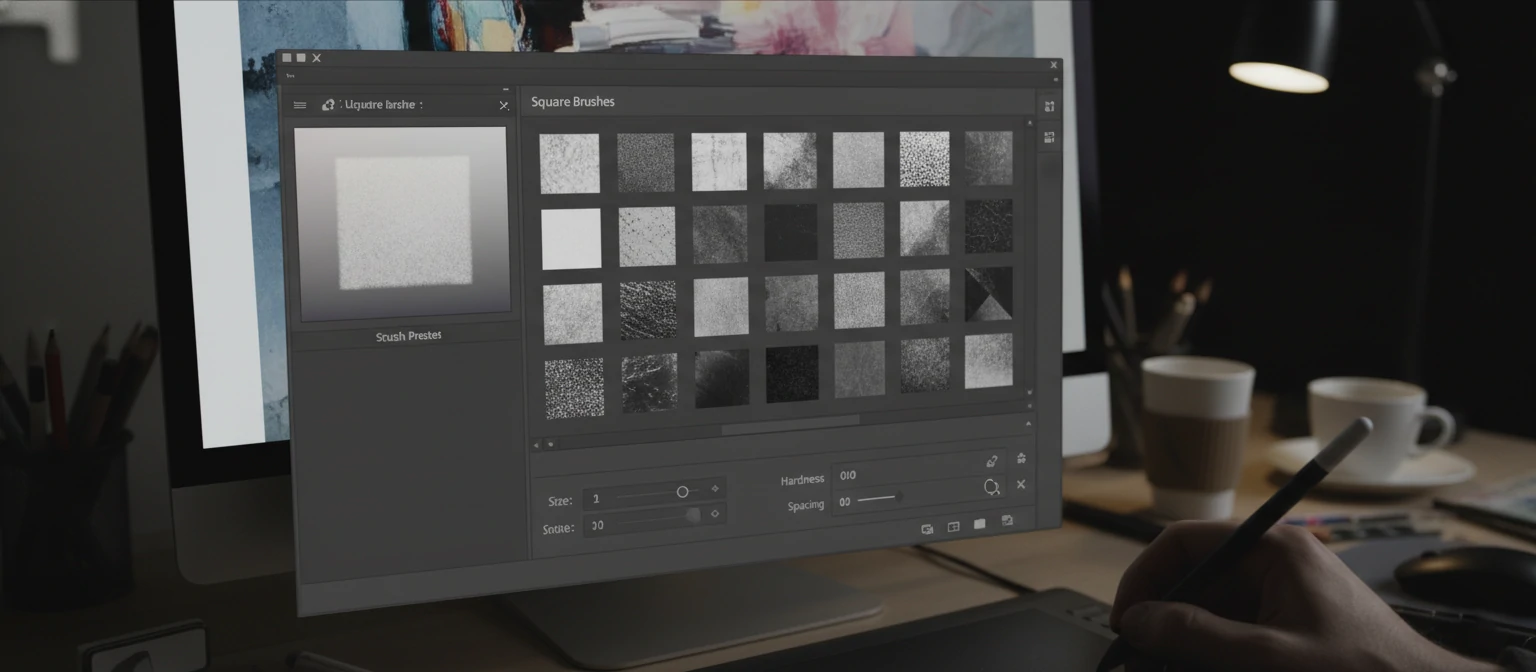
Photoshop comes with several square brush presets, but they might not be immediately visible. Here's how to find them:
- Select the Brush Tool (B) from the toolbar.
- Right-click on your canvas to open the Brush Preset picker.
- Look for brushes with square or block shapes in their preview.
- If you don't see any, click the gear icon and select "Reset Brushes" to load default presets.
Creating Custom Square Brushes
For more control, you can create your own square brushes:
- Create a new square shape using the Rectangle Tool.
- Fill it with black on a transparent background.
- Go to Edit > Define Brush Preset.
- Name your brush and save it.
Customizing Square Brush Properties
Once you have a square brush selected, you can customize it in the Brush Settings panel:
- Size: Controls the width and height of the square.
- Hardness: Set to 100% for sharp edges.
- Spacing: Adjust for dotted or continuous lines.
- Angle: Rotate the square for diamond shapes.
Experiment with these settings to create brushes for different effects, from tiny pixels to large blocks.
Step-by-Step Tutorial: Creating Pixel Art with Square Brushes
One of the most popular uses for square brushes is creating pixel art. Let's walk through a complete tutorial.
Step 1: Setting Up Your Canvas
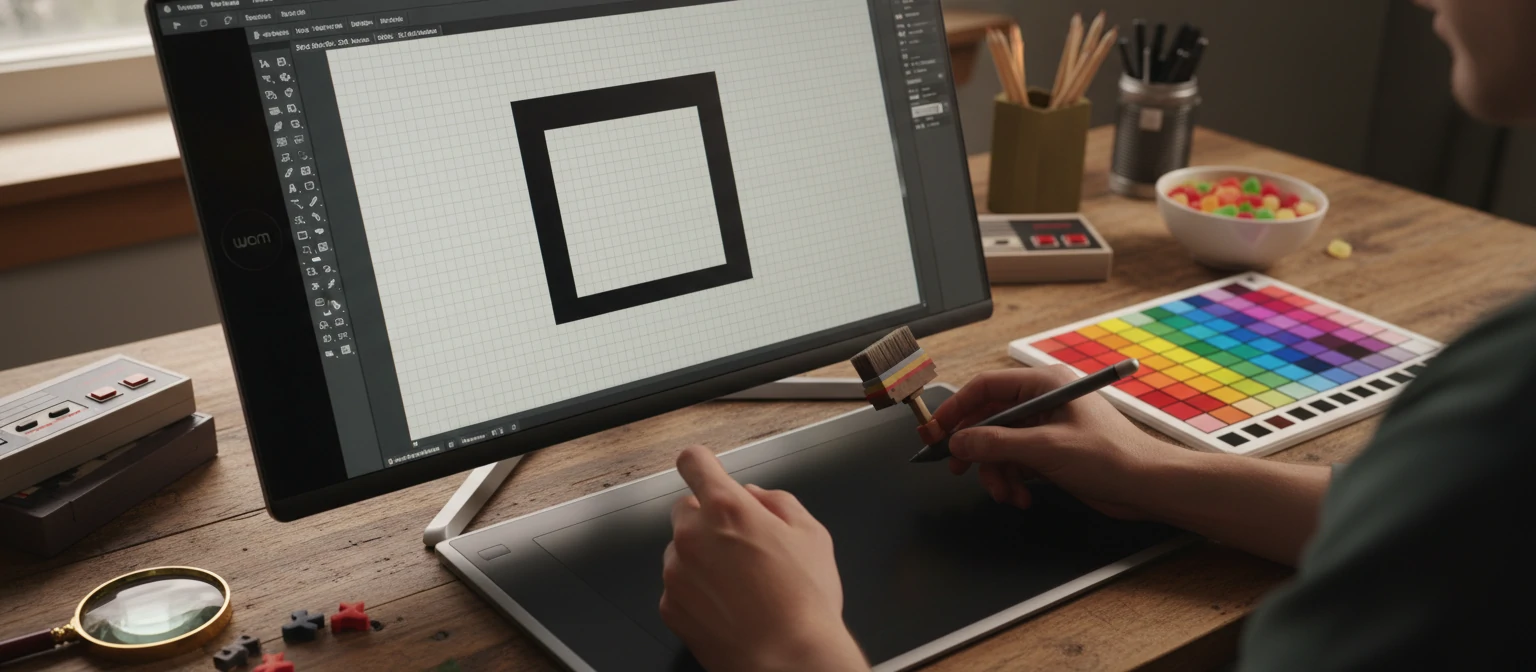
Create a new document with dimensions that are multiples of your pixel size (e.g., 64x64 pixels for a small sprite).
Step 2: Choosing the Right Brush
Select a 1-pixel square brush. Set hardness to 100% and spacing to 1% for crisp pixels.
Step 3: Planning Your Design
Sketch a simple design on paper first. For this tutorial, we'll create a basic character sprite.
Step 4: Drawing with Precision
Use the square brush to place individual pixels. Zoom in to 800-1600% for accuracy. Hold Shift to draw straight lines.
Step 5: Adding Color
Create new layers for different colors. Use the Magic Wand tool to select areas and fill with color.
Step 6: Refining and Details
Add shading and highlights using darker and lighter versions of your base colors.
Step 7: Exporting Your Pixel Art
Save as PNG with transparency for game development or web use.
This technique forms the foundation of pixel art creation and can be scaled up for larger projects.
Designing UI Elements with Square Brushes
Square brushes aren't just for pixel art – they're incredibly useful for modern UI design too.
Creating Buttons and Icons
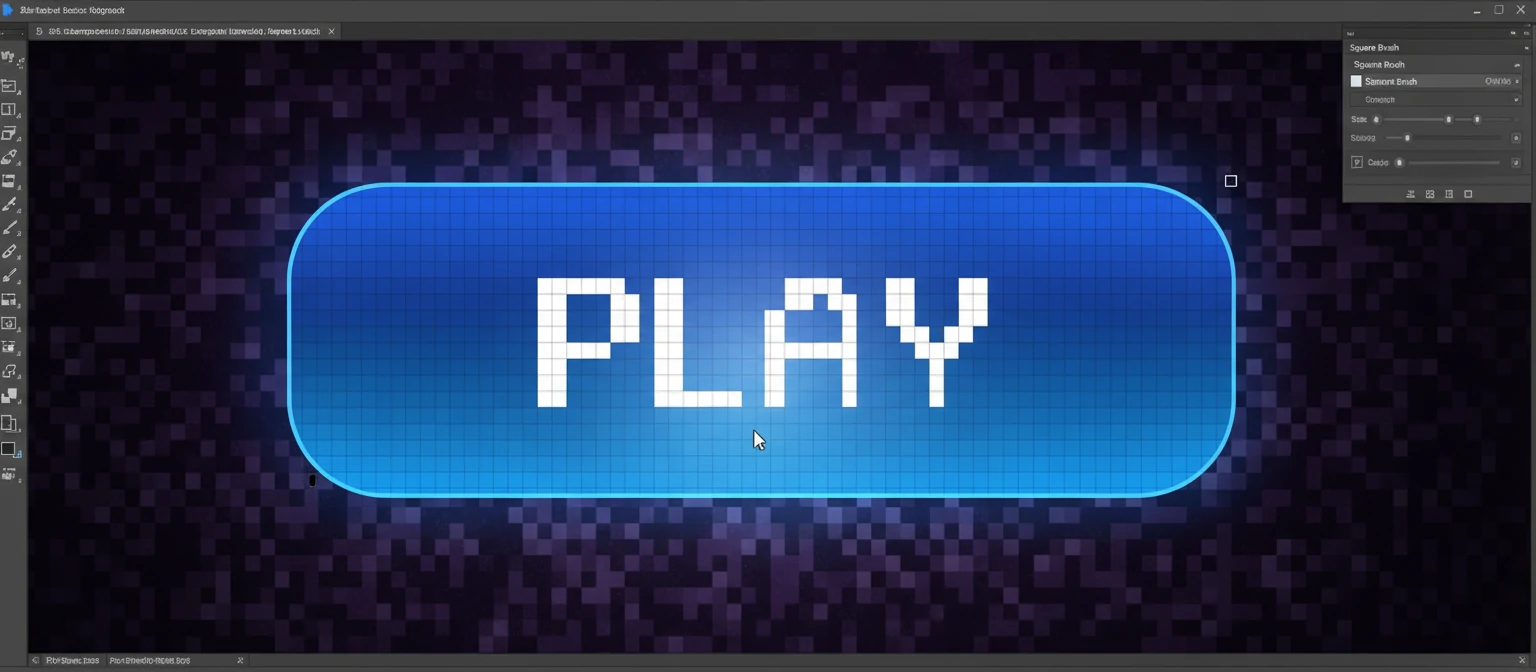
Use square brushes to create pixel-perfect buttons and icons that align perfectly with your grid.
Designing Patterns and Textures
Square brushes excel at creating geometric patterns for backgrounds and textures.
Mockup Creation
Quickly sketch app interfaces and website layouts using square brushes for wireframing.
The precision of square brushes ensures your designs are clean and professional-looking.
Tips and Tricks for Effective Square Brush Use
Here are some pro tips to get the most out of square brushes:
- Use keyboard shortcuts: [ and ] to resize brushes quickly.
- Combine with layer masks for non-destructive editing.
- Experiment with brush dynamics for varied effects.
- Use the Brush Tool with tablet pressure sensitivity for organic feels.
- Create brush sets for different projects to save time.
Mastering these techniques will significantly improve your workflow.
Common Mistakes and How to Avoid Them
Avoid these pitfalls when using square brushes:
- Not setting hardness to 100% – leads to blurry edges.
- Ignoring pixel alignment – causes misalignment in designs.
- Using wrong brush size – affects precision.
- Forgetting to zoom in – makes accurate placement difficult.
Being aware of these issues will help you create better work.
Alternatives to Square Brushes
While square brushes are powerful, sometimes other tools are better:
- Round brushes for organic shapes.
- Custom brushes for specialized effects.
- Shape tools for perfect geometry.
- Pen tool for vector precision.
Choose the right tool for each job.
Conclusion
There you have it – square brushes are the unsung heroes of Photoshop, ready to bring precision and versatility to every project you tackle. Whether you're pixelating like a pro or designing interfaces that pop, these brushes have got your back.
The key? Practice, experiment, and don't be afraid to mix square brushes with your other favorite tools. You've got this! Now go create something amazing – and remember, the world of digital art is your playground.
Advanced Techniques with Square Brushes
Ready to take your square brush skills to the next level? Let's explore some advanced techniques that can transform your work from good to extraordinary.
Blending Modes Magic
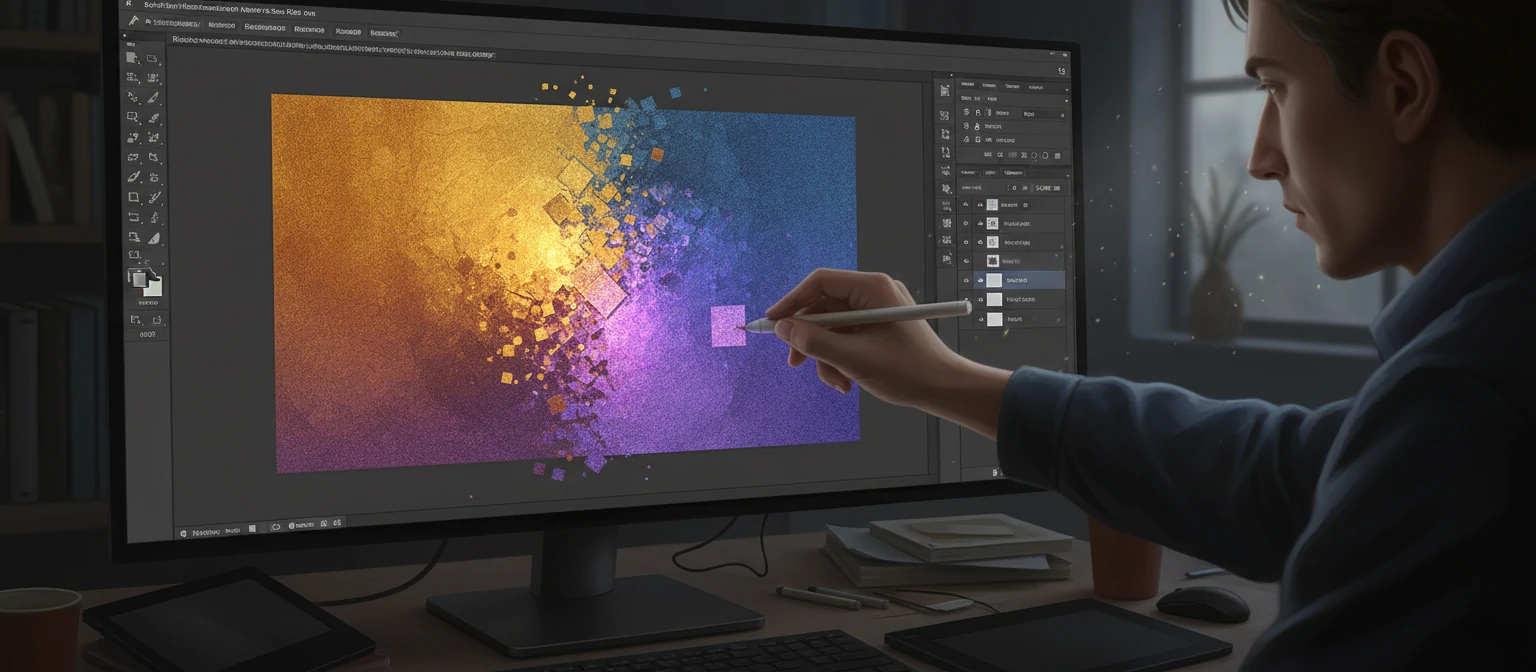
Experiment with different blending modes like Multiply or Overlay to create depth and texture. For instance, try using a square brush with Overlay mode on a separate layer for subtle highlights.
Layer Styles and Effects
Apply layer styles like Drop Shadow or Inner Glow to your square brush strokes. This can give your pixel art a 3D appearance or create glowing effects for UI elements.
Custom Brush Dynamics
Dive into the Brush Settings panel and adjust dynamics for pressure-sensitive effects. This is especially useful if you're using a graphics tablet.
These advanced techniques might seem intimidating at first, but with practice, they'll become second nature and open up endless creative possibilities.
Real-World Examples: Square Brushes in Action
Seeing is believing! Here are some inspiring examples of how square brushes are used in real projects across different industries.
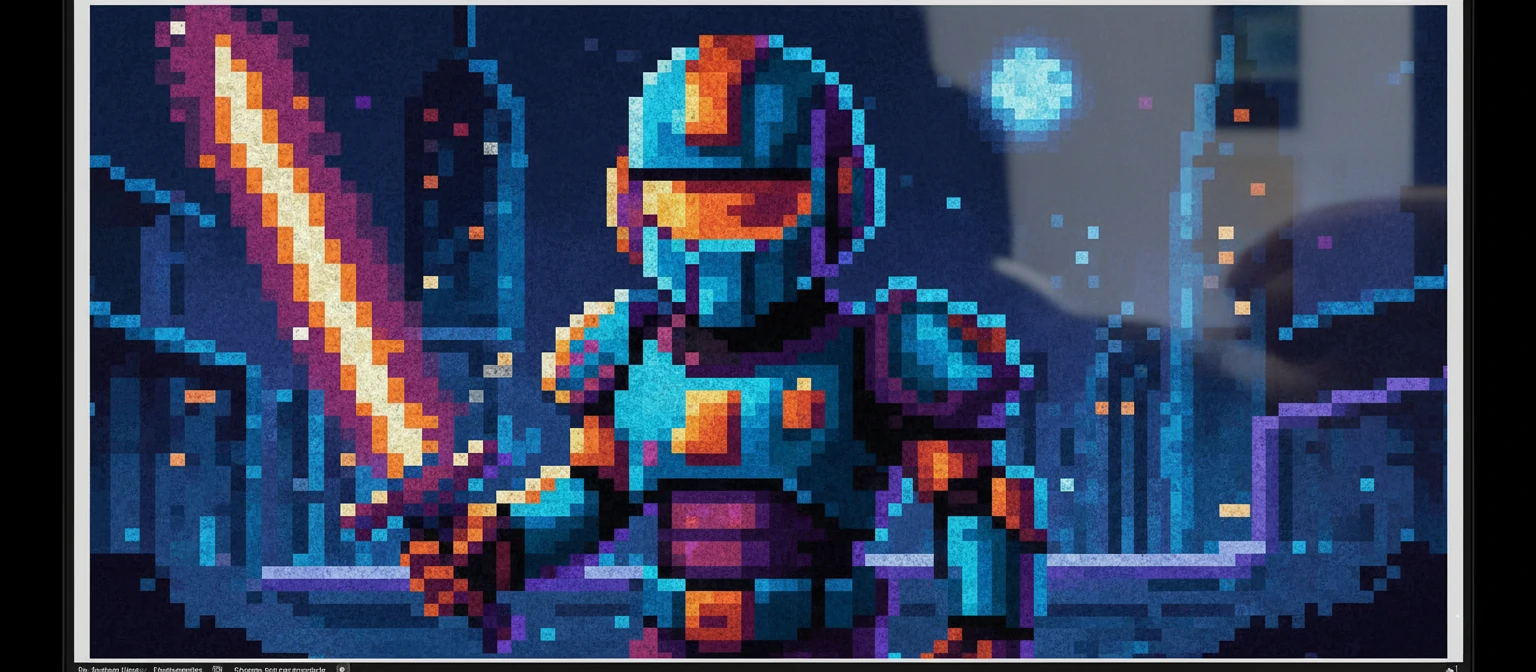
Pixel Art Games
Indie game developers love square brushes for creating retro-style sprites. Imagine crafting a character for your own game – square brushes make it pixel-perfect.
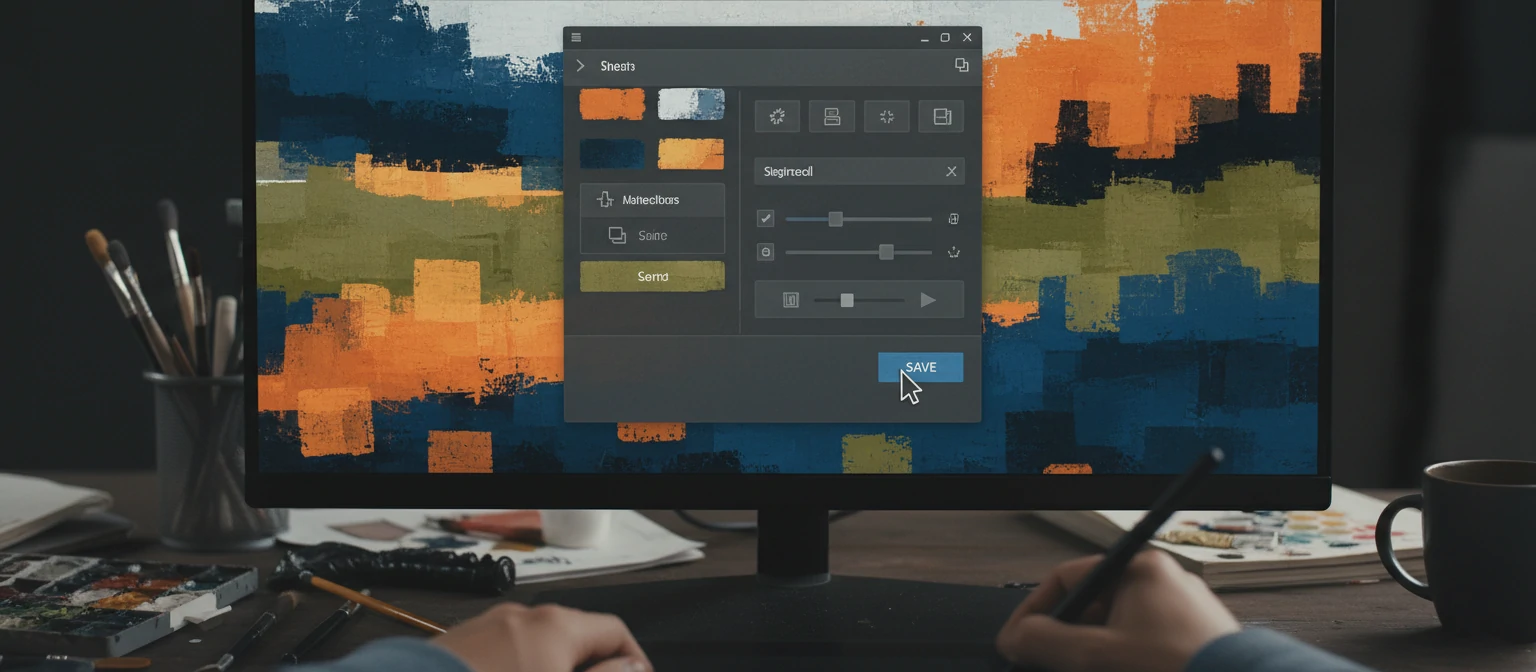
Modern UI Design
UI designers use square brushes for creating app icons and interface elements. The precision ensures everything aligns perfectly on the grid.
Digital Illustrations
Even in detailed illustrations, square brushes can add geometric accents or create textured backgrounds. It's all about knowing when to use them!
These examples show that square brushes aren't limited to one style – they're versatile tools that adapt to your creative vision.
Frequently Asked Questions About Square Brushes
You've got questions, we've got answers! Here are some common queries about using square brushes in Photoshop.
Can I use square brushes for realistic painting?
While square brushes are great for geometric and pixel art, they're not ideal for realistic painting. For organic shapes, stick to round brushes with varying opacity and flow.
How do I make my square brush strokes smoother?
Increase the spacing in brush settings or use a lower opacity. For truly smooth lines, consider converting to vector shapes after sketching.
Are there square brushes for other software?
Yes! Most digital art programs like GIMP, Krita, or Procreate have similar square brush tools or allow you to create custom ones.
Why do my square brushes look pixelated?
This is normal for small brushes at low zoom levels. Zoom in to 100% or higher to see the true crispness. For print work, ensure your document resolution is high enough.
If you have more questions, feel free to experiment and learn through practice – that's the best way!
Resources and Further Reading
Ready to dive deeper? Here are some valuable resources to expand your square brush knowledge.
Official Adobe Resources
- Adobe Photoshop Help Center: Brush tool documentation
- Adobe Creative Cloud tutorials on digital painting
Online Communities
- Reddit's r/photoshop and r/pixelart for tips and inspiration
- DeviantArt for showcasing your square brush creations
Recommended Books
- "The Digital Painting Manual" by Matthew Matthysen
- "Pixel Art for Game Developers" by Richard Swann
Free Brush Packs
Download free square brush sets from sites like Brusheezy or create your own custom brushes to speed up your workflow.
Remember, the best resource is practice. Start small, experiment often, and you'll master square brushes in no time!