A Complete Step-by-Step Tutorial From Installation to Advanced Techniques
Quick Start Summary
To use Nano Banana in Photoshop: Install the plugin → Open an image → Launch via Window > Extensions > Nano Banana → Let AI analyze your image → Apply presets or manual adjustments → Export. This guide covers everything from basic operations to advanced professional workflows.
Table of contents
- Quick Start Summary
- 1. Getting Started with Nano Banana
- 2. Installation & Setup Process
- 3. Interface Tour & Navigation
- 4. Your First Edit with Nano Banana
- 5. Using AI-Powered Features
- 6. Portrait Editing Tutorial
- 7. Batch Processing Multiple Images
- 8. Creating Custom Presets
- 9. Advanced Techniques & Tricks
- 10. Keyboard Shortcuts & Efficiency
- Frequently Asked Questions
What You'll Learn
- How to install and configure Nano Banana for optimal performance
- Step-by-step instructions for basic and advanced editing workflows
- Techniques for portrait retouching, batch processing, and color matching
- How to create and save custom presets for your unique style
- Pro tips and keyboard shortcuts to maximize your editing speed
Nano Banana has quickly become one of the most talked-about Photoshop plugins in the creative community, and for good reason. This AI-powered extension promises to dramatically speed up your editing workflow while maintaining professional-quality results. But like any powerful tool, getting the most out of Nano Banana requires understanding how to use it properly.
This tutorial is designed to take you from complete beginner to confident user. We'll cover everything from the initial installation process to advanced techniques used by professional photographers. Whether you're processing portraits, product shots, or landscapes, you'll find actionable guidance for your specific workflow. Let's dive in.
1. Getting Started with Nano Banana
Prerequisites
💻 Software Requirements
- Adobe Photoshop CC 2020 or newer
- Valid Nano Banana license (trial or paid)
- Internet connection for activation
- Updated graphics drivers
🔧 Hardware Requirements
- 8GB RAM minimum (16GB recommended)
- Dedicated GPU with 4GB+ VRAM
- 500MB free disk space
- Windows 10/11 or macOS 10.15+
What Nano Banana Can Do
Understanding the plugin's capabilities helps you know when to use it. Nano Banana excels at:
2. Installation & Setup Process
Getting Nano Banana properly installed and configured is crucial for optimal performance. Follow these steps carefully to ensure everything works smoothly from the start.
Step-by-Step Installation
Download the Installer
Visit the official Nano Banana website and download the installer for your operating system. You'll receive either a .exe file (Windows) or .dmg file (Mac). Always download from official sources to avoid malware.
Close Photoshop Completely
This is critical! Photoshop must be completely closed—not just minimized. On Windows, check your system tray. On Mac, make sure Photoshop isn't running in the Dock. The installer cannot modify files that are in use.
Run the Installer as Administrator
Right-click the installer and select "Run as Administrator" (Windows) or follow the security prompts on Mac. The installer needs elevated permissions to place files in Photoshop's protected directories.
Select Your Photoshop Version
If you have multiple Photoshop versions installed, the installer will detect them automatically. Check the box next to each version you want to add Nano Banana to. Most users only need to select their primary version.
Enter Your License Key
Input the license key you received via email, or click "Start Free Trial" for a 14-day evaluation. The installer will connect to Nano Banana's servers to validate your license.
Launch Photoshop and Verify
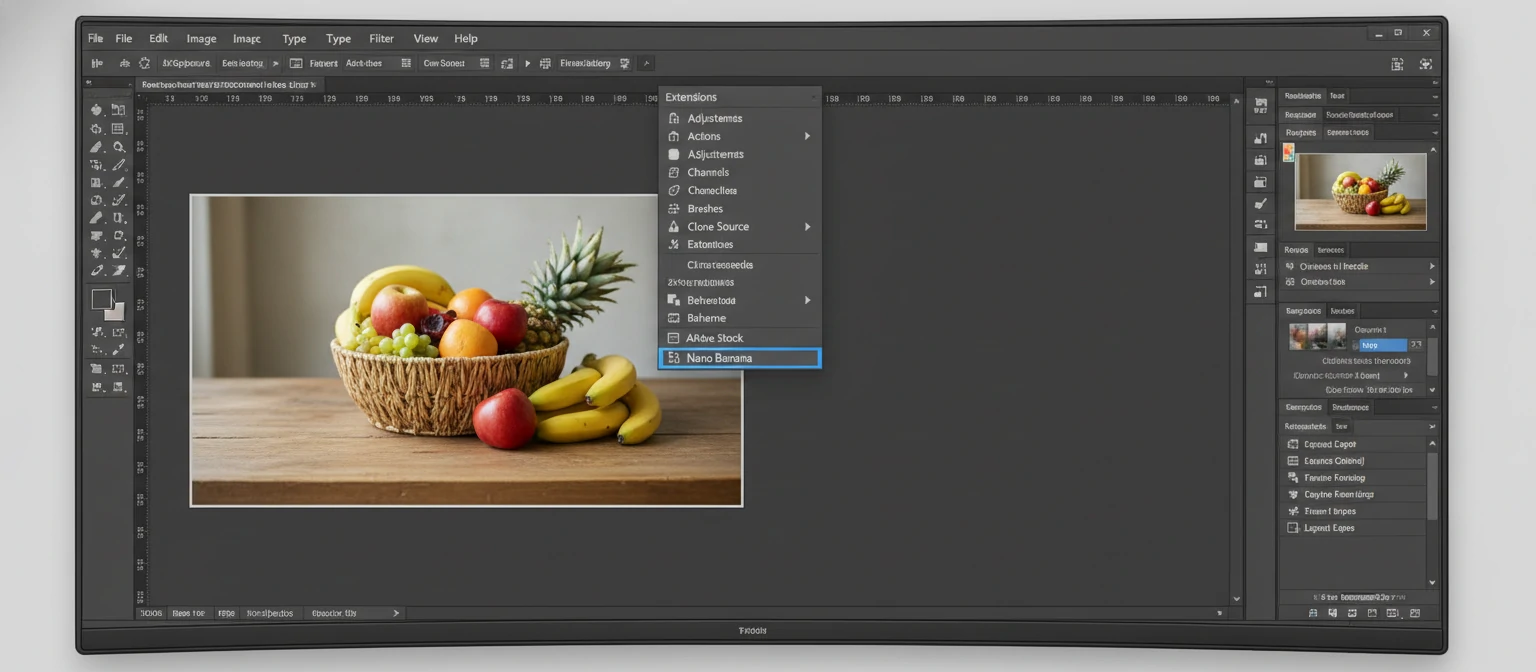
Open Photoshop. Navigate to Window → Extensions → Nano Banana. The Nano Banana panel should appear. If you don't see it, try restarting Photoshop once more.
Initial Configuration
After installation, take a moment to configure Nano Banana for optimal performance on your system:
- Open Preferences: Click the gear icon in the Nano Banana panel's top-right corner
- Select Your GPU: Choose your dedicated graphics card (not "Integrated Graphics") for fastest processing
- Set Memory Allocation: Allow Nano Banana to use 50-70% of your GPU memory for AI operations
- Choose Default Export Location: Set where processed files will be saved by default
- Enable Auto-Updates: Keep the plugin current with the latest AI improvements
💡 Performance Tip
If you have an NVIDIA GPU, make sure you have the latest Studio Driver installed (not just the Game Ready driver). Studio Drivers are optimized for creative applications and can significantly improve Nano Banana's processing speed.
3. Interface Tour & Navigation
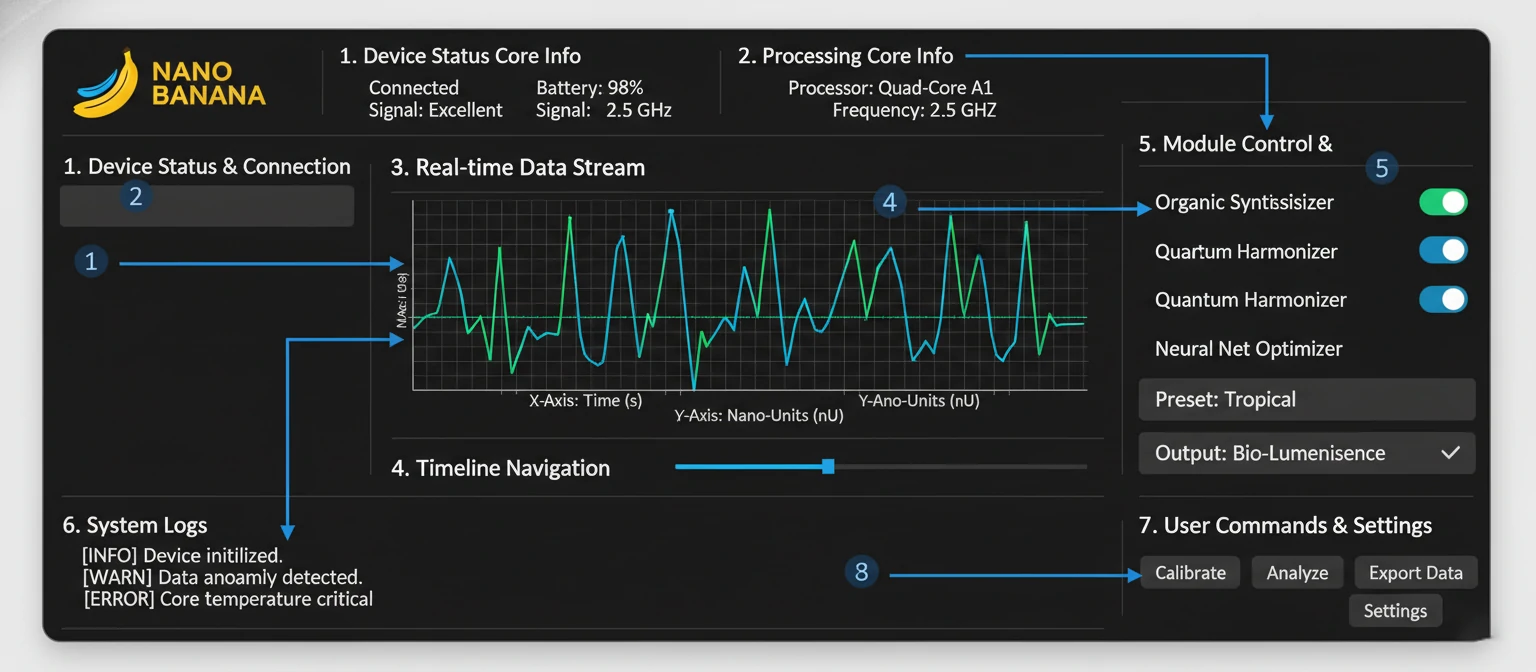
Before making your first edit, let's familiarize ourselves with the Nano Banana interface. Understanding where everything is located will make your editing sessions much more efficient.
🔝 Top Toolbar
Contains the mode selector (Single, Batch, Compare), undo/redo buttons, before/after toggle, and the settings gear. The mode selector is crucial—make sure you're in the right mode for your task.
📊 AI Analysis Panel
Located just below the toolbar, this shows what the AI has detected in your image: faces, skin, sky, products, etc. Each detected element appears as a clickable chip that activates relevant adjustment tools.
🎚️ Adjustment Sliders
The main working area with context-sensitive sliders. These change based on what the AI detects. Portrait images show skin and eye controls; landscapes show sky and foliage adjustments. All sliders default to 0 (no change).
📁 Preset Panel
Collapsible section showing built-in and custom presets. Hover over a preset to preview its effect on your image. Click to apply. Right-click for options like "Add to Favorites" or "Edit Preset."
📤 Export Section
At the bottom of the panel, you'll find export options: Apply to Layer (non-destructive), Flatten & Export (final output), and Quick Export (uses your saved preferences). The "Multi-Format" button lets you export multiple sizes at once.
4. Your First Edit with Nano Banana
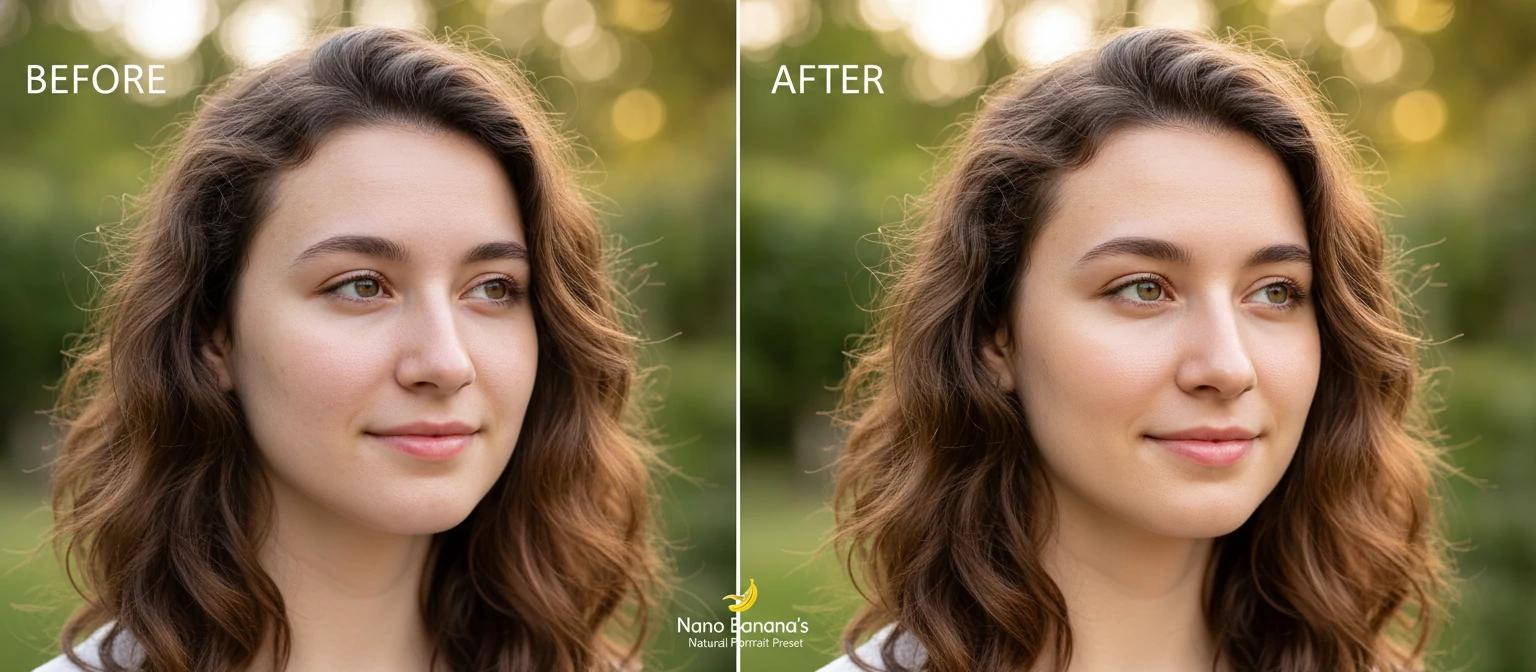
Let's walk through a complete edit from start to finish. We'll use a simple portrait photo to demonstrate the basic workflow that applies to most image types.
Complete Walkthrough: Basic Portrait Edit
Open Your Image
Use File → Open or drag your image into Photoshop. Wait for the image to fully load before proceeding.
Launch Nano Banana
Go to Window → Extensions → Nano Banana. The panel opens and immediately begins analyzing your image.
Wait for AI Analysis
A brief loading indicator appears. Within 2-5 seconds, you'll see detected elements appear as chips: "Face," "Skin," "Eyes," "Background," etc.
Review AI Suggestions
Look at the "Suggested" section. Nano Banana recommends adjustments based on common issues it detected—exposure, color balance, skin smoothing, etc.
Apply a Preset or Adjust Manually
For quick results, click a preset like "Natural Portrait." For more control, adjust individual sliders. Start with small values (20-40%) and increase as needed.
Toggle Before/After
Click the "B/A" button (or press backslash ) to compare your edit with the original. This helps you judge whether adjustments look natural.
Fine-Tune as Needed
Adjust individual sliders to perfect the result. Common tweaks include reducing skin smoothing (if it looks too artificial) or boosting eye clarity.
Apply to Layer
Click "Apply to Layer" to create a new layer with your edits. This preserves the original image and allows further Photoshop adjustments.
✅ Congratulations!
You've completed your first Nano Banana edit. This basic workflow—open, analyze, adjust, export—applies to virtually every editing task. As you get comfortable, you'll naturally move faster and explore more advanced features.
5. Using AI-Powered Features
Nano Banana's real power comes from its artificial intelligence capabilities. These features go beyond simple slider adjustments to intelligently analyze and enhance your images.
Smart Auto-Enhance
The "Auto-Enhance" button applies AI-determined optimal adjustments based on image analysis. Here's how to use it effectively:
- Click the magic wand icon labeled "Auto-Enhance"
- Wait 2-3 seconds for AI processing
- Review the automatically applied adjustments in the slider panel
- Use the "Intensity" slider (0-100%) to dial back if changes are too strong
- Fine-tune individual sliders as needed
Intelligent Selection Tools
🎯 Subject Select
Automatically identifies and selects the main subject with precision edges—even complex hair and fur.
How to use: Click "Select Subject" → Wait for processing → Refine with the brush if needed → Apply adjustments to selection only
🌤️ Sky Select
Isolates sky regions for independent adjustment or replacement. Works through trees and complex architecture.
How to use: Click "Sky" chip → Selection auto-creates → Adjust sky-specific sliders → Or click "Replace Sky" for AI sky replacement
👤 Face Detection
Identifies all faces in an image and enables individual or grouped adjustments.
How to use: Click "Face" chip → Select individual faces or "All Faces" → Apply portrait-specific adjustments
🎨 Color Region
AI identifies distinct color regions for targeted hue, saturation, and luminance adjustments.
How to use: Click "Color Regions" → Select a region chip (e.g., "Greens," "Blues") → Adjust the HSL sliders
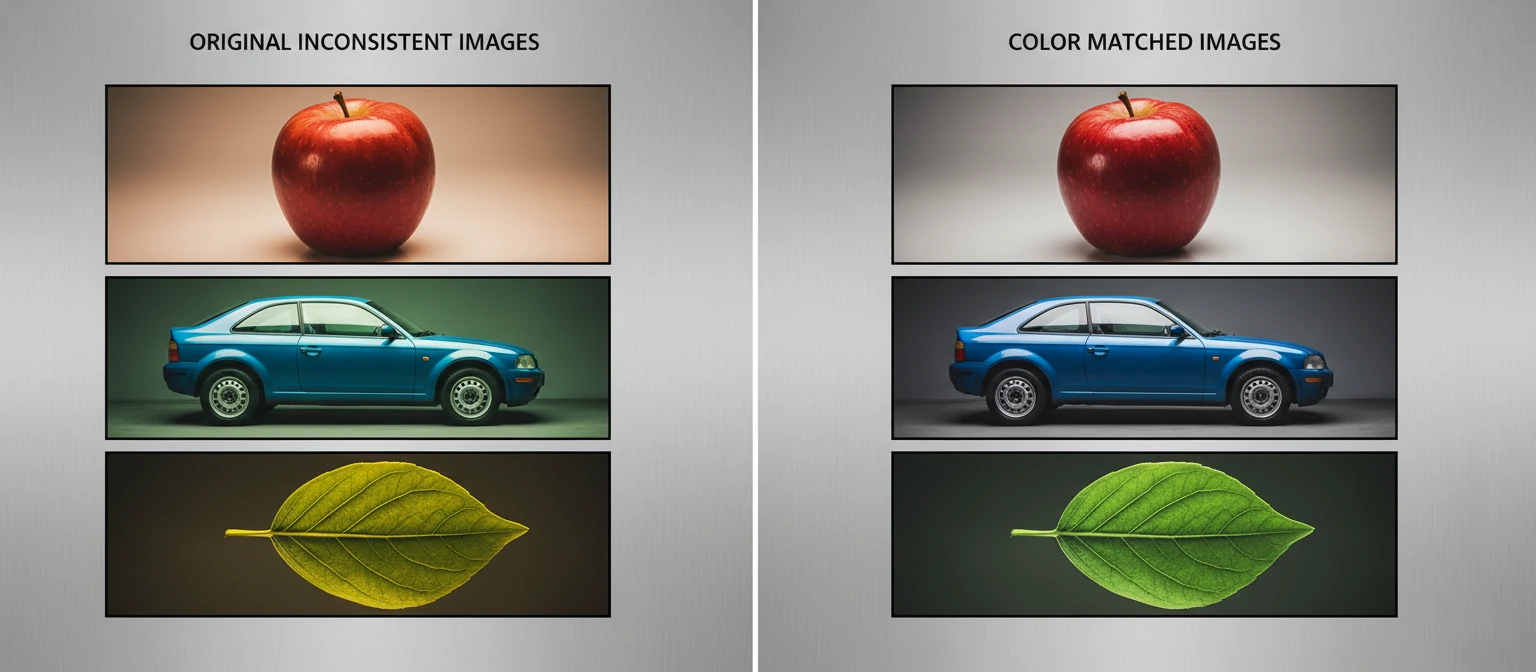
AI Color Matching
One of Nano Banana's most powerful features is its ability to match colors between images. This is invaluable for product photography and event coverage where consistency matters.
How to Match Colors Between Images:
- Open your reference image (the one with correct colors) in Photoshop
- In Nano Banana, click "Set as Reference" in the top toolbar
- Open the image you want to correct (File → Open)
- Click "Match to Reference" in Nano Banana
- Adjust the "Match Intensity" slider (100% = exact match, lower = subtle matching)
- Fine-tune with "Temperature Offset" and "Tint Offset" if needed
6. Portrait Editing Tutorial
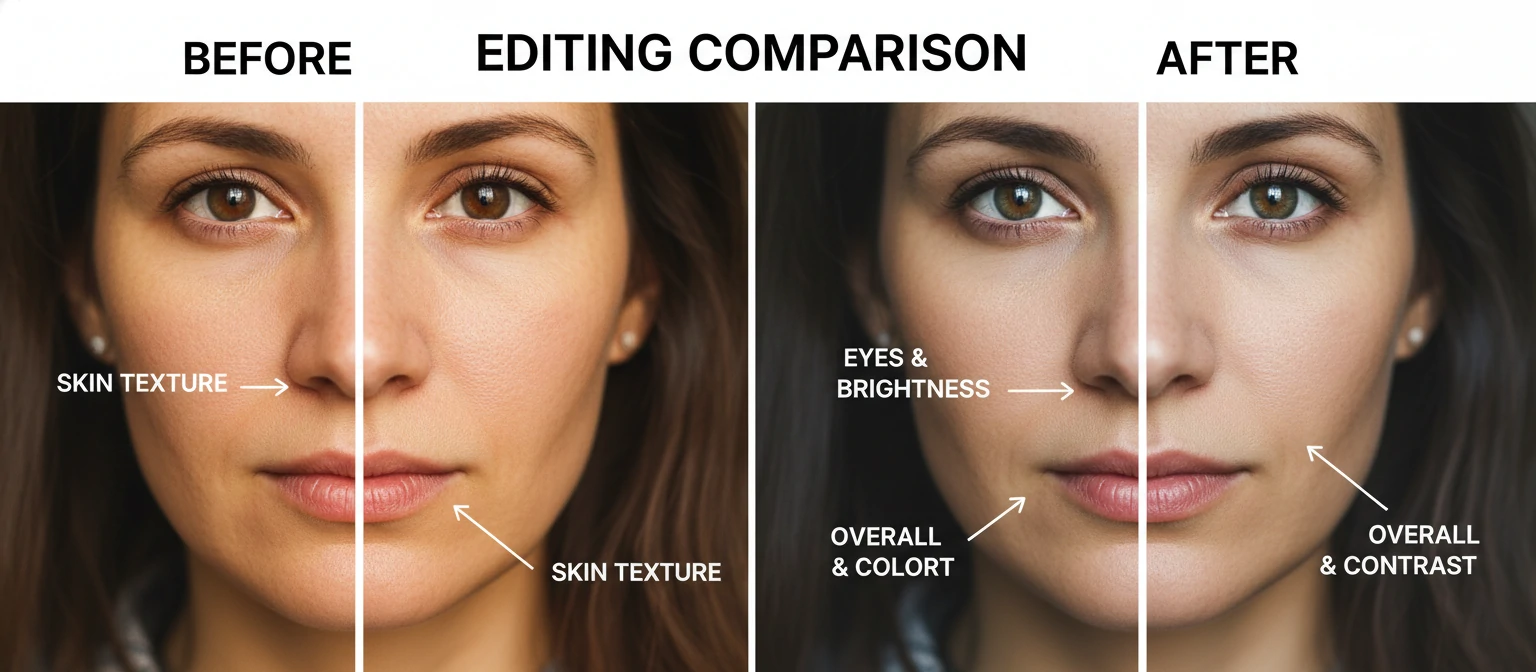
Portrait retouching is one of Nano Banana's strongest capabilities. This detailed tutorial covers the complete workflow for professional-quality portrait enhancement.
Skin Retouching
Natural-looking skin retouching is all about subtlety. Here's the approach professional photographers use with Nano Banana:
Eye Enhancement
👁️ Eye Clarity
Sharpens iris detail and catchlights. Keep at 20-40% for natural results. Higher values can make eyes look unnatural.
✨ Brighten Eyes
Lightens the whites and adds life to eyes. Subtle application (15-30%) prevents the "zombie eyes" effect.
🎨 Iris Color
Subtly enhance or shift iris color. Best used sparingly (10-25%) to slightly intensify natural color.
🔴 Red Eye Fix
Automatically detects and corrects red-eye from flash. Usually set to "Auto" for hands-free correction.
💡 Pro Tip: The 50% Rule
When in doubt, keep portrait sliders below 50%. Professional retouchers often use even lower values (20-35%). The goal is enhancement that's invisible—viewers should think "great photo," not "great Photoshop."
7. Batch Processing Multiple Images
Batch processing is where Nano Banana truly saves time. Instead of editing images one by one, you can apply consistent adjustments to hundreds of files automatically.
Setting Up a Batch
Switch to Batch Mode: Click "Batch" in the top toolbar mode selector
Add Images: Click "Add Files" or "Add Folder" to select your images
Choose Processing Mode: "Apply Preset," "Match to Reference," or "AI Auto"
Configure Output: Set format (JPEG, PNG, TIFF), quality, naming convention, and destination folder
Start Processing: Click "Process All" and monitor progress in the queue panel
Batch Processing Options
⚠️ Important: Test First
Always run batch settings on 5-10 sample images before processing a full set. Review the samples at 100% zoom to check quality. It's much easier to adjust settings with a small batch than to reprocess hundreds of images.
8. Creating Custom Presets
Custom presets let you save your favorite settings and apply them with a single click. Building a preset library is one of the best investments you can make in your workflow.
How to Create a Preset
- Edit an image until you achieve your desired look using any of Nano Banana's tools
- Click the "+" button next to "Presets" in the panel or press Ctrl/Cmd + Shift + S
- Name your preset descriptively (e.g., "Wedding - Warm Romantic" or "Product - White Background")
- Choose which settings to include — you can save all or select specific adjustment categories
- Assign a category (Portrait, Landscape, Product, etc.) for easy organization
- Click "Save Preset" — it now appears in your preset library
Preset Management Tips
📁 Organize by Project
Create folders for different clients or project types. Right-click in the preset panel and select "New Folder" to create organized categories.
⭐ Use Favorites
Star your most-used presets for quick access. Favorites appear at the top of the preset panel, saving scrolling time.
💾 Export & Backup
Right-click a preset and select "Export" to save as a .nbpreset file. Back up regularly and share presets between computers.
🔄 Version Your Presets
Name presets with versions (e.g., "Portrait Glow v2") when you refine them. Keep old versions in case you want to revert.
9. Advanced Techniques & Tricks
Once you've mastered the basics, these advanced techniques will help you achieve even more impressive results and work more efficiently.
🎭 Selective Preset Application
Apply presets to specific areas only. Hold Alt/Option while clicking a preset, then paint on the areas where you want it applied. Perfect for applying different looks to subject and background.
📊 Stacking Adjustments
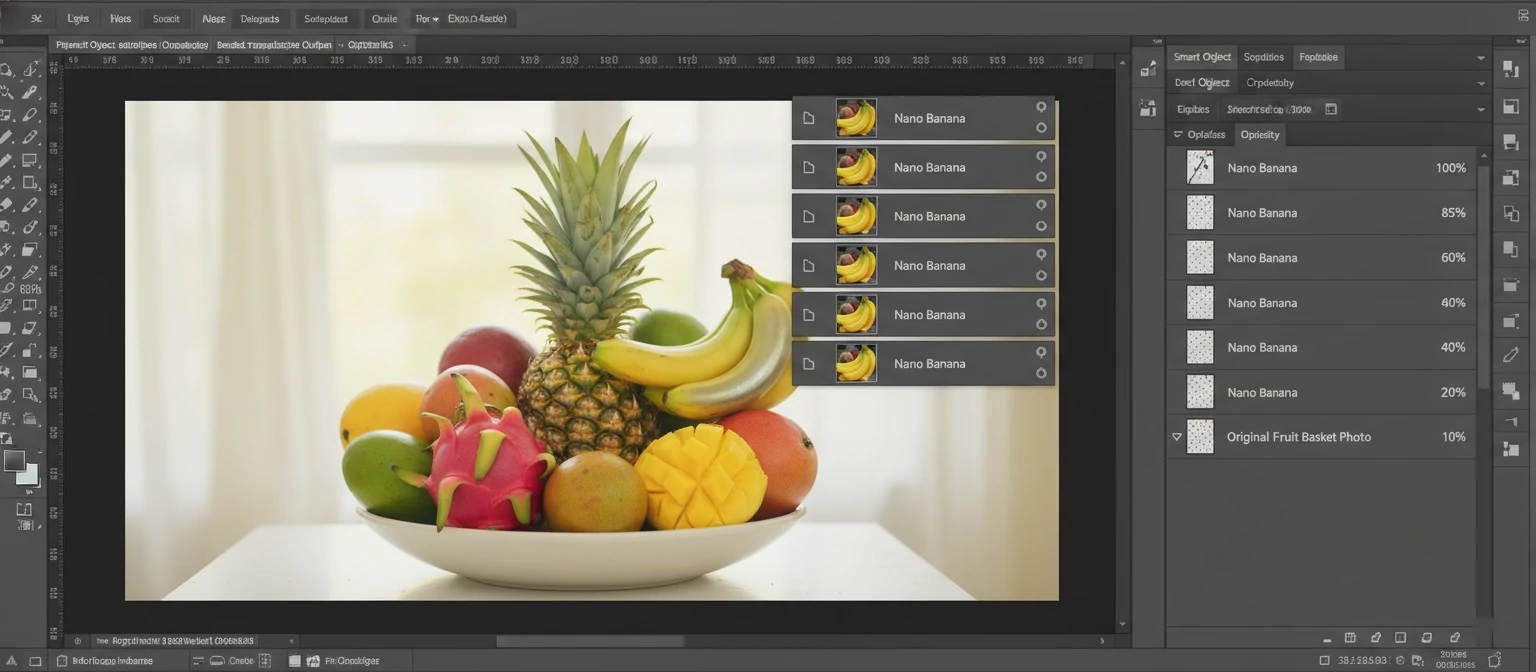
Apply multiple presets in sequence for complex looks. Apply the first preset, click "Apply to Layer," then apply a second preset on top. Each becomes a separate adjustable layer.
🔗 Integration with Photoshop Actions
Record Photoshop Actions that include Nano Banana steps. Start recording, apply your Nano Banana edits, then stop. Now one-click plays your entire workflow including AI processing.
⚙️ Smart Objects for Flexibility
Enable "Apply as Smart Object" in preferences. Nano Banana edits become editable—double-click the layer to modify settings anytime. Essential for client revision workflows.
🎯 Focus Stacking Enhancement
For product/macro photography: use Nano Banana's "Sharpness Map" feature to analyze and enhance focus-stacked images, ensuring consistent sharpness across the composite.
10. Keyboard Shortcuts & Efficiency
Mastering keyboard shortcuts dramatically speeds up your workflow. Here are the essential shortcuts every Nano Banana user should know:
✅ Customize Your Shortcuts
Open Nano Banana Preferences → Keyboard Shortcuts to customize any shortcut to your preference. You can also assign shortcuts to specific presets, allowing one-key application of your favorite looks.
Frequently Asked Questions
Why isn't Nano Banana analyzing my image?
Ensure your image layer is selected in the Layers panel—not a text or shape layer. Also check that your image is in RGB mode (Image → Mode → RGB Color). CMYK and Lab color modes aren't supported.
Can I use Nano Banana with RAW files?
Nano Banana works on pixel layers, not RAW files directly. Process your RAW in Camera RAW first, then open as a Smart Object or rasterized layer before using Nano Banana's features.
How do I speed up processing time?
Ensure you've selected your dedicated GPU in preferences. Update graphics drivers. Close other GPU-intensive applications. For very large files (50MP+), enable "Process in Tiles" mode.
Can I undo individual Nano Banana adjustments?
Yes, use Ctrl/Cmd+Z for step-by-step undo within Nano Banana. For maximum flexibility, enable "Apply as Smart Object"—this lets you re-open and modify any adjustment anytime.
My presets look different on other images. Why?
AI-enhanced presets adapt to each image's content. For exact replication, use "Lock Settings" mode which forces identical processing regardless of image analysis.
Does Nano Banana work with 16-bit images?
Yes, Nano Banana fully supports 8-bit and 16-bit images. 32-bit HDR images require conversion to 16-bit first. Working in 16-bit preserves maximum quality for extensive editing.