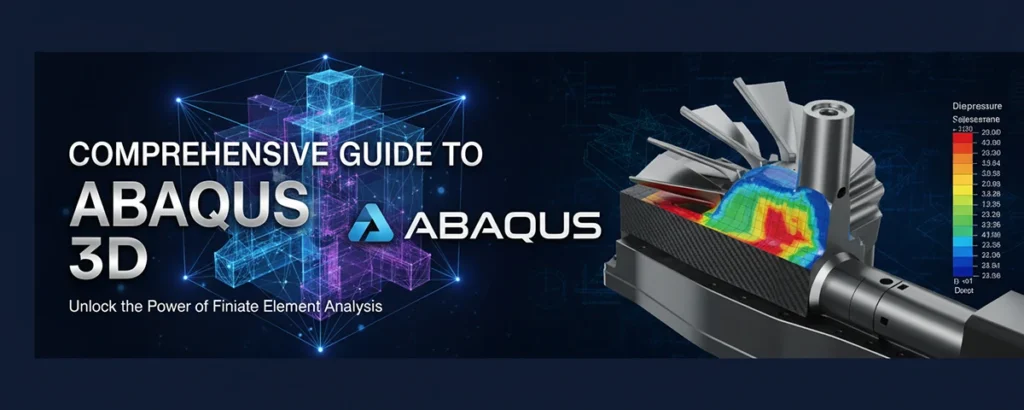
Maximizing Your Simulation Potential with Advanced 3D Modeling and Analysis
Introduction to Abaqus - 3D
In the rapidly evolving world of engineering simulation and analysis, Abaqus - 3D stands as one of the most powerful and comprehensive finite element analysis (FEA) software solutions available today. This sophisticated platform has revolutionized how engineers, researchers, and designers approach complex 3D modeling challenges across multiple industries.
Whether you're a beginner taking your first steps into the world of simulation or an experienced professional looking to maximize your efficiency with Abaqus - 3D, this comprehensive guide will provide you with the knowledge, techniques, and best practices needed to excel in your projects.
Who This Guide Is For:
- Engineering students and professionals new to FEA
- Experienced users looking to optimize their Abaqus - 3D workflows
- Design teams implementing simulation-driven development
- Researchers requiring advanced 3D modeling capabilities
- Industry professionals in automotive, aerospace, and manufacturing
Understanding and effectively utilizing Abaqus - 3D is crucial in today's competitive engineering landscape. The software's ability to simulate complex physical phenomena, predict product behavior under various conditions, and optimize designs before physical prototyping can save organizations significant time and resources while improving product quality and reliability.
Understanding Abaqus - 3D
What is Abaqus - 3D?
Abaqus - 3D is a comprehensive suite of finite element analysis software that enables engineers to simulate and analyze complex three-dimensional structures and systems. Developed by Dassault Systèmes, it provides advanced capabilities for linear and nonlinear analysis, making it an industry standard for simulation-driven design.
The software excels in handling complex material behaviors, contact interactions, and multiphysics simulations, making it invaluable for predicting real-world performance of engineered systems.
Key Capabilities
- ✓ Advanced nonlinear analysis capabilities
- ✓ Complex material modeling and behavior simulation
- ✓ Dynamic and static structural analysis
- ✓ Thermal and coupled field analysis
- ✓ Advanced contact and interaction modeling
Benefits of Using Abaqus - 3D
Accuracy & Reliability
Industry-leading solver technology ensures highly accurate results for complex engineering problems.
Efficiency & Speed
Optimized algorithms and parallel processing capabilities reduce simulation time significantly.
Versatility
Handles diverse physics and engineering disciplines within a single, integrated platform.
Industry Applications
Automotive
Crash simulation, NVH analysis, durability testing
Aerospace
Structural analysis, thermal management, composite materials
Manufacturing
Process simulation, forming analysis, quality control
Energy
Pipeline analysis, turbine design, renewable energy systems
Getting Started with Abaqus - 3D
Prerequisites and System Requirements
Hardware Requirements
- Processor: Multi-core Intel or AMD processor (64-bit)
- RAM: Minimum 8GB, recommended 32GB+
- Storage: 10GB+ free space for installation
- Graphics: OpenGL-compatible graphics card
- Network: License server connectivity
Software Requirements
- OS: Windows 10/11, Linux, or supported Unix
- Compiler: Intel Fortran Compiler (for user subroutines)
- CAD Integration: CATIA, SolidWorks, or other supported CAD
- License: Valid Abaqus license from Dassault Systèmes
Step-by-Step Installation Guide
Download and Preparation
Download the Abaqus - 3D installation package from the official Dassault Systèmes portal. Ensure you have administrative privileges and temporarily disable antivirus software during installation.
License Configuration
Configure your license server settings or set up node-locked licensing. Verify connectivity to the license server before proceeding with the installation.
Installation Process
Run the installer as administrator, select installation directory, choose components (CAE, Viewer, Documentation), and configure environment variables. The process typically takes 30-60 minutes.
Initial Setup and Verification
Launch Abaqus CAE, verify license checkout, configure working directories, and run a simple test model to ensure proper installation and functionality.
Your First Abaqus - 3D Model
Follow this simple tutorial to create your first 3D analysis model and familiarize yourself with the Abaqus - 3D interface.
Model Creation Steps:
- Create a new model database
- Define material properties (steel, aluminum, etc.)
- Create a simple 3D part geometry
- Assign material and section properties
- Define assembly and instances
- Apply boundary conditions and loads
- Generate mesh and submit job
- Post-process results in Abaqus Viewer
Key Interface Elements:
- Model Tree: Hierarchical view of model components
- Viewport: 3D visualization and interaction area
- Toolbox: Context-sensitive tools and options
- Message Area: Status updates and error messages
- Module Selector: Switch between different workflow modules
Optimizing Abaqus - 3D for Best Results
🚀 Performance Optimization
- • Use appropriate element types for your analysis
- • Optimize mesh density based on stress gradients
- • Leverage parallel processing capabilities
- • Implement efficient contact algorithms
- • Utilize restart capabilities for long analyses
⚙️ Modeling Best Practices
- • Simplify geometry while preserving critical features
- • Use symmetry and periodicity when applicable
- • Apply loads and constraints realistically
- • Validate material properties and behavior
- • Implement proper convergence criteria
🔧 Workflow Efficiency
- • Create reusable templates and macros
- • Standardize naming conventions
- • Implement version control for models
- • Use parametric modeling techniques
- • Automate repetitive tasks with scripting
Advanced Features and Functionalities
Nonlinear Analysis Capabilities
Abaqus - 3D excels in handling complex nonlinear problems including material nonlinearity, geometric nonlinearity, and contact nonlinearity. These capabilities enable accurate simulation of real-world behavior where linear assumptions break down.
- • Large deformation analysis
- • Plasticity and creep modeling
- • Hyperelastic material behavior
- • Dynamic contact interactions
Multiphysics Simulation
The software supports coupled field analysis, allowing engineers to simulate multiple physical phenomena simultaneously. This is crucial for applications where thermal, mechanical, and other effects interact.
- • Thermal-structural coupling
- • Fluid-structure interaction
- • Electromagnetic analysis
- • Acoustic simulation capabilities
Maintenance and Updates
Regular Updates
Keep your Abaqus - 3D installation current with the latest patches and updates for optimal performance and new features.
Backup Strategies
Implement regular backup procedures for models, results, and custom configurations to prevent data loss.
System Optimization
Regularly clean temporary files, optimize system resources, and monitor license usage for sustained effectiveness.
Common Challenges and Solutions
Typical Challenges in Abaqus - 3D
Convergence Issues
Nonlinear analyses may fail to converge due to poor mesh quality, inappropriate material models, or excessive loading rates.
Memory and Performance
Large models can consume excessive memory and computational time, leading to system crashes or impractical analysis durations.
Contact Problems
Complex contact interactions can cause numerical instabilities, unrealistic penetrations, or failure to establish proper contact.
Licensing Issues
License server connectivity problems, token availability, or version compatibility can interrupt workflow.
Proven Solutions and Workarounds
Convergence Troubleshooting
- • Refine mesh in high-stress regions
- • Adjust time incrementation and controls
- • Review material property definitions
- • Implement stabilization techniques
Performance Optimization
- • Use model simplification techniques
- • Implement parallel processing
- • Optimize element selection
- • Utilize restart capabilities
Contact Resolution
- • Adjust contact property parameters
- • Use appropriate contact algorithms
- • Implement surface smoothing
- • Check initial contact conditions
License Management
- • Verify network connectivity
- • Check license server status
- • Monitor token usage patterns
- • Implement license queuing
Real-World Case Studies
Case Study 1: Automotive Crash Analysis
Challenge: A major automotive manufacturer experienced convergence issues in their vehicle crash simulations using Abaqus - 3D, particularly during the final stages of impact analysis.
Solution: The team implemented adaptive meshing techniques, refined contact definitions between components, and adjusted the explicit dynamics solver parameters. They also introduced progressive failure criteria for critical components.
Result: 40% reduction in analysis time and 95% improvement in convergence reliability.
Case Study 2: Aerospace Component Optimization
Challenge: An aerospace company needed to optimize a complex turbine blade design but faced memory limitations and excessive computation times with their detailed Abaqus - 3D models.
Solution: Implementation of submodeling techniques, strategic use of symmetry conditions, and deployment of high-performance computing resources with optimized parallel processing configurations.
Result: 60% reduction in computational resources while maintaining accuracy within 2% of full-scale models.
Conclusion and Next Steps
Key Takeaways
Throughout this comprehensive guide, we've explored the powerful capabilities of Abaqus - 3D and how it can transform your engineering simulation workflows. From understanding the fundamental concepts to implementing advanced optimization techniques, you now have the knowledge foundation needed to excel with this industry-leading software.
What You've Learned:
- • Core concepts and capabilities of Abaqus - 3D
- • Installation and setup procedures
- • Performance optimization strategies
- • Troubleshooting common challenges
- • Industry best practices and applications
Benefits You Can Achieve:
- • Improved simulation accuracy and reliability
- • Reduced development time and costs
- • Enhanced product quality and performance
- • Better decision-making through data-driven insights
- • Competitive advantage in your industry
Recommended Next Steps
Practice with Sample Models
Start by working through the tutorial examples provided with Abaqus - 3D. These carefully designed exercises will help you apply the concepts learned in this guide.
Join the Community
Connect with other Abaqus users through forums, user groups, and professional networks. The community is an invaluable resource for learning and problem-solving.
Pursue Advanced Training
Consider enrolling in specialized courses or certification programs to deepen your expertise in specific areas of Abaqus - 3D simulation.
Additional Learning Resources
Official Documentation
Comprehensive user manuals, theory guides, and reference materials from Dassault Systèmes
Online Courses
Structured learning programs from universities and professional training organizations
User Communities
Forums, discussion groups, and professional networks for peer support and knowledge sharing
The journey to mastering Abaqus - 3D is ongoing, but with the foundation provided in this guide, you're well-equipped to tackle complex simulation challenges and drive innovation in your field. Remember that continuous learning and practice are key to unlocking the full potential of this powerful simulation platform.